# Como gerenciar chamados no GLPI - "Tutorial para atendentes de chamados"

####  

<span style="font-size: 16pt; font-family: Arial,sans-serif; color: #404040; background-color: #fcfcfc; font-weight: 400; font-style: normal; font-variant: normal; text-decoration: none; vertical-align: baseline; white-space: pre-wrap;">1 - Diferença entre “requisição” e “incidente”</span>

<span style="font-size: 11pt; font-family: Arial,sans-serif; color: #404040; background-color: #fcfcfc; font-weight: 400; font-style: normal; font-variant: normal; text-decoration: none; vertical-align: baseline; white-space: pre-wrap;">No GLPI há dois tipos de chamados (</span><span style="font-size: 11pt; font-family: Arial,sans-serif; color: #404040; background-color: #fcfcfc; font-weight: bold; font-style: normal; font-variant: normal; text-decoration: none; vertical-align: baseline; white-space: pre-wrap;">incidente</span><span style="font-size: 11pt; font-family: Arial,sans-serif; color: #404040; background-color: #fcfcfc; font-weight: 400; font-style: normal; font-variant: normal; text-decoration: none; vertical-align: baseline; white-space: pre-wrap;"> e </span><span style="font-size: 11pt; font-family: Arial,sans-serif; color: #404040; background-color: #fcfcfc; font-weight: bold; font-style: normal; font-variant: normal; text-decoration: none; vertical-align: baseline; white-space: pre-wrap;">requisição)</span><span style="font-size: 11pt; font-family: Arial,sans-serif; color: #404040; background-color: #fcfcfc; font-weight: 400; font-style: normal; font-variant: normal; text-decoration: none; vertical-align: baseline; white-space: pre-wrap;">: </span>

<span style="font-size: 10.5pt; font-family: 'Quattrocento Sans',sans-serif; color: #444444; background-color: transparent; font-weight: 400; font-style: normal; font-variant: normal; text-decoration: none; vertical-align: baseline; white-space: pre-wrap;"> </span>

- <span style="font-size: 11pt; font-family: Arial,sans-serif; color: #404040; background-color: #fcfcfc; font-weight: 400; font-style: normal; font-variant: normal; text-decoration: none; vertical-align: baseline; white-space: pre-wrap;">**Incidente** refere-se a um evento que não faz parte da operação padrão de um serviço, causando ou podendo causar uma interrupção ou redução na qualidade desse serviço.  
      
    </span>
- <span style="font-size: 11pt; font-family: Arial,sans-serif; color: #404040; background-color: #fcfcfc; font-weight: 400; font-style: normal; font-variant: normal; text-decoration: none; vertical-align: baseline; white-space: pre-wrap;">**Requisição** é uma solicitação para modificar alguma configuração relacionada a um serviço de TI, como, por exemplo, troca de senha, concessão de direitos de acesso lógico, criação de um site ou manutenção de um computador.</span>

<span style="font-size: 16pt; font-family: Arial,sans-serif; color: #404040; background-color: #fcfcfc; font-weight: 400; font-style: normal; font-variant: normal; text-decoration: none; vertical-align: baseline; white-space: pre-wrap;">2 - Tela Inicial do GLPI </span>

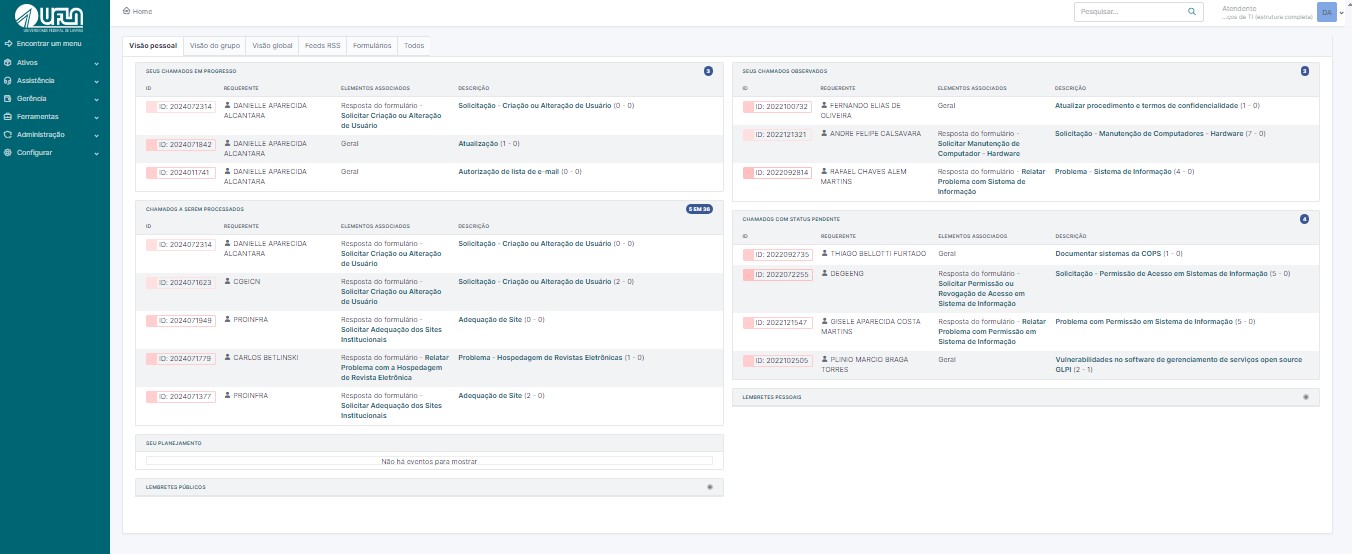
<span style="font-size: 11pt; font-family: Arial,sans-serif; color: #404040; background-color: #fcfcfc; font-weight: 400; font-style: normal; font-variant: normal; text-decoration: none; vertical-align: baseline; white-space: pre-wrap;">Na Figura 1, observa-se a tela inicial com o perfil de atendente, onde, na aba 'Visão Pessoal', é possível identificar os chamados atribuídos. No item destacado em vermelho, </span><span style="font-size: 11pt; font-family: Arial,sans-serif; color: #404040; background-color: #fcfcfc; font-weight: bold; font-style: normal; font-variant: normal; text-decoration: none; vertical-align: baseline; white-space: pre-wrap;">número 1 – Seus Chamados em Progresso</span><span style="font-size: 11pt; font-family: Arial,sans-serif; color: #404040; background-color: #fcfcfc; font-weight: 400; font-style: normal; font-variant: normal; text-decoration: none; vertical-align: baseline; white-space: pre-wrap;">, encontram-se os chamados nos quais você é o solicitante do serviço. No </span><span style="font-size: 11pt; font-family: Arial,sans-serif; color: #404040; background-color: #fcfcfc; font-weight: bold; font-style: normal; font-variant: normal; text-decoration: none; vertical-align: baseline; white-space: pre-wrap;">número 2 – Chamados a Serem Processados</span><span style="font-size: 11pt; font-family: Arial,sans-serif; color: #404040; background-color: #fcfcfc; font-weight: 400; font-style: normal; font-variant: normal; text-decoration: none; vertical-align: baseline; white-space: pre-wrap;">, estão os chamados que foram atribuídos a você para atendimento. No </span><span style="font-size: 11pt; font-family: Arial,sans-serif; color: #404040; background-color: #fcfcfc; font-weight: bold; font-style: normal; font-variant: normal; text-decoration: none; vertical-align: baseline; white-space: pre-wrap;">número 3 – Seu Planejamento</span><span style="font-size: 11pt; font-family: Arial,sans-serif; color: #404040; background-color: #fcfcfc; font-weight: 400; font-style: normal; font-variant: normal; text-decoration: none; vertical-align: baseline; white-space: pre-wrap;">, são listadas as tarefas agendadas para serem realizadas. No </span><span style="font-size: 11pt; font-family: Arial,sans-serif; color: #404040; background-color: #fcfcfc; font-weight: bold; font-style: normal; font-variant: normal; text-decoration: none; vertical-align: baseline; white-space: pre-wrap;">número 4 – Seus Chamados Observados</span><span style="font-size: 11pt; font-family: Arial,sans-serif; color: #404040; background-color: #fcfcfc; font-weight: 400; font-style: normal; font-variant: normal; text-decoration: none; vertical-align: baseline; white-space: pre-wrap;">, estão os chamados em que você foi designado para acompanhar o processo de atendimento. No </span><span style="font-size: 11pt; font-family: Arial,sans-serif; color: #404040; background-color: #fcfcfc; font-weight: bold; font-style: normal; font-variant: normal; text-decoration: none; vertical-align: baseline; white-space: pre-wrap;">número 5 – Chamados com Status Pendente</span><span style="font-size: 11pt; font-family: Arial,sans-serif; color: #404040; background-color: #fcfcfc; font-weight: 400; font-style: normal; font-variant: normal; text-decoration: none; vertical-align: baseline; white-space: pre-wrap;">, estão os chamados que aguardam retorno do solicitante ou a disponibilidade de recursos/materiais para execução..</span>

[![tela inicial.jpg](https://kb.ufla.br/uploads/images/gallery/2024-09/scaled-1680-/Br8YXWttfyrUQ3cI-tela-inicial.jpg)](https://kb.ufla.br/uploads/images/gallery/2024-09/Br8YXWttfyrUQ3cI-tela-inicial.jpg)

<span style="font-size: 10.5pt; font-family: 'Quattrocento Sans',sans-serif; color: #444444; background-color: transparent; font-weight: 400; font-style: normal; font-variant: normal; text-decoration: none; vertical-align: baseline; white-space: pre-wrap;">Figura 1: Tela inicial e identificação</span>

<span style="font-size: 16pt; font-family: Arial,sans-serif; color: #404040; background-color: #fcfcfc; font-weight: 400; font-style: normal; font-variant: normal; text-decoration: none; vertical-align: baseline; white-space: pre-wrap;">4 - Informações de um chamado </span>

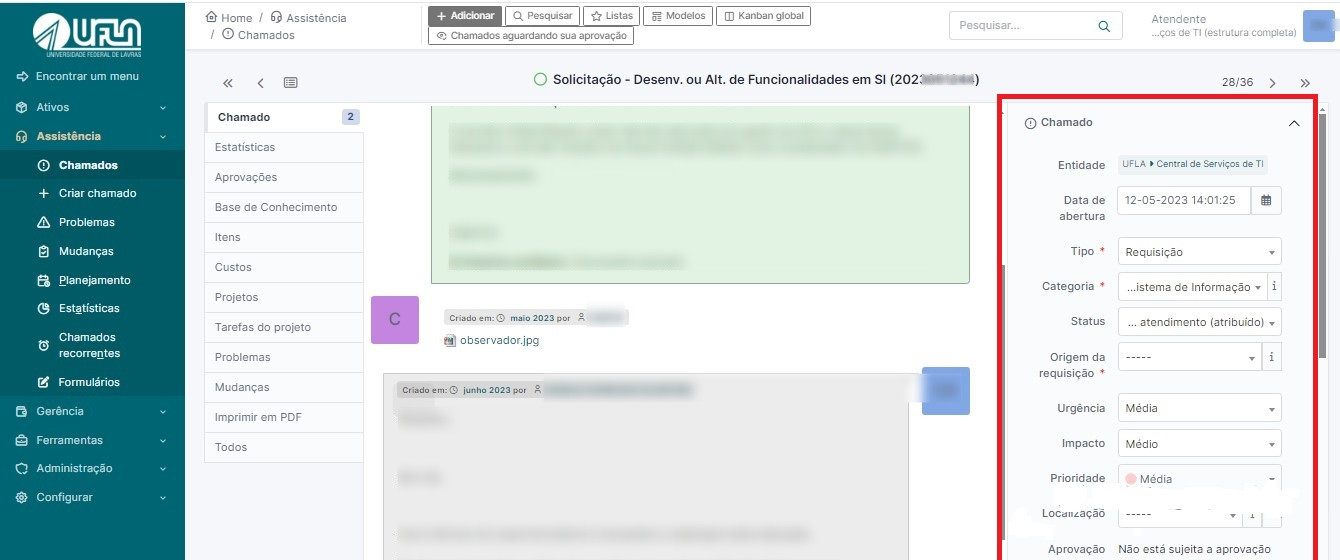
<span style="font-size: 11pt; font-family: Arial,sans-serif; color: #404040; background-color: #fcfcfc; font-weight: 400; font-style: normal; font-variant: normal; text-decoration: none; vertical-align: baseline; white-space: pre-wrap;">Na aba 'Chamado', os atendentes podem editar as informações de um chamado específico enquanto o mesmo não for solucionado, como mostrado em vermelho na figura 2 a seguir. Dois pontos importantes devem ser verificados durante o atendimento dos chamados: </span><span style="font-size: 11pt; font-family: Arial,sans-serif; color: #404040; background-color: #fcfcfc; font-weight: bold; font-style: normal; font-variant: normal; text-decoration: none; vertical-align: baseline; white-space: pre-wrap;">Tipo</span><span style="font-size: 11pt; font-family: Arial,sans-serif; color: #404040; background-color: #fcfcfc; font-weight: 400; font-style: normal; font-variant: normal; text-decoration: none; vertical-align: baseline; white-space: pre-wrap;"> e </span><span style="font-size: 11pt; font-family: Arial,sans-serif; color: #404040; background-color: #fcfcfc; font-weight: bold; font-style: normal; font-variant: normal; text-decoration: none; vertical-align: baseline; white-space: pre-wrap;">Categoria</span><span style="font-size: 11pt; font-family: Arial,sans-serif; color: #404040; background-color: #fcfcfc; font-weight: 400; font-style: normal; font-variant: normal; text-decoration: none; vertical-align: baseline; white-space: pre-wrap;">. Em relação ao Tipo, é necessário confirmar se o tipo do chamado está correto (requisição ou incidente). Vale lembrar que, em chamados do tipo incidente, não é possível solicitar aprovação (validação) do solicitante, pois ele não tem acesso a essa opção. Já em relação à Categoria, é fundamental verificar se a categoria atribuída corresponde ao conteúdo do chamado. Essa verificação é importante para garantir uma catalogação precisa dos chamados, uma vez que eles serão utilizados para a geração de indicadores e métricas de atendimento.</span><span style="font-size: 11pt; font-family: Arial,sans-serif; color: #404040; background-color: #fcfcfc; font-weight: 400; font-style: normal; font-variant: normal; text-decoration: none; vertical-align: baseline; white-space: pre-wrap;">  
</span>

<span style="font-size: 11pt; font-family: Arial,sans-serif; color: #404040; background-color: #fcfcfc; font-weight: 400; font-style: normal; font-variant: normal; text-decoration: none; vertical-align: baseline; white-space: pre-wrap;">[![image-1 (1).jpg](https://kb.ufla.br/uploads/images/gallery/2024-09/scaled-1680-/3QDPjVp8VgI1HC5y-image-1-1.jpg)](https://kb.ufla.br/uploads/images/gallery/2024-09/3QDPjVp8VgI1HC5y-image-1-1.jpg)</span>

<span style="font-size: 10.5pt; font-family: 'Quattrocento Sans',sans-serif; color: #444444; background-color: transparent; font-weight: 400; font-style: normal; font-variant: normal; text-decoration: none; vertical-align: baseline; white-space: pre-wrap;"> </span>

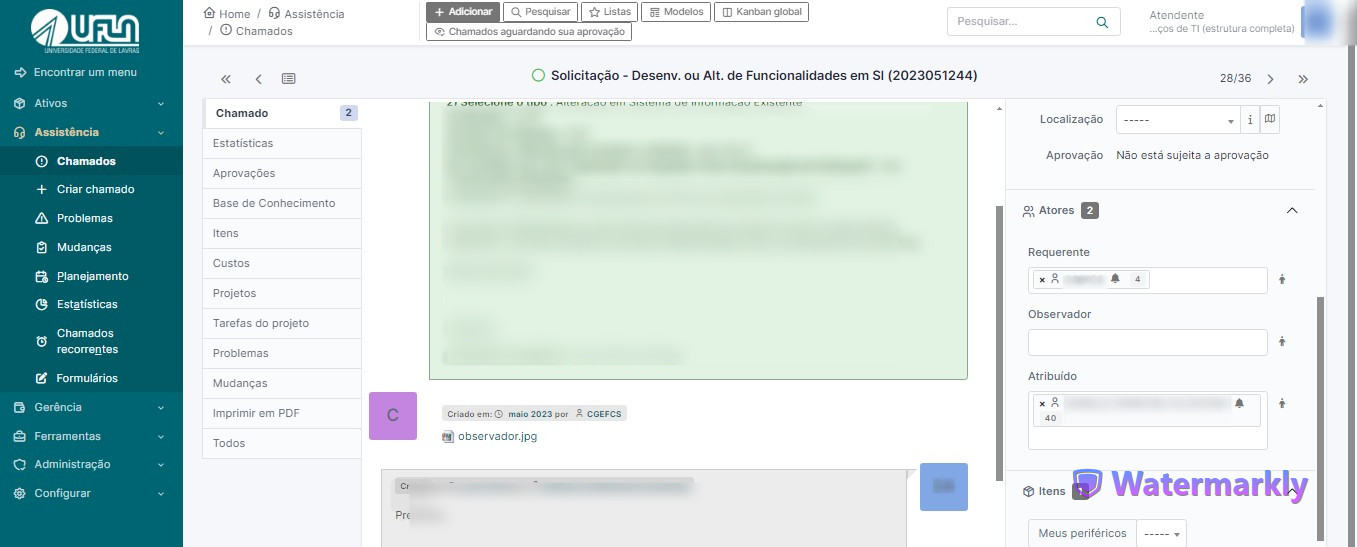
<span style="font-size: 11pt; font-family: Arial,sans-serif; color: #404040; background-color: #fcfcfc; font-weight: 400; font-style: normal; font-variant: normal; text-decoration: none; vertical-align: baseline; white-space: pre-wrap;">É possível atribuir um chamado a um </span><span style="font-size: 11pt; font-family: Arial,sans-serif; color: #404040; background-color: #fcfcfc; font-weight: bold; font-style: normal; font-variant: normal; text-decoration: none; vertical-align: baseline; white-space: pre-wrap;">atendente</span><span style="font-size: 11pt; font-family: Arial,sans-serif; color: #404040; background-color: #fcfcfc; font-weight: 400; font-style: normal; font-variant: normal; text-decoration: none; vertical-align: baseline; white-space: pre-wrap;"> da DGTI utilizando o campo 'Atribuído'. Basta digitar o nome desejado e selecioná-lo assim que aparecer na lista. Para incluir um </span><span style="font-size: 11pt; font-family: Arial,sans-serif; color: #404040; background-color: #fcfcfc; font-weight: bold; font-style: normal; font-variant: normal; text-decoration: none; vertical-align: baseline; white-space: pre-wrap;">observador</span><span style="font-size: 11pt; font-family: Arial,sans-serif; color: #404040; background-color: #fcfcfc; font-weight: 400; font-style: normal; font-variant: normal; text-decoration: none; vertical-align: baseline; white-space: pre-wrap;">, digite o nome no campo correspondente e selecione-o assim que aparecer na lista.</span>

<span style="font-size: 10.5pt; font-family: inherit; color: #444444; background-color: transparent; font-weight: 400; font-style: normal; font-variant: normal; text-decoration: none; vertical-align: baseline; white-space: pre-wrap;"> </span>

[![image-1 (2).jpg](https://kb.ufla.br/uploads/images/gallery/2024-09/scaled-1680-/VgM228bIuNoorr6A-image-1-2.jpg)](https://kb.ufla.br/uploads/images/gallery/2024-09/VgM228bIuNoorr6A-image-1-2.jpg)

<span style="font-size: 11pt; font-family: Arial,sans-serif; color: #ff0000; background-color: #fcfcfc; font-weight: bold; font-style: normal; font-variant: normal; text-decoration: none; vertical-align: baseline; white-space: pre-wrap;">  
</span><span style="font-size: 11pt; font-family: Arial,sans-serif; color: #ff0000; background-color: #fcfcfc; font-weight: bold; font-style: normal; font-variant: normal; text-decoration: none; vertical-align: baseline; white-space: pre-wrap;">IMPORTANTE</span><span style="font-size: 11pt; font-family: Arial,sans-serif; color: #404040; background-color: #fcfcfc; font-weight: 400; font-style: normal; font-variant: normal; text-decoration: none; vertical-align: baseline; white-space: pre-wrap;">: No GLPI, o solicitante é tratado como “Requerente” e o atendente é um “Técnico”.</span>

<span style="font-size: 16pt; font-family: Arial,sans-serif; color: #404040; background-color: #fcfcfc; font-weight: 400; font-style: normal; font-variant: normal; text-decoration: none; vertical-align: baseline; white-space: pre-wrap;">5 - Inserindo notas no chamado </span>

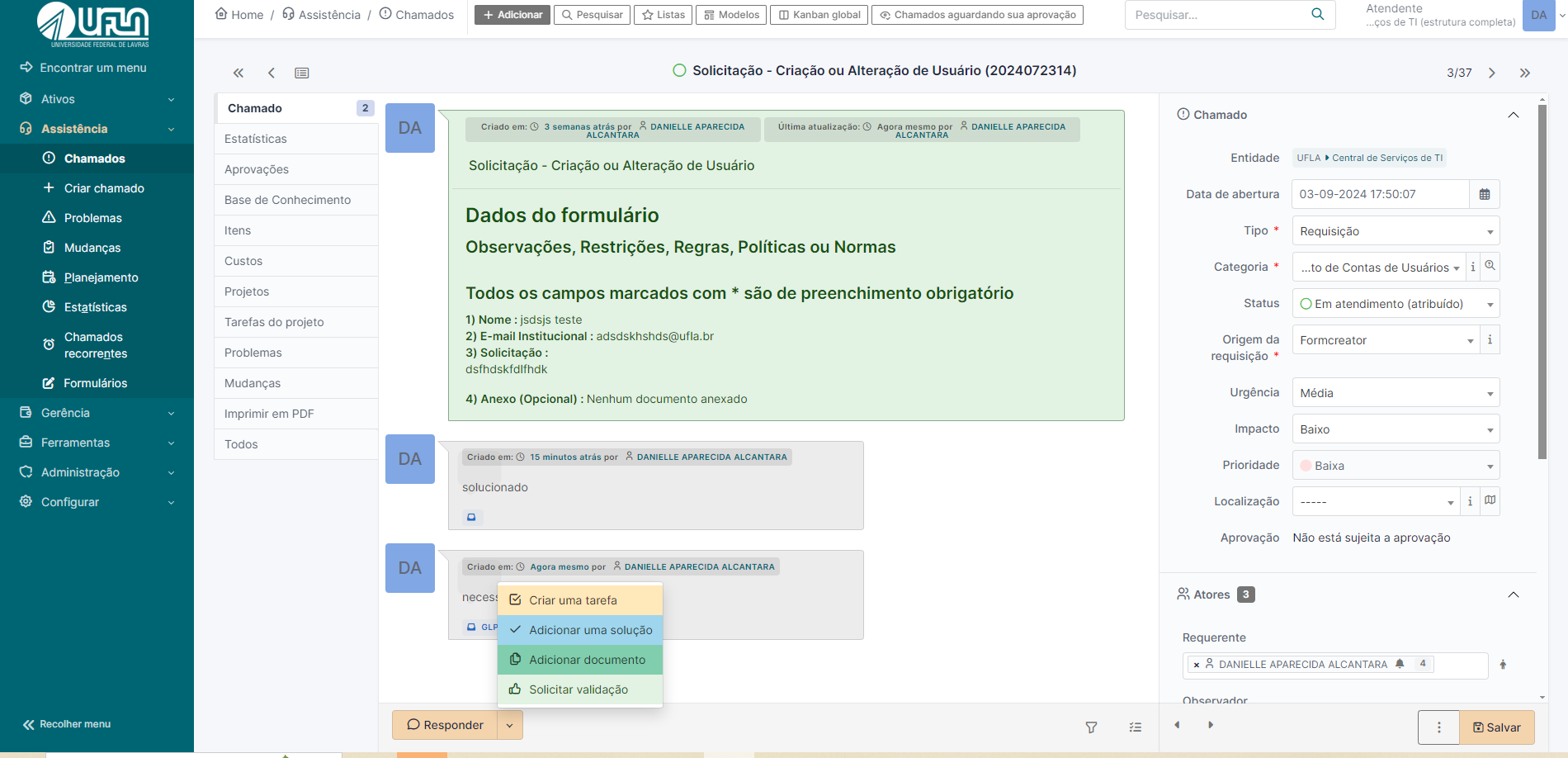
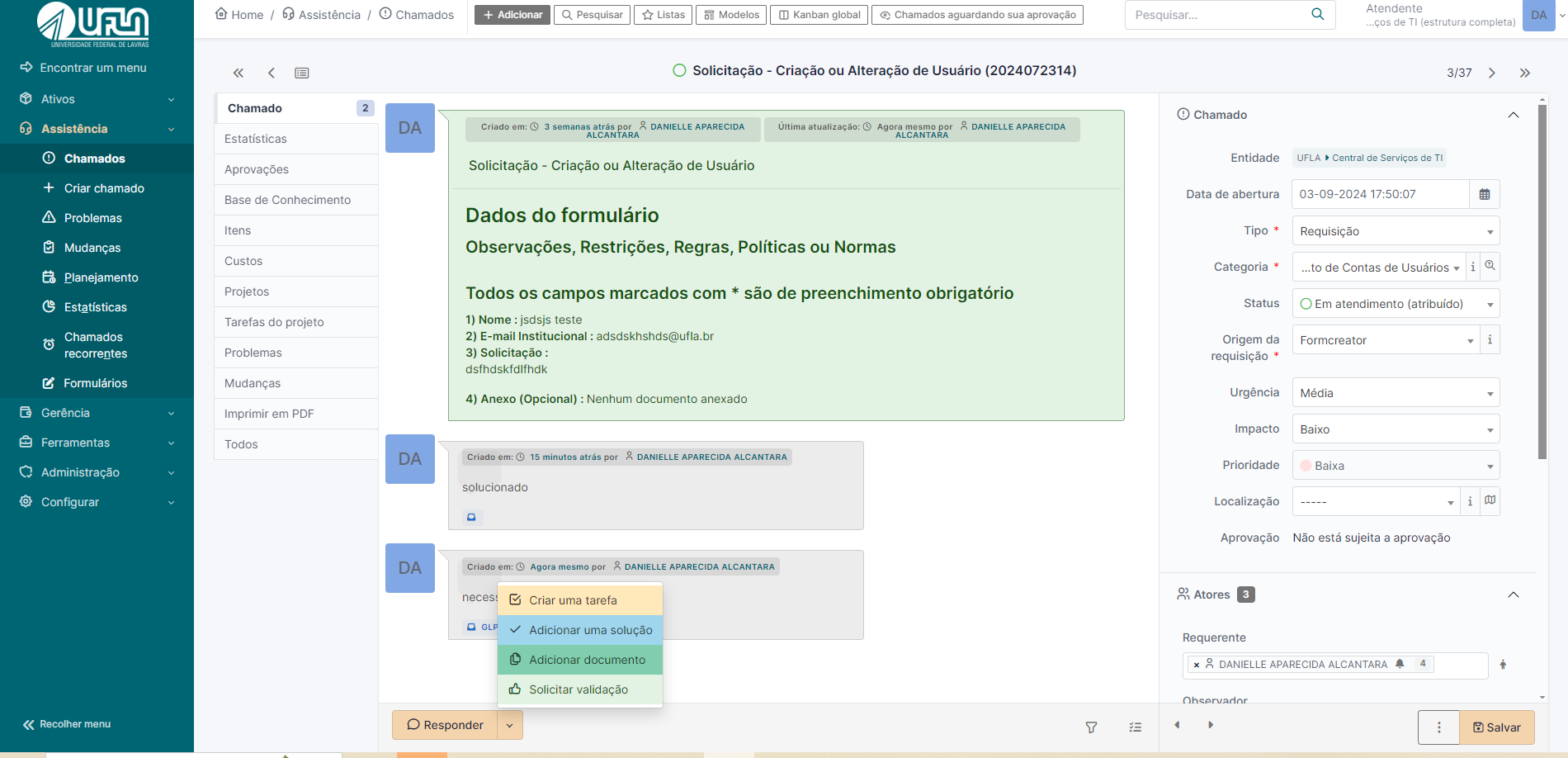
<span style="font-size: 11pt; font-family: Arial,sans-serif; color: #404040; background-color: #fcfcfc; font-weight: 400; font-style: normal; font-variant: normal; text-decoration: none; vertical-align: baseline; white-space: pre-wrap;">Na aba “Chamado” é onde são registradas as ações de gerenciamento e movimentação realizadas. Nesta seção podem ser inseridos os acompanhamentos que podem ser 'criar uma tarefa', 'adicionar uma solução', 'adicionar um documento' ou 'solicitar validação'.</span>

<span style="font-size: 11pt; font-family: Arial,sans-serif; color: #404040; background-color: #fcfcfc; font-weight: 400; font-style: normal; font-variant: normal; text-decoration: none; vertical-align: baseline; white-space: pre-wrap;">A inclusão desses acompanhamentos é altamente recomendada, pois promove maior transparência no processo e mantém o solicitante informado sobre o andamento da demanda."</span>

<span style="font-size: 10.5pt; font-family: inherit; color: #444444; background-color: transparent; font-weight: 400; font-style: normal; font-variant: normal; text-decoration: none; vertical-align: baseline; white-space: pre-wrap;"> </span>

[![opções da acompanhamento.png](https://kb.ufla.br/uploads/images/gallery/2024-09/scaled-1680-/FpzUNzocdw6CHM0d-opcoes-da-acompanhamento.png)](https://kb.ufla.br/uploads/images/gallery/2024-09/FpzUNzocdw6CHM0d-opcoes-da-acompanhamento.png)

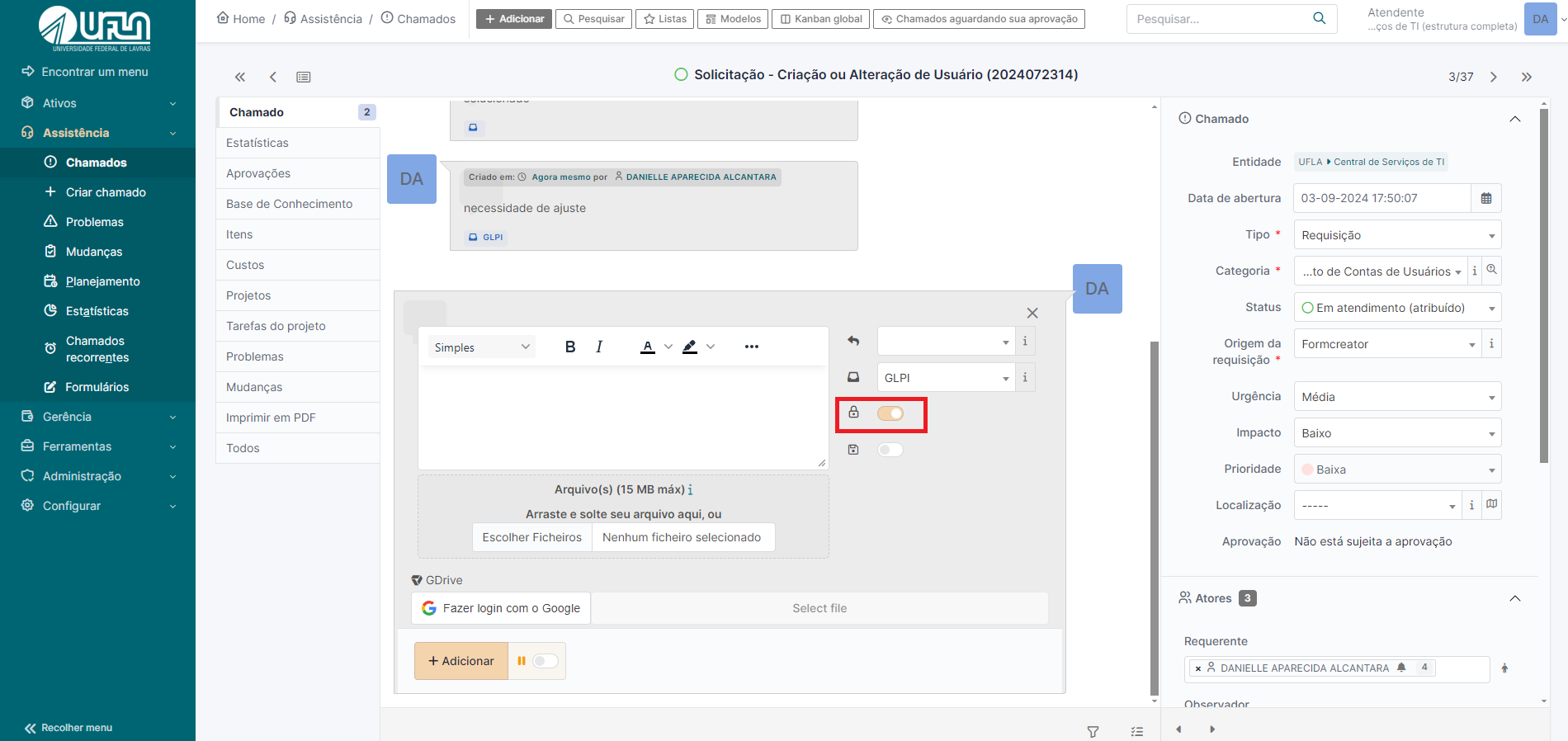
<span style="font-size: 11pt; font-family: Arial,sans-serif; color: #404040; background-color: #fcfcfc; font-weight: 400; font-style: normal; font-variant: normal; text-decoration: none; vertical-align: baseline; white-space: pre-wrap;">Para exibir nota de acompanhamento somente para os atendentes é necessário marcar o </span><span style="font-size: 11pt; font-family: Arial,sans-serif; color: #404040; background-color: #fcfcfc; font-weight: bold; font-style: normal; font-variant: normal; text-decoration: none; vertical-align: baseline; white-space: pre-wrap;">ícone de cadeado</span><span style="font-size: 11pt; font-family: Arial,sans-serif; color: #404040; background-color: #fcfcfc; font-weight: 400; font-style: normal; font-variant: normal; text-decoration: none; vertical-align: baseline; white-space: pre-wrap;"> no formulário de cadastro de notas de acompanhamento, conforme na imagem a seguir:</span>

<span style="font-size: 10.5pt; font-family: inherit; color: #444444; background-color: transparent; font-weight: 400; font-style: normal; font-variant: normal; text-decoration: none; vertical-align: baseline; white-space: pre-wrap;"> </span>

[![mensagem privada.png](https://kb.ufla.br/uploads/images/gallery/2024-09/scaled-1680-/KRzXllBtIleRyZwC-mensagem-privada.png)](https://kb.ufla.br/uploads/images/gallery/2024-09/KRzXllBtIleRyZwC-mensagem-privada.png)

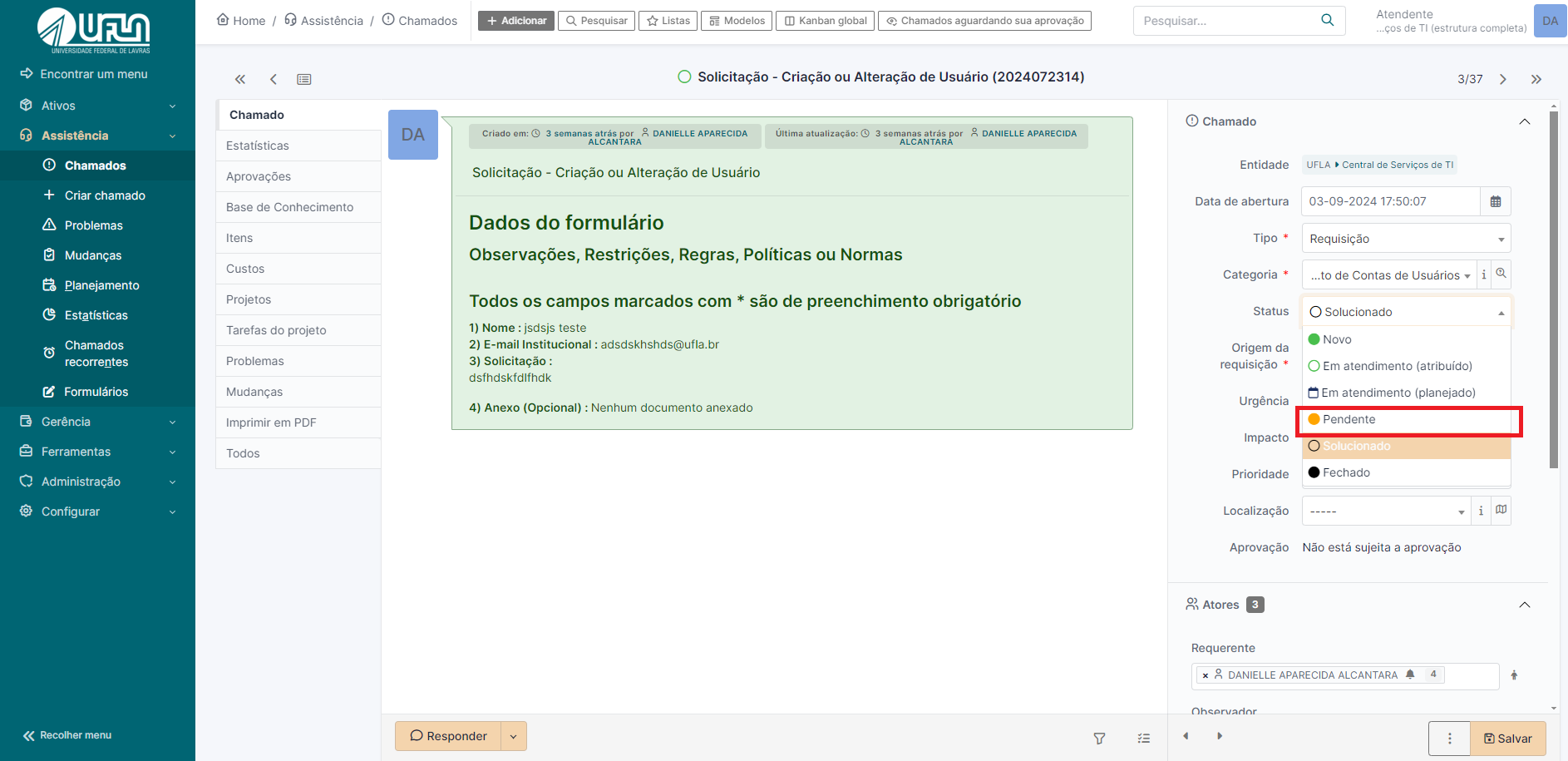
<span style="font-size: 11pt; font-family: Arial,sans-serif; color: #404040; background-color: #fcfcfc; font-weight: 400; font-style: normal; font-variant: normal; text-decoration: none; vertical-align: baseline; white-space: pre-wrap;">Se for necessário marcar o chamado como 'Pendente' a partir de um acompanhamento, basta selecionar a opção 'Pendente' ao salvar o formulário. O chamado retornará automaticamente para o status de atribuído ao técnico assim que o solicitante registrar uma nova nota \*ou iteração”, desde que o status esteja como 'Pendente'. Recomenda-se atribuir esse status quando houver falta de material ou quando for necessário aguardar um retorno ou informação adicional do solicitante. Veja a imagem a seguir para mais detalhes.</span>

<span style="font-size: 10.5pt; font-family: inherit; color: #444444; background-color: transparent; font-weight: 400; font-style: normal; font-variant: normal; text-decoration: none; vertical-align: baseline; white-space: pre-wrap;"> </span>

[![status pendente.png](https://kb.ufla.br/uploads/images/gallery/2024-09/scaled-1680-/Lcn31RMZEFu0ejhj-status-pendente.png)](https://kb.ufla.br/uploads/images/gallery/2024-09/Lcn31RMZEFu0ejhj-status-pendente.png)

<span style="font-size: 10.5pt; font-family: inherit; color: #444444; background-color: transparent; font-weight: 400; font-style: normal; font-variant: normal; text-decoration: none; vertical-align: baseline; white-space: pre-wrap;"> </span>

<span style="font-size: 16pt; font-family: Arial,sans-serif; color: #404040; background-color: #fcfcfc; font-weight: 400; font-style: normal; font-variant: normal; text-decoration: none; vertical-align: baseline; white-space: pre-wrap;">6 - Pedindo aprovação para atender chamado  
  
</span>

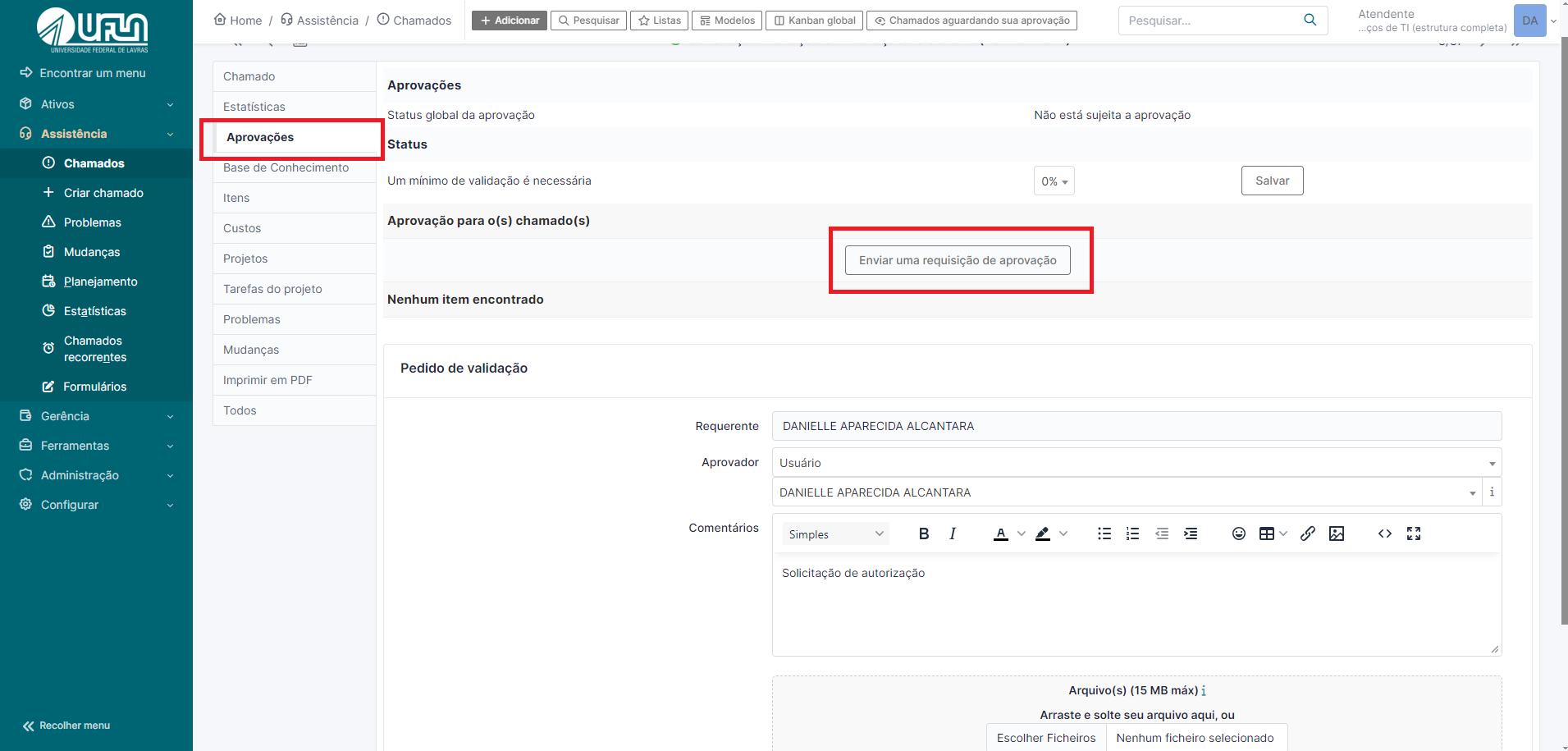
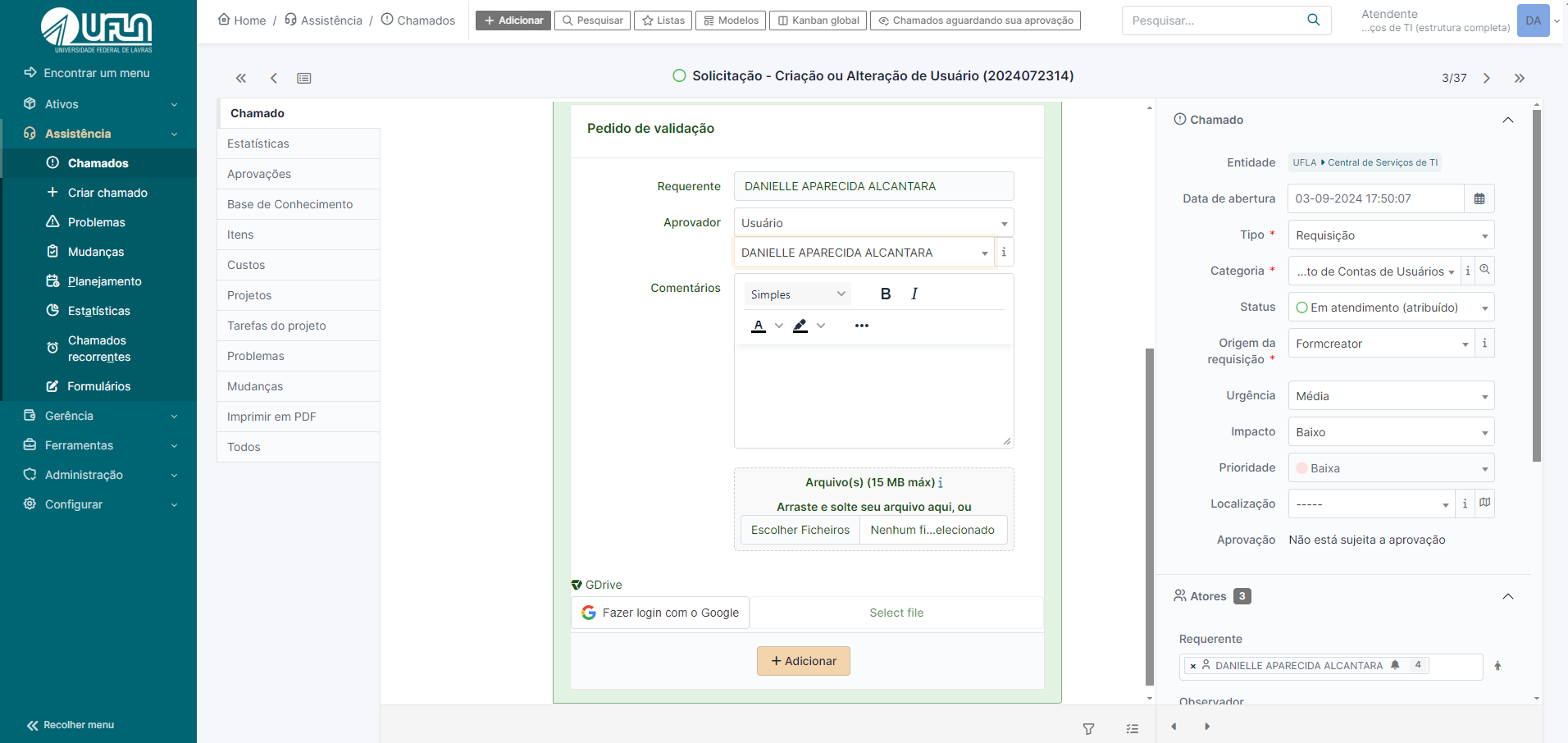
<span style="font-size: 11pt; font-family: Arial,sans-serif; color: #404040; background-color: #fcfcfc; font-weight: 400; font-style: normal; font-variant: normal; text-decoration: none; vertical-align: baseline; white-space: pre-wrap;">Há situações em que é necessário pedir a alguém a validação para atender um chamado, seja chefia, um interessado, ou uma pessoa específica para aprovação. Dessa forma é possível enviar pedidos de aprovação por meio do GLPI, na seção “Aprovações”, conforme ilustra a imagem a seguir. Pode ser informado mais de uma pessoa para aprovação e selecionar qualquer pessoa da UFLA.</span>

<span style="font-size: 11pt; font-family: Arial,sans-serif; color: #404040; background-color: #fcfcfc; font-weight: 400; font-style: normal; font-variant: normal; text-decoration: none; vertical-align: baseline; white-space: pre-wrap;">Primeira opção</span>

1. <span style="font-size: 11pt; font-family: Arial,sans-serif; color: #404040; background-color: #fcfcfc; font-weight: 400; font-style: normal; font-variant: normal; text-decoration: none; vertical-align: baseline; white-space: pre-wrap;">Clicar na aba aprovação</span>
2. <span style="font-size: 11pt; font-family: Arial,sans-serif; color: #404040; background-color: #fcfcfc; font-weight: 400; font-style: normal; font-variant: normal; text-decoration: none; vertical-align: baseline; white-space: pre-wrap;">Clicar em enviar uma requisição de aprovação</span>
3. <span style="font-size: 11pt; font-family: Arial,sans-serif; color: #404040; background-color: #fcfcfc; font-weight: 400; font-style: normal; font-variant: normal; text-decoration: none; vertical-align: baseline; white-space: pre-wrap;">Em aprovador, selecionar o tipo</span>
4. <span style="font-size: 11pt; font-family: Arial,sans-serif; color: #404040; background-color: #fcfcfc; font-weight: 400; font-style: normal; font-variant: normal; text-decoration: none; vertical-align: baseline; white-space: pre-wrap;">Selecionar usuário do qual necessita-se da autorização;</span>
5. <span style="font-size: 11pt; font-family: Arial,sans-serif; color: #404040; background-color: #fcfcfc; font-weight: 400; font-style: normal; font-variant: normal; text-decoration: none; vertical-align: baseline; white-space: pre-wrap;">Clicar em adicionar</span>

[![aprovação 1 forma.png](https://kb.ufla.br/uploads/images/gallery/2024-09/scaled-1680-/L43EypaI3ESjt8S0-aprovacao-1-forma.png)](https://kb.ufla.br/uploads/images/gallery/2024-09/L43EypaI3ESjt8S0-aprovacao-1-forma.png)

<span style="font-size: 11pt; font-family: Arial,sans-serif; color: #404040; background-color: #fcfcfc; font-weight: 400; font-style: normal; font-variant: normal; text-decoration: none; vertical-align: baseline; white-space: pre-wrap;">Segunda opção</span>

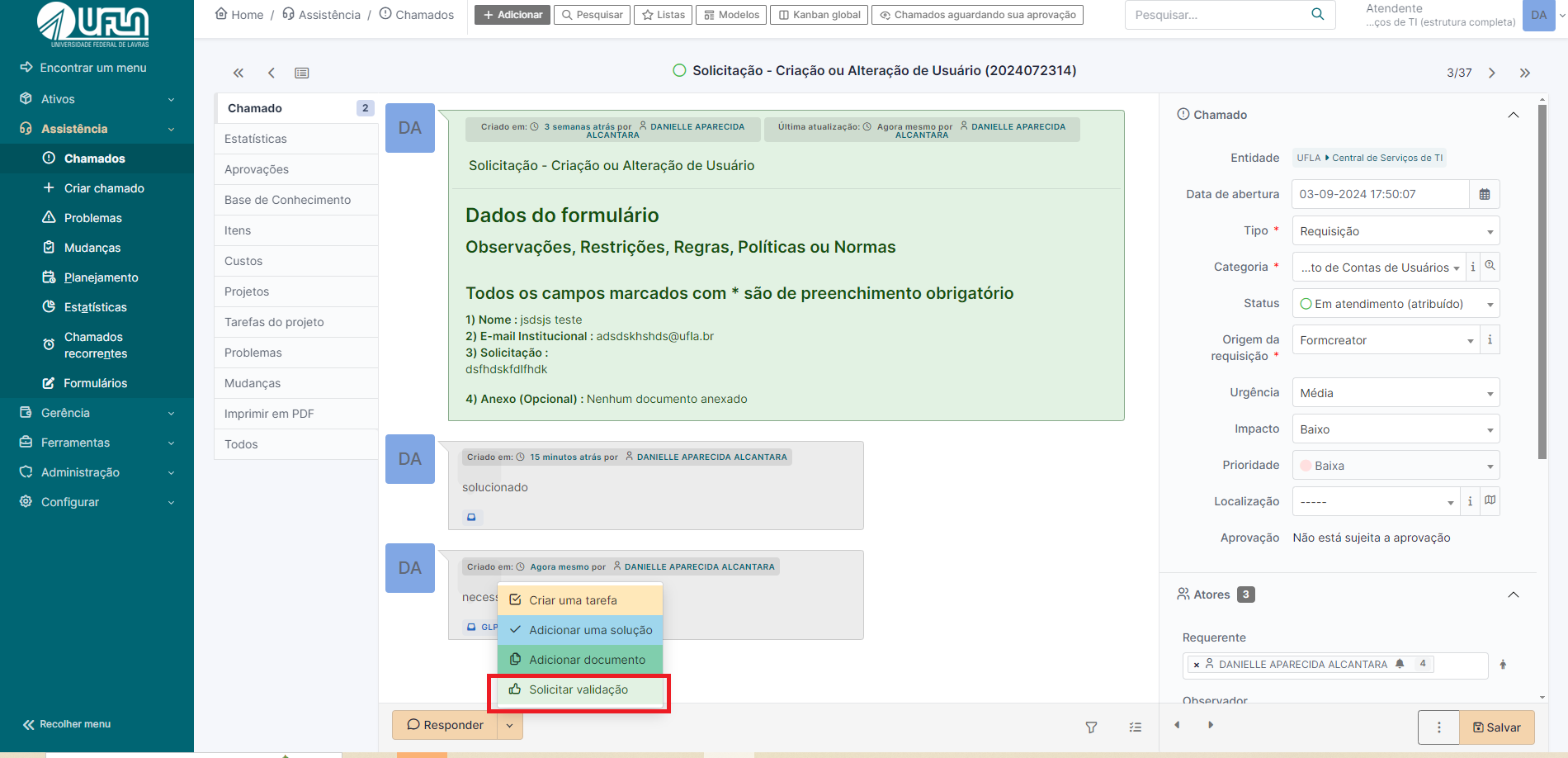
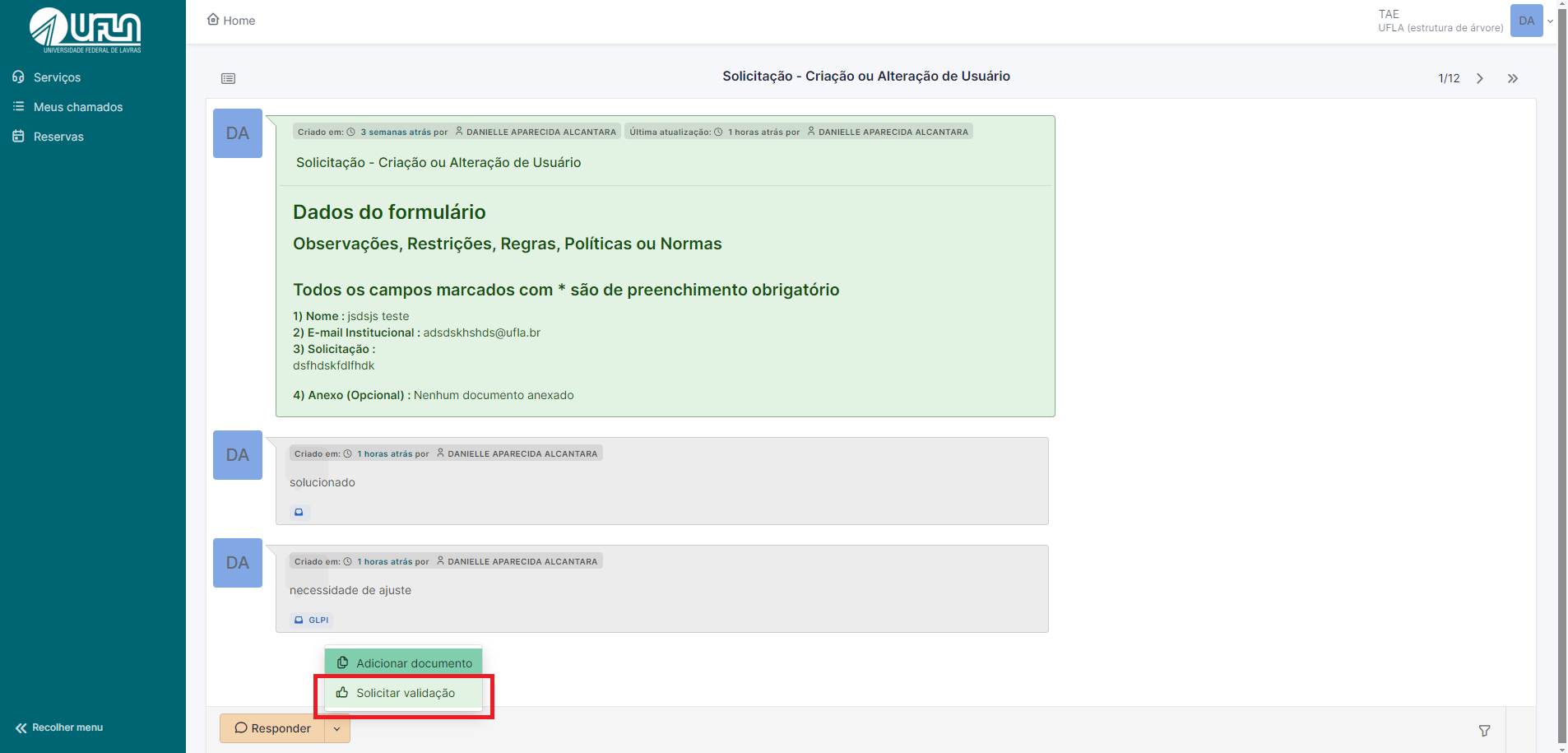
1. <span style="font-size: 11pt; font-family: Arial,sans-serif; color: #404040; background-color: #fcfcfc; font-weight: 400; font-style: normal; font-variant: normal; text-decoration: none; vertical-align: baseline; white-space: pre-wrap;">Na aba chamado, em responder clicar na seta.</span>
2. <span style="font-size: 11pt; font-family: Arial,sans-serif; color: #404040; background-color: #fcfcfc; font-weight: 400; font-style: normal; font-variant: normal; text-decoration: none; vertical-align: baseline; white-space: pre-wrap;">Clicar em solicitar validação</span>

[![opções da acompanhamento valida.png](https://kb.ufla.br/uploads/images/gallery/2024-09/scaled-1680-/3GKjOEbvKvPwWJ8J-opcoes-da-acompanhamento-valida.png)](https://kb.ufla.br/uploads/images/gallery/2024-09/3GKjOEbvKvPwWJ8J-opcoes-da-acompanhamento-valida.png)

<span style="font-size: 11pt; font-family: Arial,sans-serif; color: #404040; background-color: #fcfcfc; font-weight: 400; font-style: normal; font-variant: normal; text-decoration: none; vertical-align: baseline; white-space: pre-wrap;"> 6 .Em aprovador, selecionar o tipo</span>

<span style="font-size: 11pt; font-family: Arial,sans-serif; color: #404040; background-color: #fcfcfc; font-weight: 400; font-style: normal; font-variant: normal; text-decoration: none; vertical-align: baseline; white-space: pre-wrap;"> 7.Selecionar usuário do qual necessita-se da autorização;</span>

<span style="font-size: 11pt; font-family: Arial,sans-serif; color: #404040; background-color: #fcfcfc; font-weight: 400; font-style: normal; font-variant: normal; text-decoration: none; vertical-align: baseline; white-space: pre-wrap;"> 8.Clicar em adicionar</span>

[![validação com perfil de atendente.png](https://kb.ufla.br/uploads/images/gallery/2024-09/scaled-1680-/WKM7oPdu0FvPf5LD-validacao-com-perfil-de-atendente.png)](https://kb.ufla.br/uploads/images/gallery/2024-09/WKM7oPdu0FvPf5LD-validacao-com-perfil-de-atendente.png)

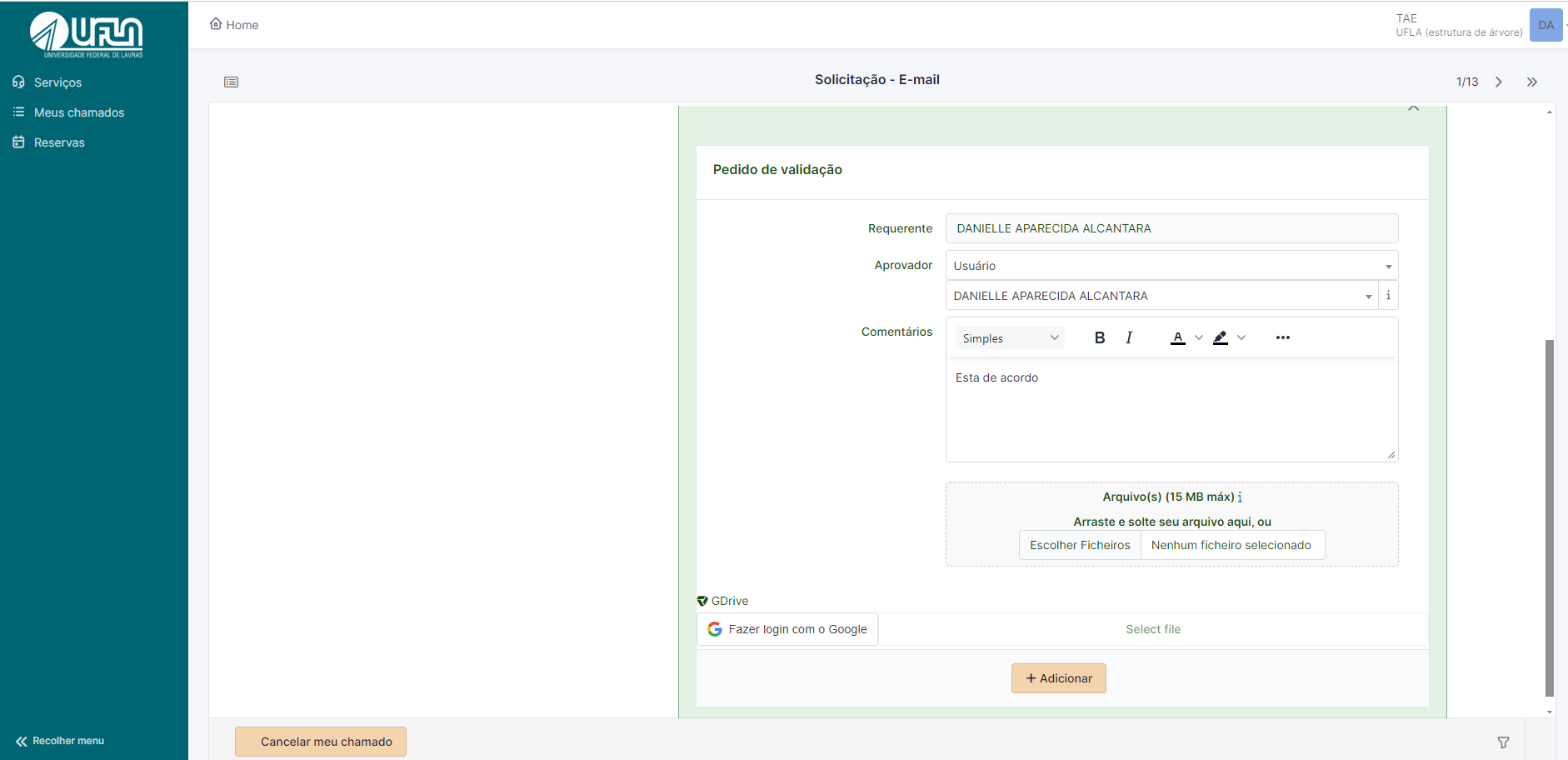
<span style="font-size: 11pt; font-family: Arial,sans-serif; color: #404040; background-color: #fcfcfc; font-weight: 400; font-style: normal; font-variant: normal; text-decoration: none; vertical-align: baseline; white-space: pre-wrap;">Solicitar aprovação com o perfil de solicitante (requisitante)</span>

1. <span style="font-size: 11pt; font-family: Arial,sans-serif; color: #404040; background-color: #fcfcfc; font-weight: 400; font-style: normal; font-variant: normal; text-decoration: none; vertical-align: baseline; white-space: pre-wrap;"> Ao acessar o chamado, em responder clicar na seta.</span>

[![tela 1.png](https://kb.ufla.br/uploads/images/gallery/2024-09/scaled-1680-/Ti9FTSDZszvl0BkW-tela-1.png)](https://kb.ufla.br/uploads/images/gallery/2024-09/Ti9FTSDZszvl0BkW-tela-1.png)

<span style="font-size: 11pt; font-family: Arial,sans-serif; color: #404040; background-color: #fcfcfc; font-weight: 400; font-style: normal; font-variant: normal; text-decoration: none; vertical-align: baseline; white-space: pre-wrap;"> 2.Em aprovador, selecionar o tipo</span>

<span style="font-size: 11pt; font-family: Arial,sans-serif; color: #404040; background-color: #fcfcfc; font-weight: 400; font-style: normal; font-variant: normal; text-decoration: none; vertical-align: baseline; white-space: pre-wrap;"> 3. Selecionar usuário do qual necessita-se da autorização; </span>

<span style="font-size: 11pt; font-family: Arial,sans-serif; color: #404040; background-color: #fcfcfc; font-weight: 400; font-style: normal; font-variant: normal; text-decoration: none; vertical-align: baseline; white-space: pre-wrap;"> 4.Clicar em adicionar</span>

<span style="font-size: 11pt; font-family: Arial,sans-serif; color: #404040; background-color: #fcfcfc; font-weight: 400; font-style: normal; font-variant: normal; text-decoration: none; vertical-align: baseline; white-space: pre-wrap;">[![requisitação solicita aprovação.png](https://kb.ufla.br/uploads/images/gallery/2024-09/scaled-1680-/TeYv0b7hYQMnw5HY-requisitacao-solicita-aprovacao.png)](https://kb.ufla.br/uploads/images/gallery/2024-09/TeYv0b7hYQMnw5HY-requisitacao-solicita-aprovacao.png)  
  
</span>

<span style="font-size: 16pt; font-family: Arial,sans-serif; color: #404040; background-color: #fcfcfc; font-weight: 400; font-style: normal; font-variant: normal; text-decoration: none; vertical-align: baseline; white-space: pre-wrap;">7 - Solucionando um chamado</span>

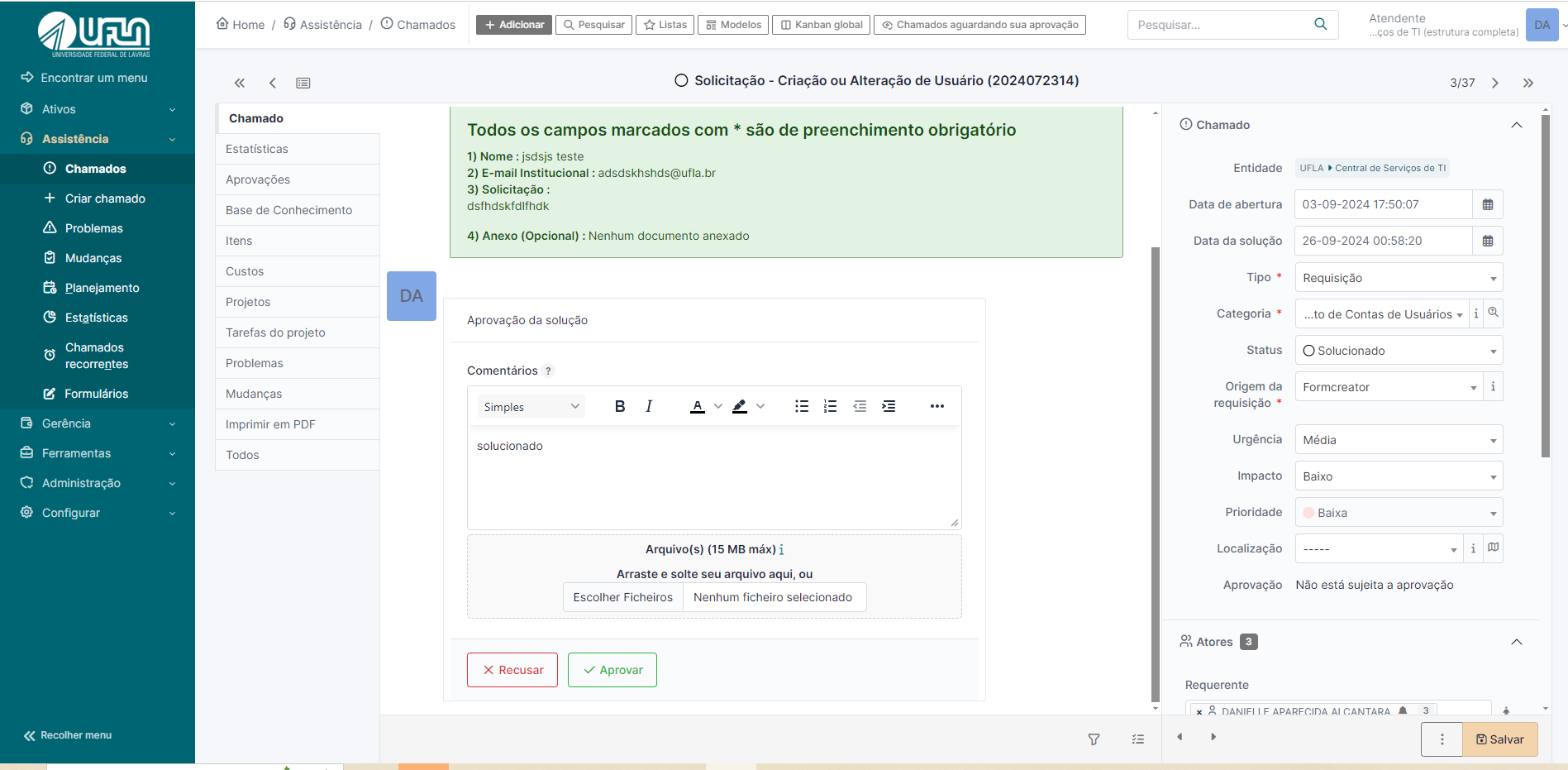
<span style="font-size: 11pt; font-family: Arial,sans-serif; color: #404040; background-color: #fcfcfc; font-weight: 400; font-style: normal; font-variant: normal; text-decoration: none; vertical-align: baseline; white-space: pre-wrap;">Para solucionar um chamado é necessário que o mesmo esteja atribuido a um técnico, veja na imagem a seguir. Além disso é necessário acionar a opção "Solucionado" e clicar em salvar</span>

[![solução do chamado.png](https://kb.ufla.br/uploads/images/gallery/2024-09/scaled-1680-/0FHDbD6XTbUi5Mge-solucao-do-chamado.png)](https://kb.ufla.br/uploads/images/gallery/2024-09/0FHDbD6XTbUi5Mge-solucao-do-chamado.png)

<span style="font-size: 10.5pt; font-family: inherit; color: #444444; background-color: transparent; font-weight: 400; font-style: normal; font-variant: normal; text-decoration: none; vertical-align: baseline; white-space: pre-wrap;"> </span>

<span style="font-size: 11pt; font-family: Arial,sans-serif; color: #404040; background-color: #fcfcfc; font-weight: 400; font-style: normal; font-variant: normal; text-decoration: none; vertical-align: baseline; white-space: pre-wrap;">Em geral, a solução de um chamado deve ser feita pela equipe da Coordenadoria de Operação e Segurança da Informação (COSI). Em vez de inserir uma nota de solução no chamado do GLPI, insira nota de acompanhamento e retorne o respectivo chamado para a última pessoa da COSI que o encaminhou. Caso seja necessário, insira uma nota de acompanhamento, pública, para o solicitante e uma nota de acompanhamento, privada, para a COSI. Desta forma, o solicitante terá conhecimento da solução por meio da nota de acompanhamento pública. A equipe COSI ficará responsável por inserir a nota de solução do chamado. </span>

<span style="font-size: 11pt; font-family: Arial,sans-serif; color: #404040; background-color: #fcfcfc; font-weight: 400; font-style: normal; font-variant: normal; text-decoration: none; vertical-align: baseline; white-space: pre-wrap;">O chamado pode ser solucionado se julgar que não é necessário retorná-lo para COSI, pois o intuito deste procedimento é manter a equipe de operação, minimamente, informada das mudanças implementadas nos serviços de TI, sem prejudicar a notificação de solução ao solicitante. Mudanças são as alterações em, mas não se limitando a estas: regras de negócios, permissões de acesso, domínios, servidores, estrutura de página, inclusão de grupo de usuários, relatórios e procedimentos de operação.</span>

<span style="font-size: 16pt; font-family: Arial,sans-serif; color: #404040; background-color: #fcfcfc; font-weight: 400; font-style: normal; font-variant: normal; text-decoration: none; vertical-align: baseline; white-space: pre-wrap;">8 - Enviando tarefas para um colega, a partir de um chamado</span>

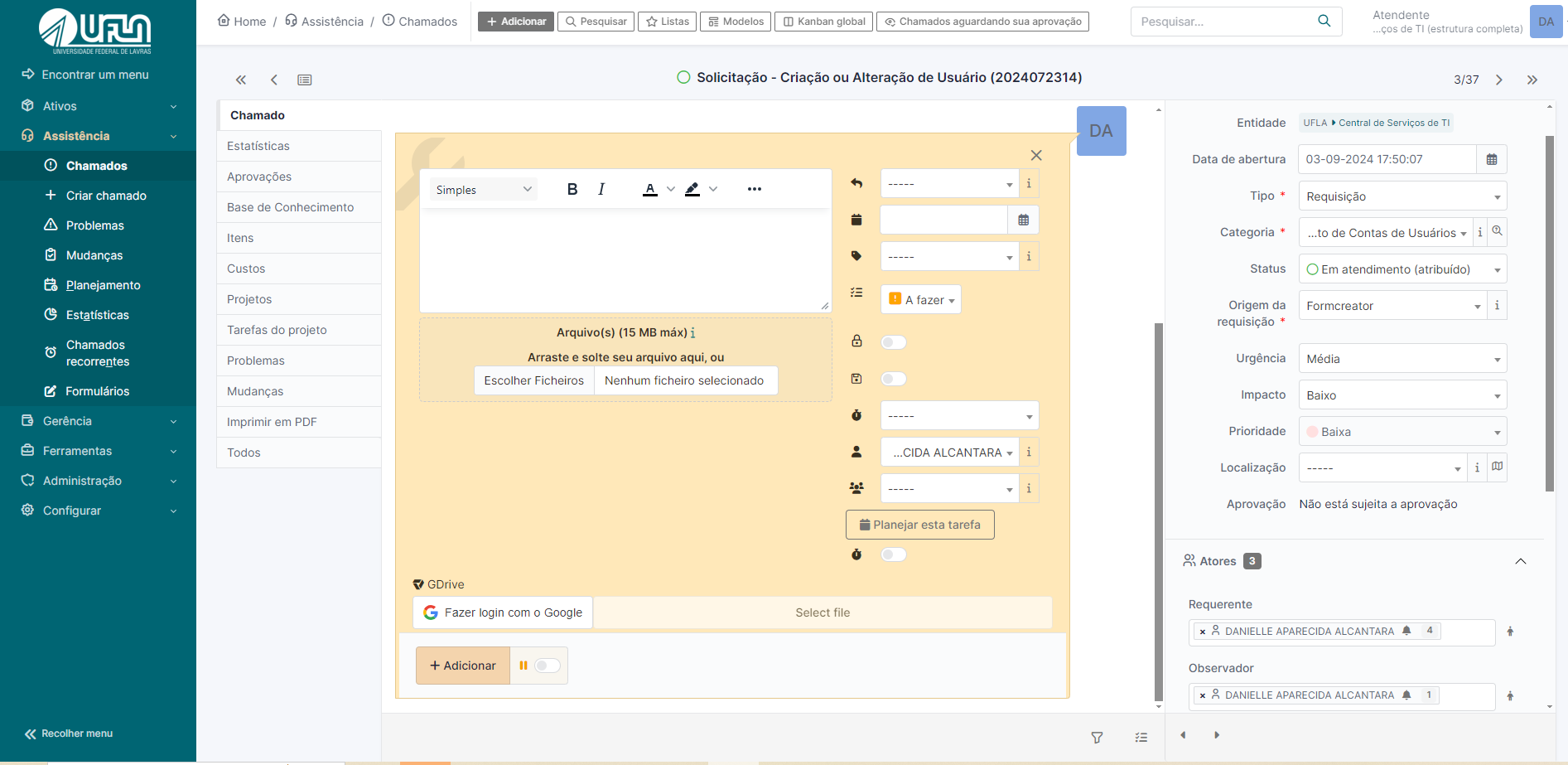
<span style="font-size: 11pt; font-family: Arial,sans-serif; color: #404040; background-color: #fcfcfc; font-weight: 400; font-style: normal; font-variant: normal; text-decoration: none; vertical-align: baseline; white-space: pre-wrap;">Quando lhe for atribuído um chamado cuja solução necessita de uma pequena intervenção de um colega, você pode criar uma tarefa para essa pessoa em vez de lhe atribuir o chamado. A tarefa funciona como um chamado, mas está num chamado específico. A imagem a seguir ilustra a opção para criação de tarefa em um chamado:</span>

<span style="font-size: 11pt; font-family: Arial,sans-serif; color: #404040; background-color: #fcfcfc; font-weight: 400; font-style: normal; font-variant: normal; text-decoration: none; vertical-align: baseline; white-space: pre-wrap;"> 1. Em responder, na seta clicar em ‘criar tarefa’</span>

[![opções da acompanhamento.png](https://kb.ufla.br/uploads/images/gallery/2024-09/scaled-1680-/zZXu3TWI2rMg2LJm-opcoes-da-acompanhamento.png)](https://kb.ufla.br/uploads/images/gallery/2024-09/zZXu3TWI2rMg2LJm-opcoes-da-acompanhamento.png)

<span style="font-size: 11pt; font-family: Arial,sans-serif; color: #404040; background-color: #fcfcfc; font-weight: 400; font-style: normal; font-variant: normal; text-decoration: none; vertical-align: baseline; white-space: pre-wrap;"> 2. Selecionar descrever a tarefa e selecionar o técnico ao será designada. </span>

<span style="font-size: 11pt; font-family: Arial,sans-serif; color: #404040; background-color: #fcfcfc; font-weight: 400; font-style: normal; font-variant: normal; text-decoration: none; vertical-align: baseline; white-space: pre-wrap;"> 3.</span><span style="font-size: 11pt; font-family: Arial,sans-serif; color: #404040; background-color: #fcfcfc; font-weight: 400; font-style: normal; font-variant: normal; text-decoration: none; vertical-align: baseline; white-space: pre-wrap;">Caso, seja uma tarefa na qual o requisitante não deve ter acesso, marque a opção do cadeado</span>

<span style="font-size: 10.5pt; font-family: inherit; color: #444444; background-color: transparent; font-weight: 400; font-style: normal; font-variant: normal; text-decoration: none; vertical-align: baseline; white-space: pre-wrap;"> </span>

[![criação de tarefa.png](https://kb.ufla.br/uploads/images/gallery/2024-09/scaled-1680-/gX3u02HQYMAAxZHH-criacao-de-tarefa.png)](https://kb.ufla.br/uploads/images/gallery/2024-09/gX3u02HQYMAAxZHH-criacao-de-tarefa.png)

<span style="font-size: 10.5pt; font-family: inherit; color: #444444; background-color: transparent; font-weight: 400; font-style: normal; font-variant: normal; text-decoration: none; vertical-align: baseline; white-space: pre-wrap;"> </span>

<span style="font-size: 11pt; font-family: Arial,sans-serif; color: #404040; background-color: #fcfcfc; font-weight: 400; font-style: normal; font-variant: normal; text-decoration: none; vertical-align: baseline; white-space: pre-wrap;">Como mencionado anteriormente, as tarefas são exibidas na seção “Tarefas de chamado para fazer” da página inicial do GLPI.</span>

<span style="font-size: 11pt; font-family: Arial,sans-serif; color: #404040; background-color: #fcfcfc; font-weight: 400; font-style: normal; font-variant: normal; text-decoration: none; vertical-align: baseline; white-space: pre-wrap;">Consideremos que um técnico receba um chamado no GLPI solicitando a manutenção de um computador, em que será necessário trocar peças, entretanto a aquisição de peças é com outro técnico. Nesse contexto, o técnico cria uma tarefa no chamado e atribui ao outro técnico responsável por fazer a aquisição. Recomenda-se que o estado da tarefa seja “A FAZER”. </span>

<span style="font-size: 11pt; font-family: Arial,sans-serif; color: #404040; background-color: #fcfcfc; font-weight: 400; font-style: normal; font-variant: normal; text-decoration: none; vertical-align: baseline; white-space: pre-wrap;">O técnico conclui a tarefa clicando na “caixa de seleção” referente à tarefa ou selecionando a opção “FEITO” no estado da tarefa, no modo de edição da respectiva tarefa.</span>

<span style="font-size: 10.5pt; font-family: inherit; color: #444444; background-color: transparent; font-weight: 400; font-style: normal; font-variant: normal; text-decoration: none; vertical-align: baseline; white-space: pre-wrap;"> </span>

[![tarefa feita.png](https://kb.ufla.br/uploads/images/gallery/2024-09/scaled-1680-/3lM2RDKzvJTPJHP7-tarefa-feita.png)](https://kb.ufla.br/uploads/images/gallery/2024-09/3lM2RDKzvJTPJHP7-tarefa-feita.png)

<span style="font-size: 10.5pt; font-family: 'Quattrocento Sans',sans-serif; color: #444444; background-color: transparent; font-weight: 400; font-style: normal; font-variant: normal; text-decoration: none; vertical-align: baseline; white-space: pre-wrap;"> </span>

<span style="font-size: 11pt; font-family: Arial,sans-serif; color: #404040; background-color: #fcfcfc; font-weight: 400; font-style: normal; font-variant: normal; text-decoration: none; vertical-align: baseline; white-space: pre-wrap;">Quando o técnico acessa a tarefa no modo edição, que está atribuída para ele, é possível acionar um contador de tempo que vai registrar o tempo gasto para atender aquela tarefa. A contagem do tempo de empenho na tarefa inicia quando o botão "verde" é acionado. O sistema aciona um cronômetro após iniciar a tarefa. </span>

<span style="font-size: 11pt; font-family: Arial,sans-serif; color: #404040; background-color: #fcfcfc; font-weight: 400; font-style: normal; font-variant: normal; text-decoration: none; vertical-align: baseline; white-space: pre-wrap;">Vale ressaltar que o GLPI permite acionar somente uma tarefa por vez. Com isso, para trabalhar em uma segunda tarefa é necessário “PAUSAR” a primeira e em seguida “INICIAR” a segunda tarefa. A tarefa é concluída ao clicar na opção “FEITO”.</span>

<span style="font-size: 10.5pt; font-family: inherit; color: #444444; background-color: transparent; font-weight: 400; font-style: normal; font-variant: normal; text-decoration: none; vertical-align: baseline; white-space: pre-wrap;"> </span>

<span style="font-size: 10.5pt; font-family: 'Quattrocento Sans',sans-serif; color: #444444; background-color: transparent; font-weight: 400; font-style: normal; font-variant: normal; text-decoration: none; vertical-align: baseline; white-space: pre-wrap;"> </span>

<span style="font-size: 11pt; font-family: Arial,sans-serif; color: #404040; background-color: #fcfcfc; font-weight: 400; font-style: normal; font-variant: normal; text-decoration: none; vertical-align: baseline; white-space: pre-wrap;">As tarefas atribuídas a você são exibidas no painel inicial do GLPI, na mesma tela onde são exibidos os chamados atribuídos a você. Dessa forma é necessário consultar periodicamente se há tarefas atribuídas na seção “Tarefas de chamado para fazer”, conforme ilustra a imagem a seguir:</span>

<span style="font-size: 10.5pt; font-family: inherit; color: #444444; background-color: transparent; font-weight: 400; font-style: normal; font-variant: normal; text-decoration: none; vertical-align: baseline; white-space: pre-wrap;"> </span>

<span style="font-size: 10.5pt; font-family: inherit; color: #444444; background-color: transparent; font-weight: 400; font-style: normal; font-variant: normal; text-decoration: none; vertical-align: baseline; white-space: pre-wrap;">[![tarefas a fazer.png](https://kb.ufla.br/uploads/images/gallery/2024-09/scaled-1680-/RfedIlPIMFRKSu4O-tarefas-a-fazer.png)](https://kb.ufla.br/uploads/images/gallery/2024-09/RfedIlPIMFRKSu4O-tarefas-a-fazer.png)</span>

<span style="font-size: 10.5pt; font-family: 'Quattrocento Sans',sans-serif; color: #444444; background-color: transparent; font-weight: 400; font-style: normal; font-variant: normal; text-decoration: none; vertical-align: baseline; white-space: pre-wrap;"> </span>

<span style="font-size: 16pt; font-family: Arial,sans-serif; color: #404040; background-color: #fcfcfc; font-weight: 400; font-style: normal; font-variant: normal; text-decoration: none; vertical-align: baseline; white-space: pre-wrap;">9 - Consultar chamados</span>

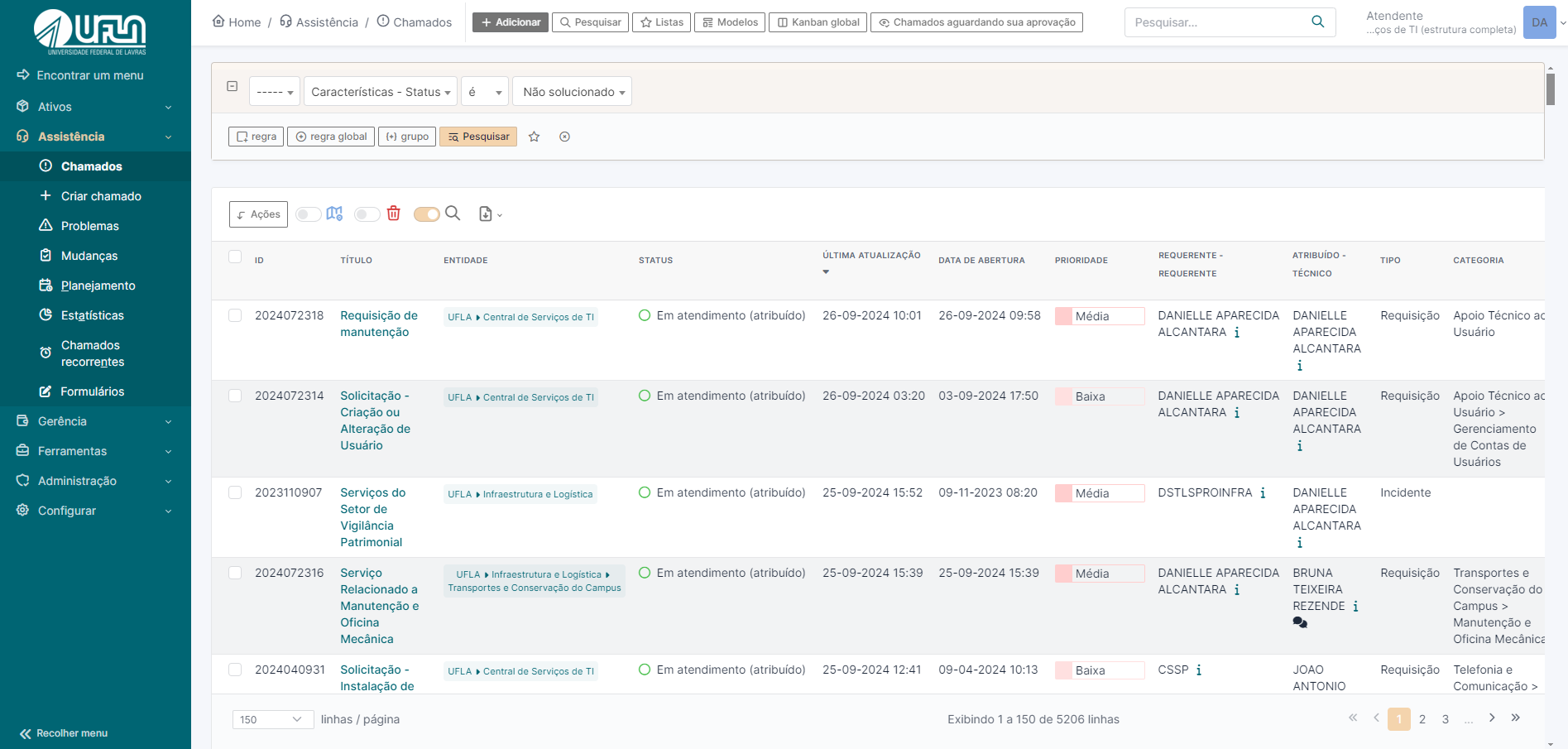
<span style="font-size: 11pt; font-family: Arial,sans-serif; color: #404040; background-color: #fcfcfc; font-weight: 400; font-style: normal; font-variant: normal; text-decoration: none; vertical-align: baseline; white-space: pre-wrap;">Para consultar chamados basta acessar o caminho “Assistência &gt;&gt; Chamados”, na tela exibida é possível fazer diversas combinações de filtros. Vale ressaltar para uso dos filtros que o solicitante é descrito como requerente e o atendente é descrito nos filtros como técnico.</span>

<span style="font-size: 11pt; font-family: Arial,sans-serif; color: #404040; background-color: #fcfcfc; font-weight: 400; font-style: normal; font-variant: normal; text-decoration: none; vertical-align: baseline; white-space: pre-wrap;">[![Captura de tela 2024-09-26 091554.png](https://kb.ufla.br/uploads/images/gallery/2024-09/scaled-1680-/MTiuZtuJs4rLMxaC-captura-de-tela-2024-09-26-091554.png)](https://kb.ufla.br/uploads/images/gallery/2024-09/MTiuZtuJs4rLMxaC-captura-de-tela-2024-09-26-091554.png)</span>

<span style="font-size: 10.5pt; font-family: inherit; color: #444444; background-color: transparent; font-weight: 400; font-style: normal; font-variant: normal; text-decoration: none; vertical-align: baseline; white-space: pre-wrap;"> </span>

<span style="font-size: 16pt; font-family: Arial,sans-serif; color: #404040; background-color: #fcfcfc; font-weight: 400; font-style: normal; font-variant: normal; text-decoration: none; vertical-align: baseline; white-space: pre-wrap;">10 - Criar um chamado para terceiros</span>

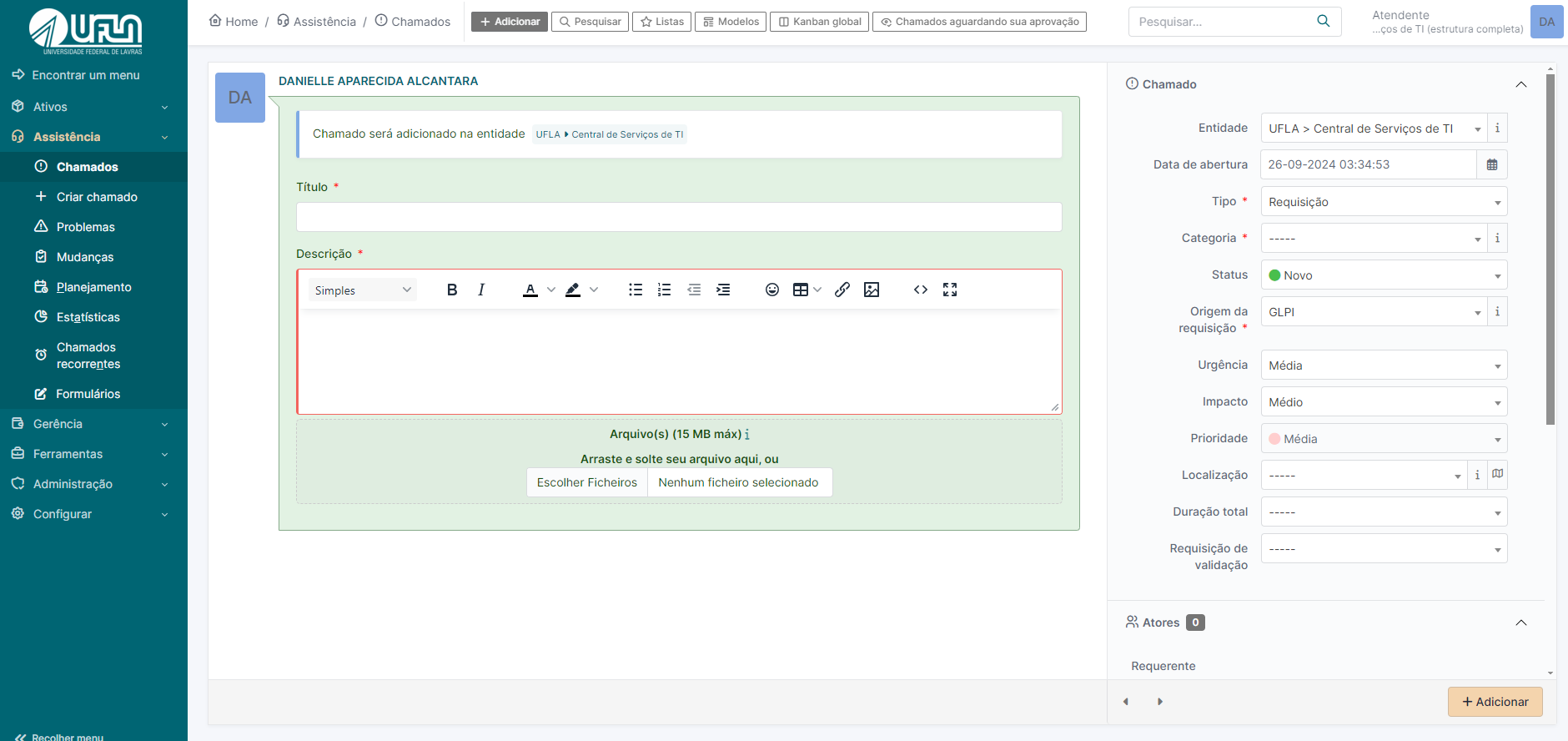
<span style="font-size: 11pt; font-family: Arial,sans-serif; color: #404040; background-color: #fcfcfc; font-weight: 400; font-style: normal; font-variant: normal; text-decoration: none; vertical-align: baseline; white-space: pre-wrap;">O GLPI permite criar chamadas para terceiros, inclusive para você, portanto é necessário acessar o caminho “Assistência &gt;&gt; Criar Chamado” </span><span style="font-size: 10.5pt; font-family: inherit; color: #444444; background-color: transparent; font-weight: 400; font-style: normal; font-variant: normal; text-decoration: none; vertical-align: baseline; white-space: pre-wrap;"> </span>

[![criar chamado.png](https://kb.ufla.br/uploads/images/gallery/2024-09/scaled-1680-/Z5xzodcvTR6A0HGI-criar-chamado.png)](https://kb.ufla.br/uploads/images/gallery/2024-09/Z5xzodcvTR6A0HGI-criar-chamado.png)

<span style="font-size: 10.5pt; font-family: inherit; color: #444444; background-color: transparent; font-weight: 400; font-style: normal; font-variant: normal; text-decoration: none; vertical-align: baseline; white-space: pre-wrap;"> </span>

<span style="font-size: 11pt; font-family: Arial,sans-serif; color: #404040; background-color: #fcfcfc; font-weight: 400; font-style: normal; font-variant: normal; text-decoration: none; vertical-align: baseline; white-space: pre-wrap;">Na criação do chamado é necessário se atentar nos campos: “Requerente” (Selecionar o nome do usuário para o qual esta abrindo o chamado ), “Tipo” (requisição ou incidente), “Categoria” (categoria de serviço do GLPI, pre-requisitios para abertura do chamado) e para quem será “Atribuído”( por padrão, autoatribuido ao perfil de atendente que cria o chamado .</span>

<span style="font-size: 11pt; font-family: Arial,sans-serif; color: #404040; background-color: #fcfcfc; font-weight: 400; font-style: normal; font-variant: normal; text-decoration: none; vertical-align: baseline; white-space: pre-wrap;">Na criação do chamado, é importante prestar atenção aos seguintes campos: 'Requerente' (selecionar o nome do usuário para quem o chamado está sendo aberto), 'Tipo' (escolher entre requisição ou incidente), 'Categoria' (categoria de serviço do GLPI, campo obrigatório para a abertura do chamado) e 'Atribuído' (por padrão, o chamado é autoatribuído ao atendente que o cria)</span>

<span style="font-size: 16pt; font-family: Arial,sans-serif; color: #404040; background-color: #fcfcfc; font-weight: 400; font-style: normal; font-variant: normal; text-decoration: none; vertical-align: baseline; white-space: pre-wrap;">11 - Informações gerais</span><span style="font-size: 16pt; font-family: Arial,sans-serif; color: #404040; background-color: #fcfcfc; font-weight: 400; font-style: normal; font-variant: normal; text-decoration: none; vertical-align: baseline; white-space: pre-wrap;">  
</span><span style="font-size: 16pt; font-family: Arial,sans-serif; color: #404040; background-color: #fcfcfc; font-weight: 400; font-style: normal; font-variant: normal; text-decoration: none; vertical-align: baseline; white-space: pre-wrap;">  
  
</span>

- <span style="font-size: 11pt; font-family: Arial,sans-serif; color: #404040; background-color: #fcfcfc; font-weight: 400; font-style: normal; font-variant: normal; text-decoration: none; vertical-align: baseline; white-space: pre-wrap;">O GLPI notifica por e-mail sobre todas as ocorrências nos chamados. </span>

<span style="font-size: 16pt; font-family: Arial,sans-serif; color: #404040; background-color: #fcfcfc; font-weight: 400; font-style: normal; font-variant: normal; text-decoration: none; vertical-align: baseline; white-space: pre-wrap;">12 - Alteração de perfil</span>

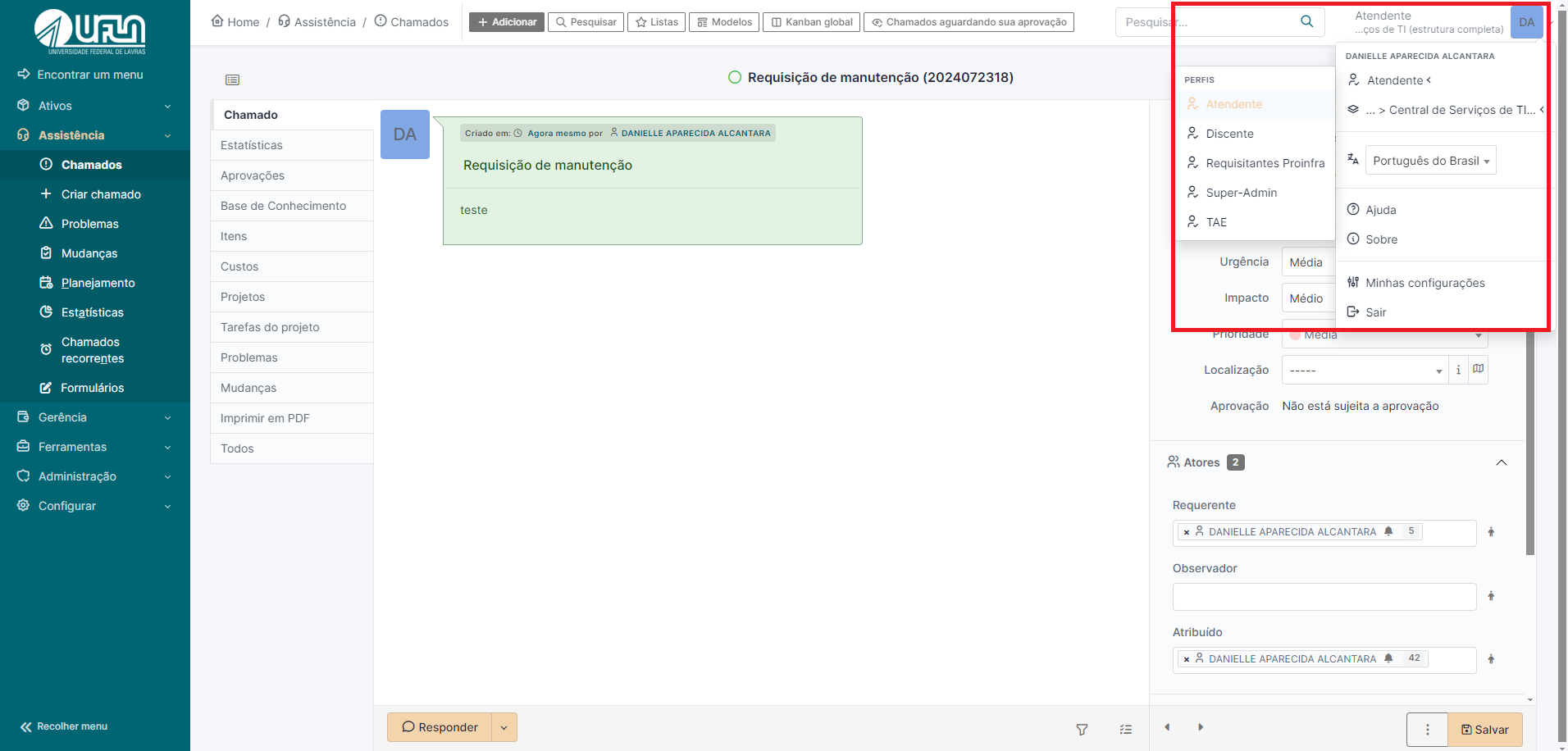
<span style="font-size: 16pt; font-family: Arial,sans-serif; color: #404040; background-color: #fcfcfc; font-weight: 400; font-style: normal; font-variant: normal; text-decoration: none; vertical-align: baseline; white-space: pre-wrap;">Usuários com mais de um perfil podem alternar entre eles acessando a opção no canto superior direito da tela.</span>

[![alteração de perfil.png](https://kb.ufla.br/uploads/images/gallery/2024-09/scaled-1680-/BUN1Y5etObncYHkt-alteracao-de-perfil.png)](https://kb.ufla.br/uploads/images/gallery/2024-09/BUN1Y5etObncYHkt-alteracao-de-perfil.png)

<span style="font-size: 16pt; font-family: Arial,sans-serif; color: #404040; background-color: #fcfcfc; font-weight: 400; font-style: normal; font-variant: normal; text-decoration: none; vertical-align: baseline; white-space: pre-wrap;">13 - Identificar chamados aguardando sua aprovação</span>

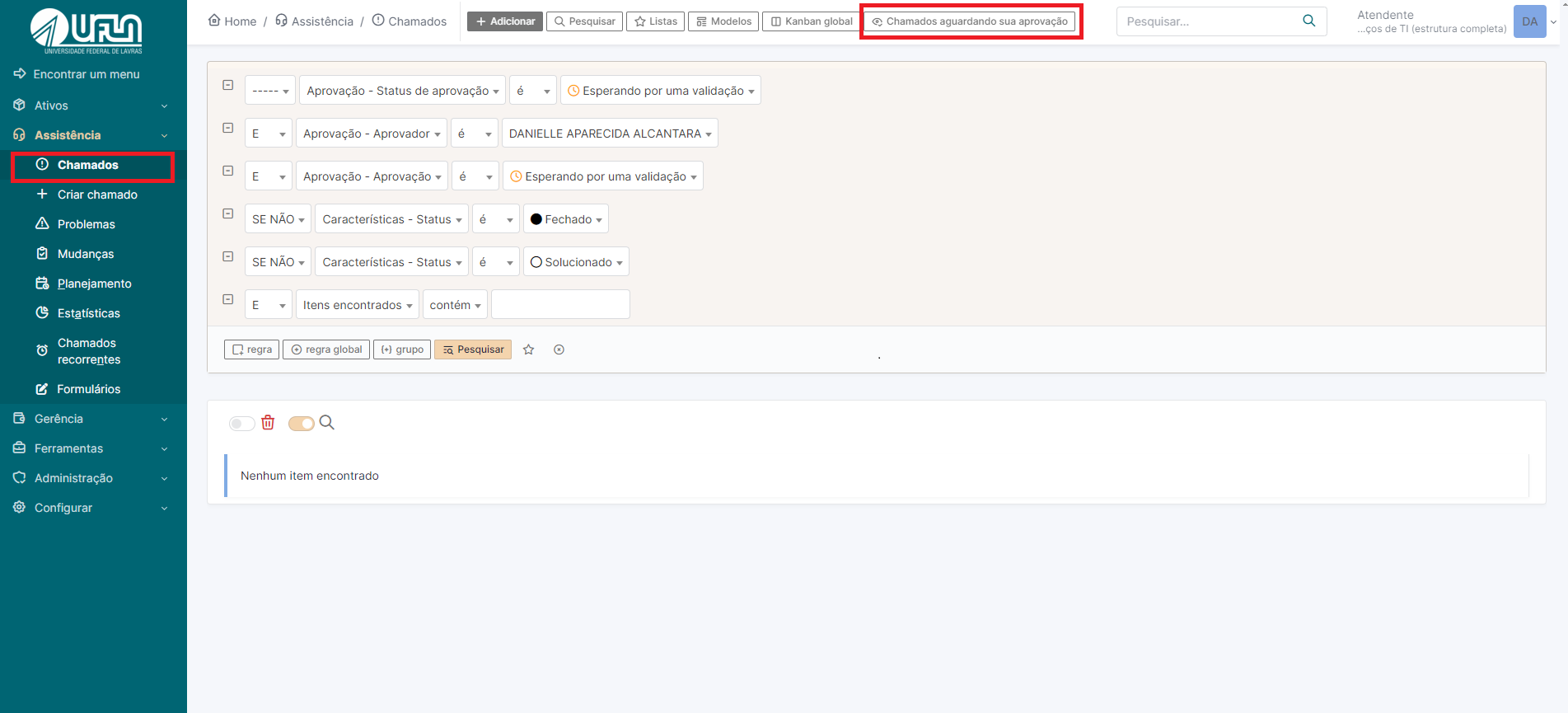
<span style="font-size: 16pt; font-family: Arial,sans-serif; color: #404040; background-color: #fcfcfc; font-weight: 400; font-style: normal; font-variant: normal; text-decoration: none; vertical-align: baseline; white-space: pre-wrap;">Acesse a aba assistência, clicar em “chamado” e na sequencia em “chamados aguardando sua aprovação”. Assim, serão listados o chamados que estão neste contexto, com o perfil de atendente.</span>

[![aguardando aprovação.png](https://kb.ufla.br/uploads/images/gallery/2024-09/scaled-1680-/sANpJ4gEFUp4oNC1-aguardando-aprovacao.png)](https://kb.ufla.br/uploads/images/gallery/2024-09/sANpJ4gEFUp4oNC1-aguardando-aprovacao.png)

<span style="font-size: 16pt; font-family: Arial,sans-serif; color: #404040; background-color: #fcfcfc; font-weight: 400; font-style: normal; font-variant: normal; text-decoration: none; vertical-align: baseline; white-space: pre-wrap;">14 - Validar um chamado</span>

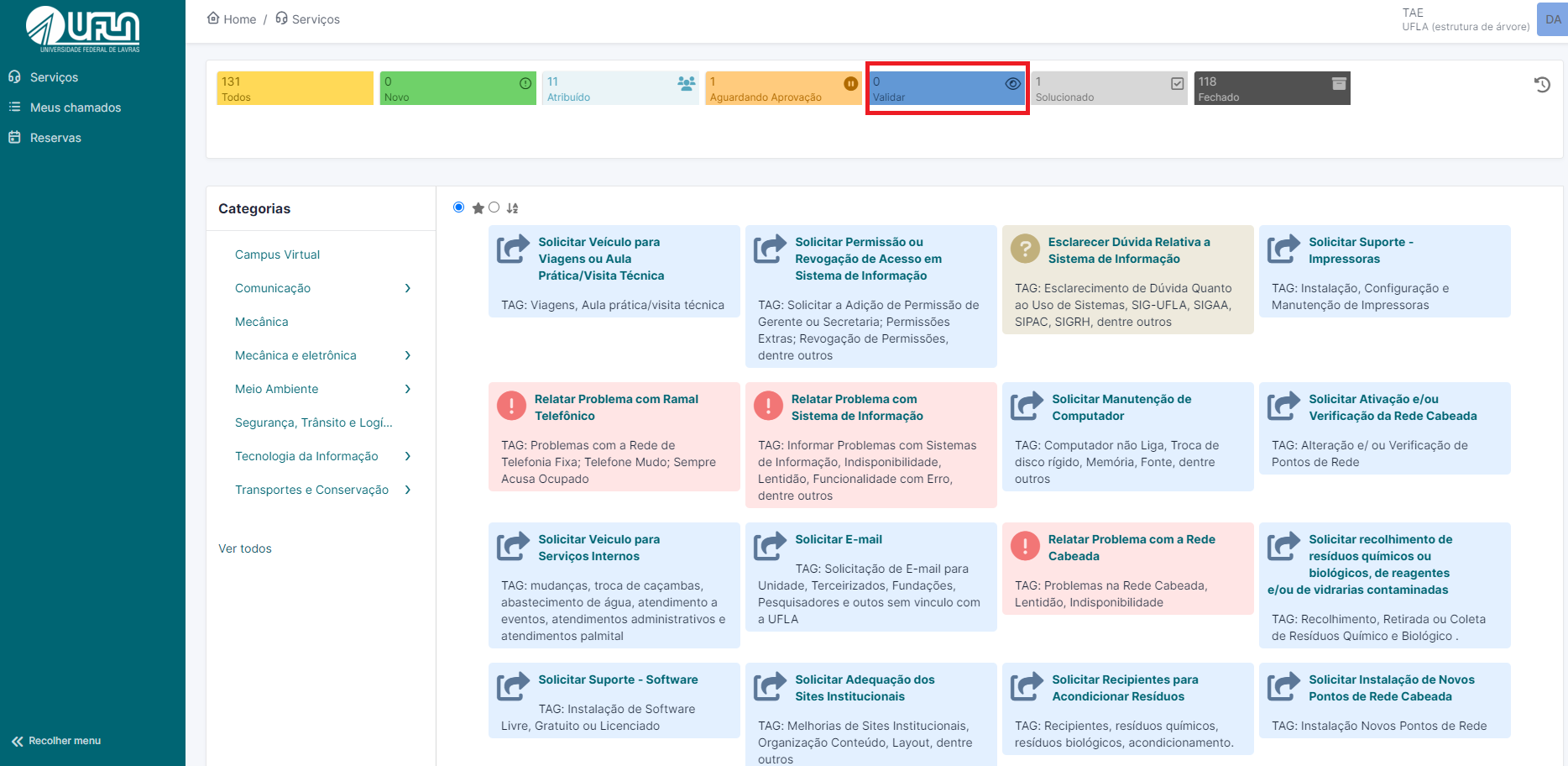
<span style="font-size: 16pt; font-family: Arial,sans-serif; color: #404040; background-color: #fcfcfc; font-weight: 400; font-style: normal; font-variant: normal; text-decoration: none; vertical-align: baseline; white-space: pre-wrap;">Para validar um chamado acessando com os perfis de TAE ou docente, deve-se clicar em “validar” e em seguida clicar no chamado desejado.</span>

[![perfil tae.png](https://kb.ufla.br/uploads/images/gallery/2024-09/scaled-1680-/QUathN49pBryTzF1-perfil-tae.png)](https://kb.ufla.br/uploads/images/gallery/2024-09/QUathN49pBryTzF1-perfil-tae.png)