# CATÁLOGO DE SERVIÇOS - GLPI

A prestação do suporte técnico a que se refere este documento fica a cargo da Central de Serviços de TI, ponto de contato entre o provedor de serviço e os usuários. É função da Central de Serviços gerenciar incidentes, requisições de serviço e também a comunicação com os usuários.

# Como Gerenciar Chamados no GLPI

<span style="font-size: 15pt; font-family: Arial; color: #404040; background-color: #fcfcfc; font-weight: bold; font-style: normal; font-variant: normal; text-decoration: none; vertical-align: baseline; white-space: pre-wrap;">Sumário</span>

<span style="font-size: 11pt; font-family: Arial; color: #000000; background-color: transparent; font-weight: bold; font-style: normal; font-variant: normal; text-decoration: none; vertical-align: baseline; white-space: pre-wrap;">Diferença entre “requisição” e “incidente”</span>

<span style="font-size: 11pt; font-family: Arial; color: #000000; background-color: transparent; font-weight: bold; font-style: normal; font-variant: normal; text-decoration: none; vertical-align: baseline; white-space: pre-wrap;">Tela Inicial do GLPI</span>

<span style="font-size: 11pt; font-family: Arial; color: #000000; background-color: transparent; font-weight: bold; font-style: normal; font-variant: normal; text-decoration: none; vertical-align: baseline; white-space: pre-wrap;">Identificado os seus chamados</span>

<span style="font-size: 11pt; font-family: Arial; color: #000000; background-color: transparent; font-weight: bold; font-style: normal; font-variant: normal; text-decoration: none; vertical-align: baseline; white-space: pre-wrap;">Informações de um chamado</span>

<span style="font-size: 11pt; font-family: Arial; color: #000000; background-color: transparent; font-weight: bold; font-style: normal; font-variant: normal; text-decoration: none; vertical-align: baseline; white-space: pre-wrap;">Inserindo notas no chamado</span>

<span style="font-size: 11pt; font-family: Arial; color: #000000; background-color: transparent; font-weight: bold; font-style: normal; font-variant: normal; text-decoration: none; vertical-align: baseline; white-space: pre-wrap;">Pedindo aprovação para atender chamado</span>

<span style="font-size: 11pt; font-family: Arial; color: #000000; background-color: transparent; font-weight: bold; font-style: normal; font-variant: normal; text-decoration: none; vertical-align: baseline; white-space: pre-wrap;">Solucionando um chamado</span>

<span style="font-size: 11pt; font-family: Arial; color: #000000; background-color: transparent; font-weight: bold; font-style: normal; font-variant: normal; text-decoration: none; vertical-align: baseline; white-space: pre-wrap;">Enviando tarefas para um colega, a partir de um chamado</span>

<span style="font-size: 11pt; font-family: Arial; color: #000000; background-color: transparent; font-weight: bold; font-style: normal; font-variant: normal; text-decoration: none; vertical-align: baseline; white-space: pre-wrap;">Consultar chamados</span>

<span style="font-size: 11pt; font-family: Arial; color: #000000; background-color: transparent; font-weight: bold; font-style: normal; font-variant: normal; text-decoration: none; vertical-align: baseline; white-space: pre-wrap;">Criar um chamado para terceiros</span>

<span style="font-size: 11pt; font-family: Arial; color: #000000; background-color: transparent; font-weight: bold; font-style: normal; font-variant: normal; text-decoration: none; vertical-align: baseline; white-space: pre-wrap;">Informações gerais</span>

<span style="font-size: 11pt; font-family: Arial; color: #000000; background-color: transparent; font-weight: bold; font-style: normal; font-variant: normal; text-decoration: none; vertical-align: baseline; white-space: pre-wrap;">Processo de controle e configuração das câmeras e switchs no GLPI &amp; Zabbix</span>

<span style="font-size: 16pt; font-family: Arial; color: #404040; background-color: #fcfcfc; font-weight: 400; font-style: normal; font-variant: normal; text-decoration: none; vertical-align: baseline; white-space: pre-wrap;">1 - Diferença entre “</span><span style="font-size: 16pt; font-family: Arial; color: #404040; background-color: #fcfcfc; font-style: normal; font-variant: normal; text-decoration: none; vertical-align: baseline; white-space: pre-wrap;">requisição</span><span style="font-size: 16pt; font-family: Arial; color: #404040; background-color: #fcfcfc; font-style: normal; font-variant: normal; text-decoration: none; vertical-align: baseline; white-space: pre-wrap;">” e “</span><span style="font-size: 16pt; font-family: Arial; color: #404040; background-color: #fcfcfc; font-style: normal; font-variant: normal; text-decoration: none; vertical-align: baseline; white-space: pre-wrap;">incidente</span><span style="font-size: 16pt; font-family: Arial; color: #404040; background-color: #fcfcfc; font-style: normal; font-variant: normal; text-decoration: none; vertical-align: baseline; white-space: pre-wrap;">”</span>

<span style="font-size: 11pt; font-family: Arial; color: #404040; background-color: #fcfcfc; font-weight: 400; font-style: normal; font-variant: normal; text-decoration: none; vertical-align: baseline; white-space: pre-wrap;">No GLPI há dois tipos de chamados (</span><span style="font-size: 11pt; font-family: Arial; color: #404040; background-color: #fcfcfc; font-weight: bold; font-style: normal; font-variant: normal; text-decoration: none; vertical-align: baseline; white-space: pre-wrap;">incidente</span><span style="font-size: 11pt; font-family: Arial; color: #404040; background-color: #fcfcfc; font-weight: 400; font-style: normal; font-variant: normal; text-decoration: none; vertical-align: baseline; white-space: pre-wrap;"> e </span><span style="font-size: 11pt; font-family: Arial; color: #404040; background-color: #fcfcfc; font-weight: bold; font-style: normal; font-variant: normal; text-decoration: none; vertical-align: baseline; white-space: pre-wrap;">requisição)</span><span style="font-size: 11pt; font-family: Arial; color: #404040; background-color: #fcfcfc; font-weight: 400; font-style: normal; font-variant: normal; text-decoration: none; vertical-align: baseline; white-space: pre-wrap;">: </span>

- <span style="font-size: 11pt; font-family: Arial; color: #404040; background-color: #fcfcfc; font-weight: bold; font-style: normal; font-variant: normal; text-decoration: none; vertical-align: baseline; white-space: pre-wrap;">Incidente</span><span style="font-size: 11pt; font-family: Arial; color: #404040; background-color: #fcfcfc; font-weight: 400; font-style: normal; font-variant: normal; text-decoration: none; vertical-align: baseline; white-space: pre-wrap;"> é um evento que não seja parte da operação padrão de um serviço e que causa, ou pode causar, uma interrupção ou redução na qualidade daquele serviço. </span>
- <span style="font-size: 11pt; font-family: Arial; color: #404040; background-color: #fcfcfc; font-weight: bold; font-style: normal; font-variant: normal; text-decoration: none; vertical-align: baseline; white-space: pre-wrap;">Requisição</span><span style="font-size: 11pt; font-family: Arial; color: #404040; background-color: #fcfcfc; font-weight: 400; font-style: normal; font-variant: normal; text-decoration: none; vertical-align: baseline; white-space: pre-wrap;"> é uma solicitação para alterar alguma configuração em relação a um serviço de TI, tais como: troca de senha, concessão de direitos de acesso lógico, criação de um site, manutenção de um computador, etc.</span>

#### <span style="font-size: 16pt; font-family: Arial; color: #404040; background-color: #fcfcfc; font-weight: 400; font-style: normal; font-variant: normal; text-decoration: none; vertical-align: baseline; white-space: pre-wrap;">2 - Tela Inicial do GLPI </span>

<span style="font-size: 11pt; font-family: Arial; color: #404040; background-color: #fcfcfc; font-weight: 400; font-style: normal; font-variant: normal; text-decoration: none; vertical-align: baseline; white-space: pre-wrap;"><span style="border: none; display: inline-block; overflow: hidden; width: 625px; height: 244px;">![](https://lh3.googleusercontent.com/VaoA4zyl--ZNifRsWW8dWw1MeCamyGYrN_xSinbhfPUxTSJstBR5ejXhjTTsfSRBPuHnJ8G8FyvwCimS4CWGcpfRnTFbALczENL1qxbsP974UpzlA0UJQHWCDkTxDyD044RBD3ZNAGriEIfikUb8IQ)</span></span>

#### <span style="font-size: 16pt; font-family: Arial; color: #404040; background-color: #fcfcfc; font-weight: 400; font-style: normal; font-variant: normal; text-decoration: none; vertical-align: baseline; white-space: pre-wrap;">3 - Identificado os seus chamados</span>

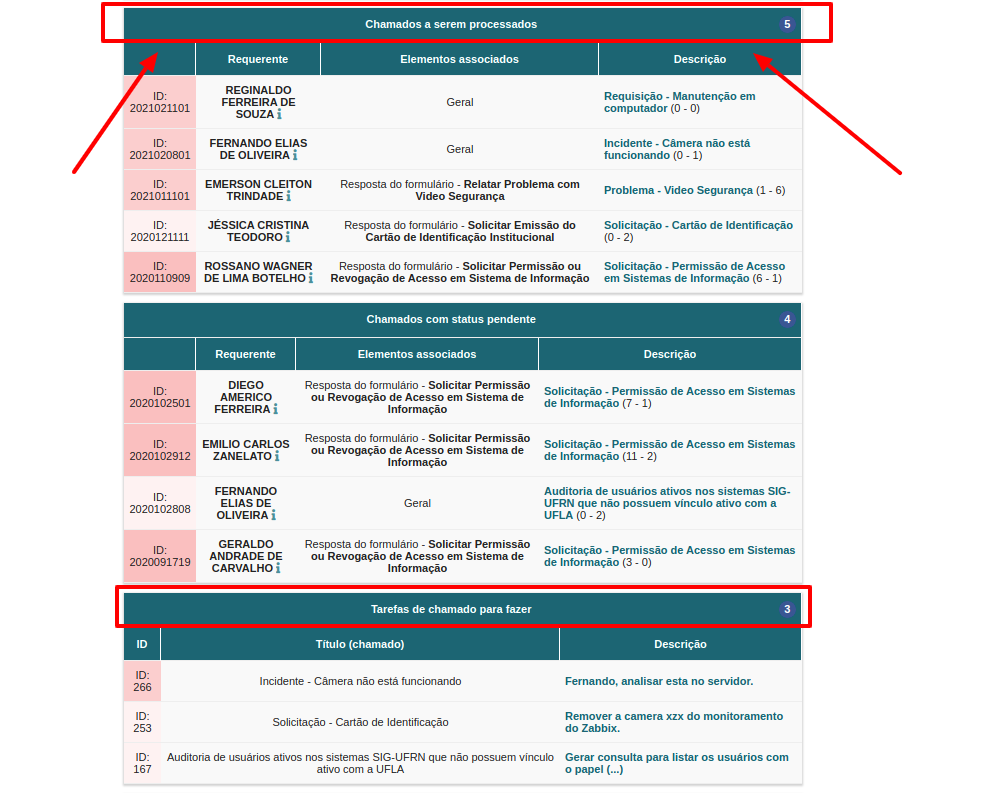
<span style="font-size: 11pt; font-family: Arial; color: #404040; background-color: #fcfcfc; font-weight: 400; font-style: normal; font-variant: normal; text-decoration: none; vertical-align: baseline; white-space: pre-wrap;">Para atender um chamado no GLPI basta acessar a seção “chamados a serem processados”, na tela inicial. As tarefas de um chamado podem ser acessadas na seção “tarefas de chamado para fazer”, quando alguém associa uma tarefa a você. Para acessar o chamado basta acionar o link da coluna descrição, como ilustrado da imagem a seguir:</span>

<span style="font-size: 11pt; font-family: Arial; color: #404040; background-color: #fcfcfc; font-weight: 400; font-style: normal; font-variant: normal; text-decoration: none; vertical-align: baseline; white-space: pre-wrap;"><span style="border: none; display: inline-block; overflow: hidden; width: 625px; height: 496px;">![](https://lh5.googleusercontent.com/iEI4bMPWGiZERQUsbNFhbDgdD9UBL2x56oq4Eqy9KpRI4oMwdmK-dwJ8SawFMSd4IivaWgIiTLbfbGYw3ljFcHsknIoxfFlRg_4lTvZKj_UvP0dppjOPBl5Ag1PlIY4qlM8H99xopRqLBXR-8aKncQ)</span></span>

#### <span style="font-size: 16pt; font-family: Arial; color: #404040; background-color: #fcfcfc; font-weight: 400; font-style: normal; font-variant: normal; text-decoration: none; vertical-align: baseline; white-space: pre-wrap;">4 - Informações de um chamado </span>

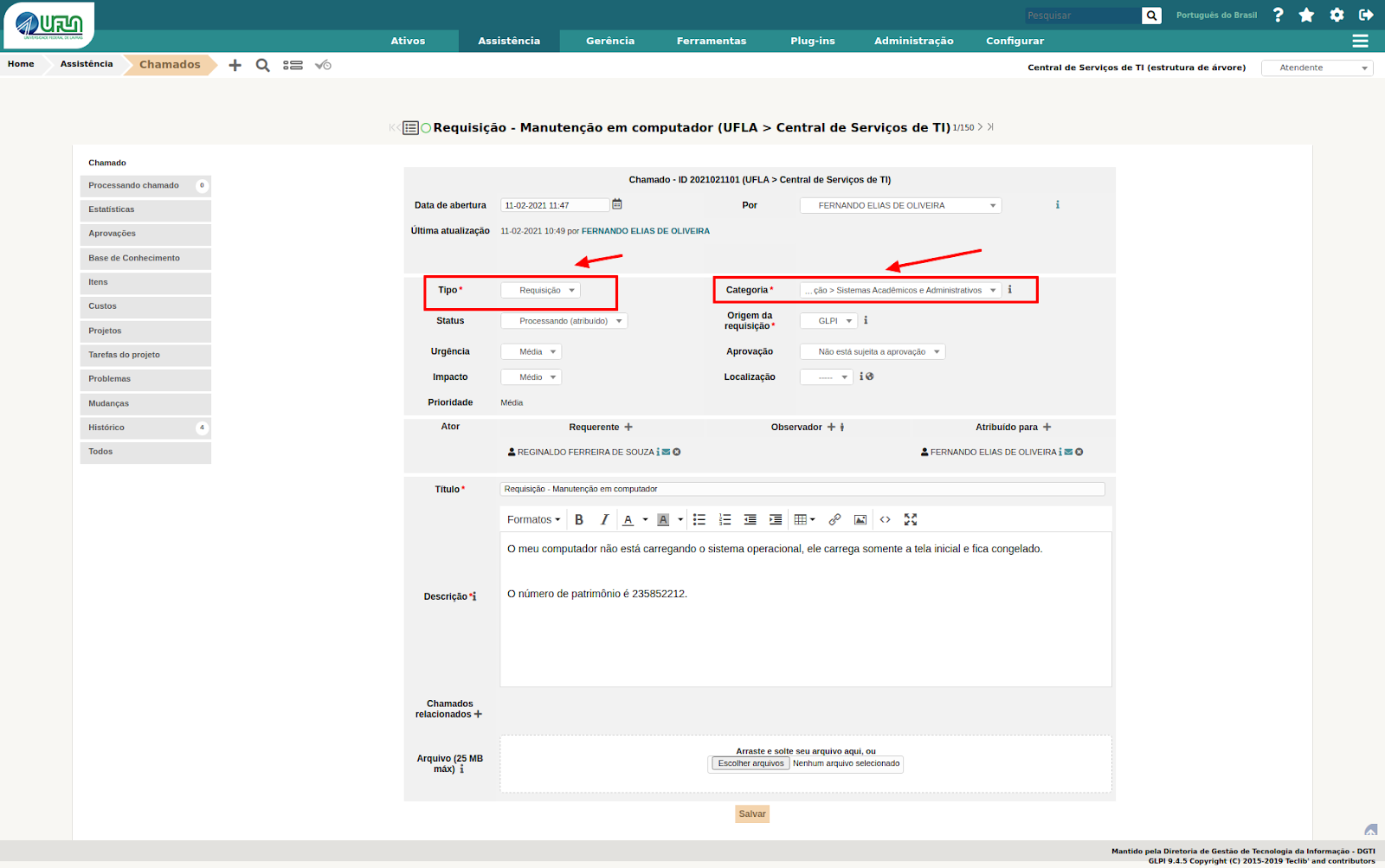
<span style="font-size: 11pt; font-family: Arial; color: #404040; background-color: #fcfcfc; font-weight: 400; font-style: normal; font-variant: normal; text-decoration: none; vertical-align: baseline; white-space: pre-wrap;">Na aba “chamado” os atendentes podem editar informações de um chamado específico, enquanto o chamado não estiver solucionado, como pode ser visto na imagem a seguir. Dois detalhes devem ser verificados no atendimento dos chamados: “Tipo” e “Categoria”. Em relação ao “Tipo” deve ser verificado se o chamado do chamado está de acordo com o tipo do chamado (requisição ou incidente). Já em relação a “Categoria” deve ser verificado se a categoria do chamado corresponde com o conteúdo do chamado. Essa verificação é feita para manter uma catalogação fiel dos chamados, pois serão utilizados em indicadores e mensurações de atendimentos.  
  
</span>

<span style="font-size: 11pt; font-family: Arial; color: #404040; background-color: #fcfcfc; font-weight: 400; font-style: normal; font-variant: normal; text-decoration: none; vertical-align: baseline; white-space: pre-wrap;"><span style="border: none; display: inline-block; overflow: hidden; width: 625px; height: 392px;">![](https://lh5.googleusercontent.com/wrJ7YPsX5Ca_Mq3ybahvmYOUpzVrj_Ft8Jskqe04I6gpGcjJraB6wmV_gyxkplLWxh7UuQ9EY4MpDEbccapsYOE8b1NVjJgZQHRuH8TwjDo1R9FNZKlXWJszbyjz6uKGDroTHziihqxGX6SP4Xea2w)  
  
</span></span>

<span style="font-size: 11pt; font-family: Arial; color: #404040; background-color: #fcfcfc; font-weight: 400; font-style: normal; font-variant: normal; text-decoration: none; vertical-align: baseline; white-space: pre-wrap;">É possível atribuir um chamado para um atendente da DGTI por meio do campo “Atribuído para +” e inserir qualquer pessoa para observar o chamado (em “Observador por +”), veja na imagem a seguir:</span>

<span style="font-size: 11pt; font-family: Arial; color: #404040; background-color: #fcfcfc; font-weight: 400; font-style: normal; font-variant: normal; text-decoration: none; vertical-align: baseline; white-space: pre-wrap;"><span style="border: none; display: inline-block; overflow: hidden; width: 625px; height: 241px;">![](https://lh3.googleusercontent.com/2iU_JvCYJTD79-rj5qyIJvsFXq-gUqGvuMqiQC2ESYwWDVw7ReU3x0phd74BMyKJOHu2LvFjjeSctzc0opK1XTSQUuhPTRv1JIWFNR0cN8iX3ODO3wAPZcWk_6OWNXedcQ0FG96bnRiv0pR3kytEgQ)</span></span>

<span style="font-size: 11pt; font-family: Arial; color: #ff0000; background-color: #fcfcfc; font-weight: bold; font-style: normal; font-variant: normal; text-decoration: none; vertical-align: baseline; white-space: pre-wrap;">  
IMPORTANTE</span><span style="font-size: 11pt; font-family: Arial; color: #404040; background-color: #fcfcfc; font-weight: 400; font-style: normal; font-variant: normal; text-decoration: none; vertical-align: baseline; white-space: pre-wrap;">: No GLPI, o solicitante é tratado como “Requerente” e o atendente é um “Técnico”.</span>

#### <span style="font-size: 16pt; font-family: Arial; color: #404040; background-color: #fcfcfc; font-weight: 400; font-style: normal; font-variant: normal; text-decoration: none; vertical-align: baseline; white-space: pre-wrap;">5 - Inserindo notas no chamado </span>

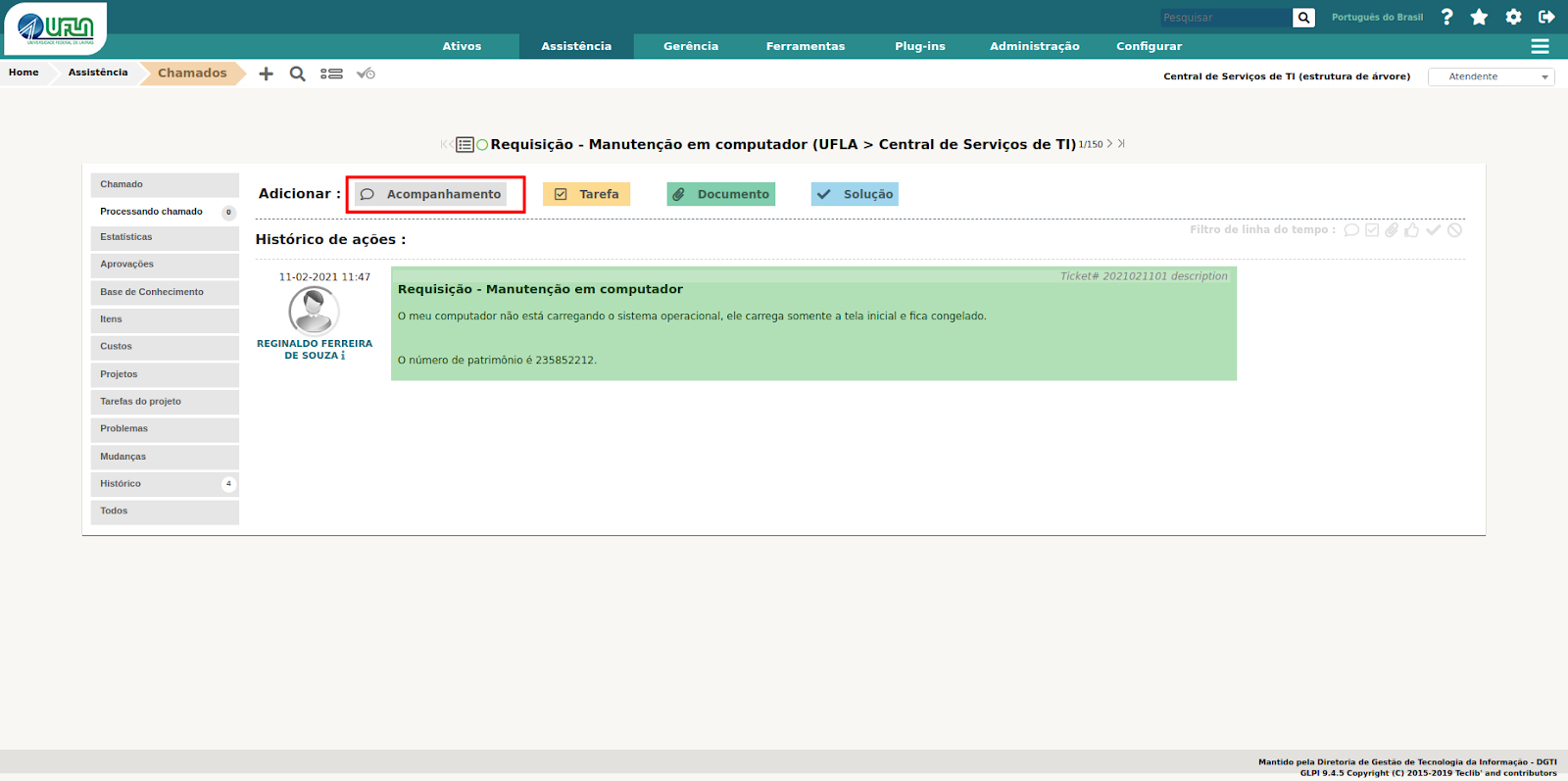
<span style="font-size: 11pt; font-family: Arial; color: #404040; background-color: #fcfcfc; font-weight: 400; font-style: normal; font-variant: normal; text-decoration: none; vertical-align: baseline; white-space: pre-wrap;">A seção “Processando Chamado” é onde os chamados são gerenciados e visualizados de fato. Nessa seção são cadastrados os objetos de análise e resposta dos chamados, observe na imagem a seguir.</span>

<span style="font-size: 11pt; font-family: Arial; color: #404040; background-color: #fcfcfc; font-weight: 400; font-style: normal; font-variant: normal; text-decoration: none; vertical-align: baseline; white-space: pre-wrap;">A principal forma de manter os solicitantes informados sobre o andamento dos chamados é inserindo notas de “Acompanhamento”. Desta forma é recomendado que sempre seja feita a inserção de notas de acompanhamento para manter o solicitante informado sobre o andamento do chamado.</span>

<span style="font-size: 11pt; font-family: Arial; color: #404040; background-color: #fcfcfc; font-weight: 400; font-style: normal; font-variant: normal; text-decoration: none; vertical-align: baseline; white-space: pre-wrap;"><span style="border: none; display: inline-block; overflow: hidden; width: 588px; height: 255px;">![](https://lh4.googleusercontent.com/A6ad5TPGAFDsixheCIvlhtMATKfnU-VN48XZBrNHBotgibDrMJJW3lzuDrSSg9rtzj0KV3xCOEEHoYDmsEyC39ieL879aO6G5mZiRTFWp2fKBDDGqA3gvwFsUMX-rop39gD4DJmpJVNzcuddeiB8VA)</span></span>

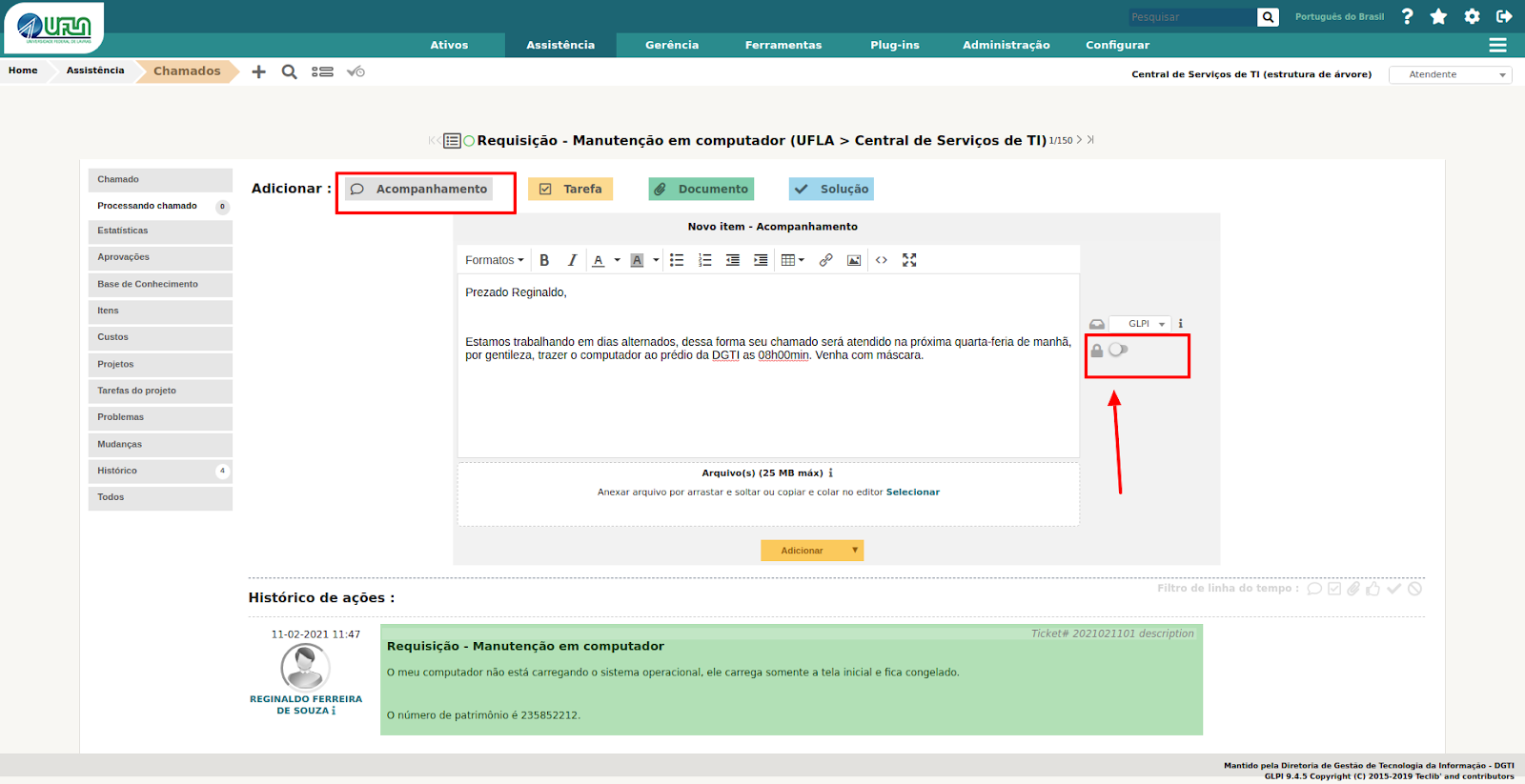
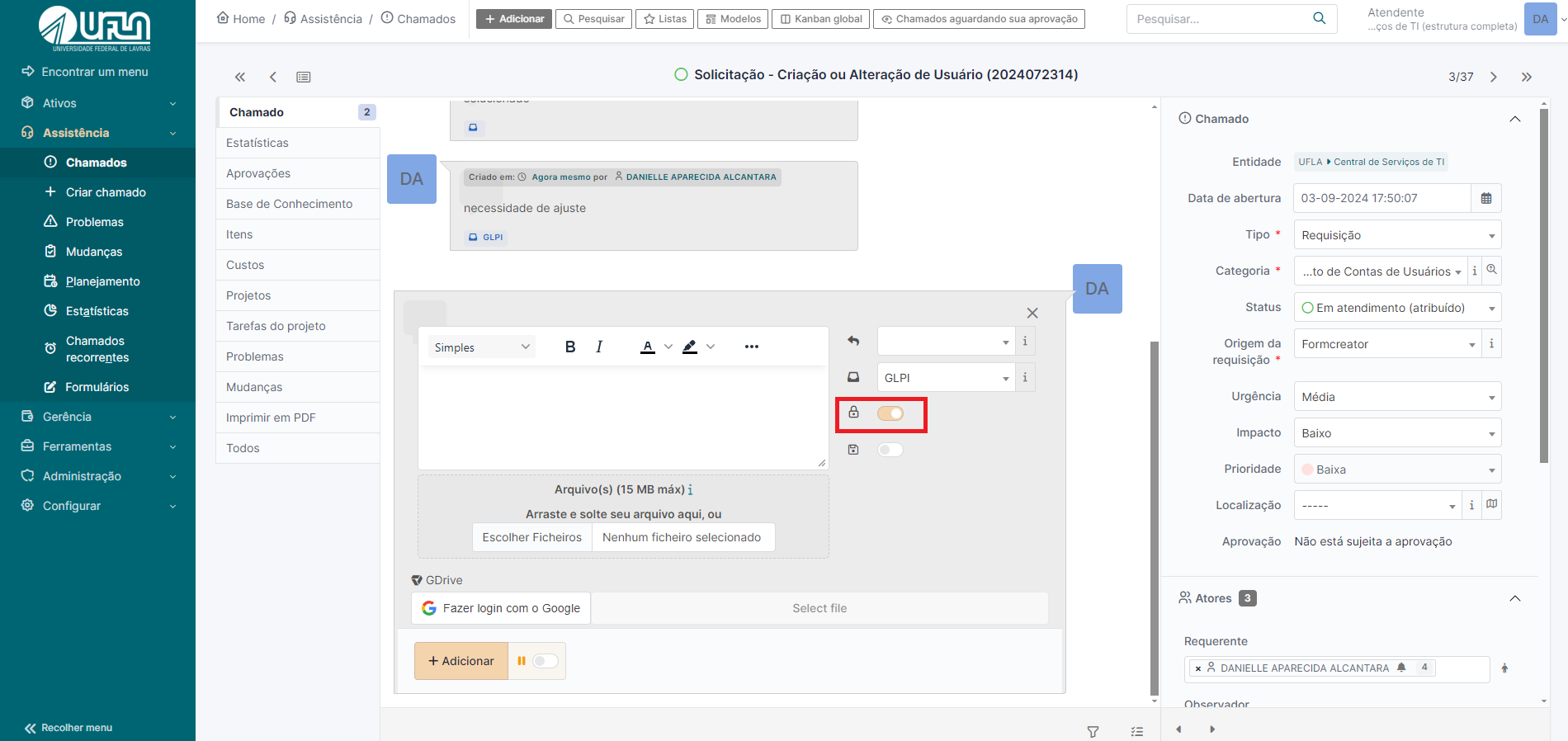
<span style="font-size: 11pt; font-family: Arial; color: #404040; background-color: #fcfcfc; font-weight: 400; font-style: normal; font-variant: normal; text-decoration: none; vertical-align: baseline; white-space: pre-wrap;">Para exibir nota de acompanhamento somente para os atendentes da DGTI é necessário acionar o </span><span style="font-size: 11pt; font-family: Arial; color: #404040; background-color: #fcfcfc; font-weight: bold; font-style: normal; font-variant: normal; text-decoration: none; vertical-align: baseline; white-space: pre-wrap;">ícone de cadeado</span><span style="font-size: 11pt; font-family: Arial; color: #404040; background-color: #fcfcfc; font-weight: 400; font-style: normal; font-variant: normal; text-decoration: none; vertical-align: baseline; white-space: pre-wrap;"> no formulário de cadastro de notas de acompanhamento, conforme na imagem a seguir:</span>

<span style="font-size: 11pt; font-family: Arial; color: #404040; background-color: #fcfcfc; font-weight: 400; font-style: normal; font-variant: normal; text-decoration: none; vertical-align: baseline; white-space: pre-wrap;"><span style="border: none; display: inline-block; overflow: hidden; width: 555px; height: 285px;">![](https://lh5.googleusercontent.com/5VAa60bJuaUIXdXB4J9N-AXNhOpezIbk9cJilFrctAOVuRiZCMVoqidaI0YpasS45fFzhhjsb0NsOPZvOAowJMJXHeksf_YqYmujDPD_4XoyLJXIBkD6Jne8f7RkQZ3-vGr8PXCuDvqw3VZZc3_qnA)</span></span>

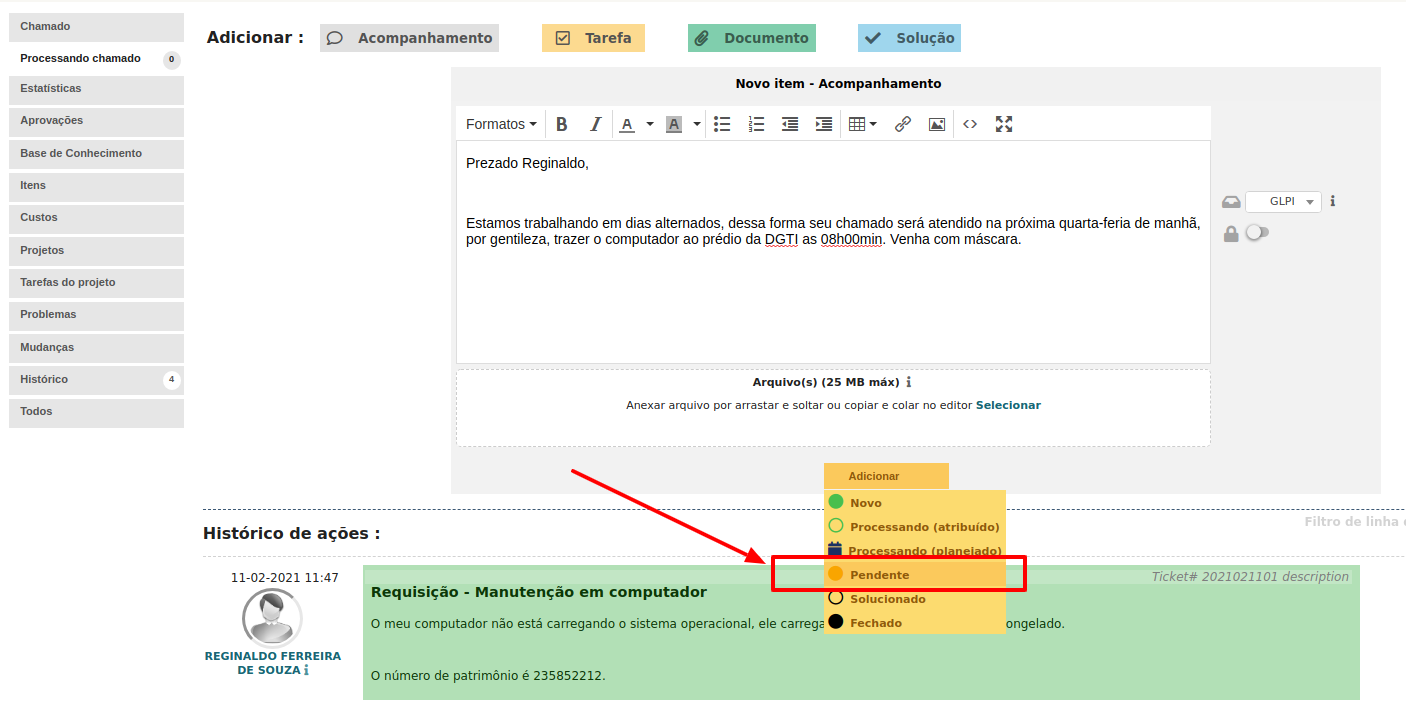
<span style="font-size: 11pt; font-family: Arial; color: #404040; background-color: #fcfcfc; font-weight: 400; font-style: normal; font-variant: normal; text-decoration: none; vertical-align: baseline; white-space: pre-wrap;">Se por algum motivo for necessário marcar o chamado como pendente, a partir de um acompanhamento, basta selecionar a opção “Pendente” no botão de “Adicionar” do formulário de cadastro de acompanhamentos. O chamado será atribuído ao técnico quando o solicitante cadastrar uma nota no chamado, se este estiver com o status pendente, observe na imagem a seguir:</span>

<span style="font-size: 11pt; font-family: Arial; color: #404040; background-color: #fcfcfc; font-weight: 400; font-style: normal; font-variant: normal; text-decoration: none; vertical-align: baseline; white-space: pre-wrap;"><span style="border: none; display: inline-block; overflow: hidden; width: 625px; height: 317px;">![](https://lh3.googleusercontent.com/gEb2tyZmwr_Nz8QV5ZW0Iwvc2vNcDKz7i_dOCeRZxi8ZmbbDFCVupGfiMuBANkXyOYrDIr7DOW0F0zOghp-wInYN1CzFqNCraFg2N-_DV2q8ynnMQNYQ9mT4nR2CrkZcX0ZwRmEui6Sj6jx79jHXJw)</span></span>

#### <span style="font-size: 16pt; font-family: Arial; color: #404040; background-color: #fcfcfc; font-weight: 400; font-style: normal; font-variant: normal; text-decoration: none; vertical-align: baseline; white-space: pre-wrap;">6 - Pedindo aprovação para atender chamado</span>

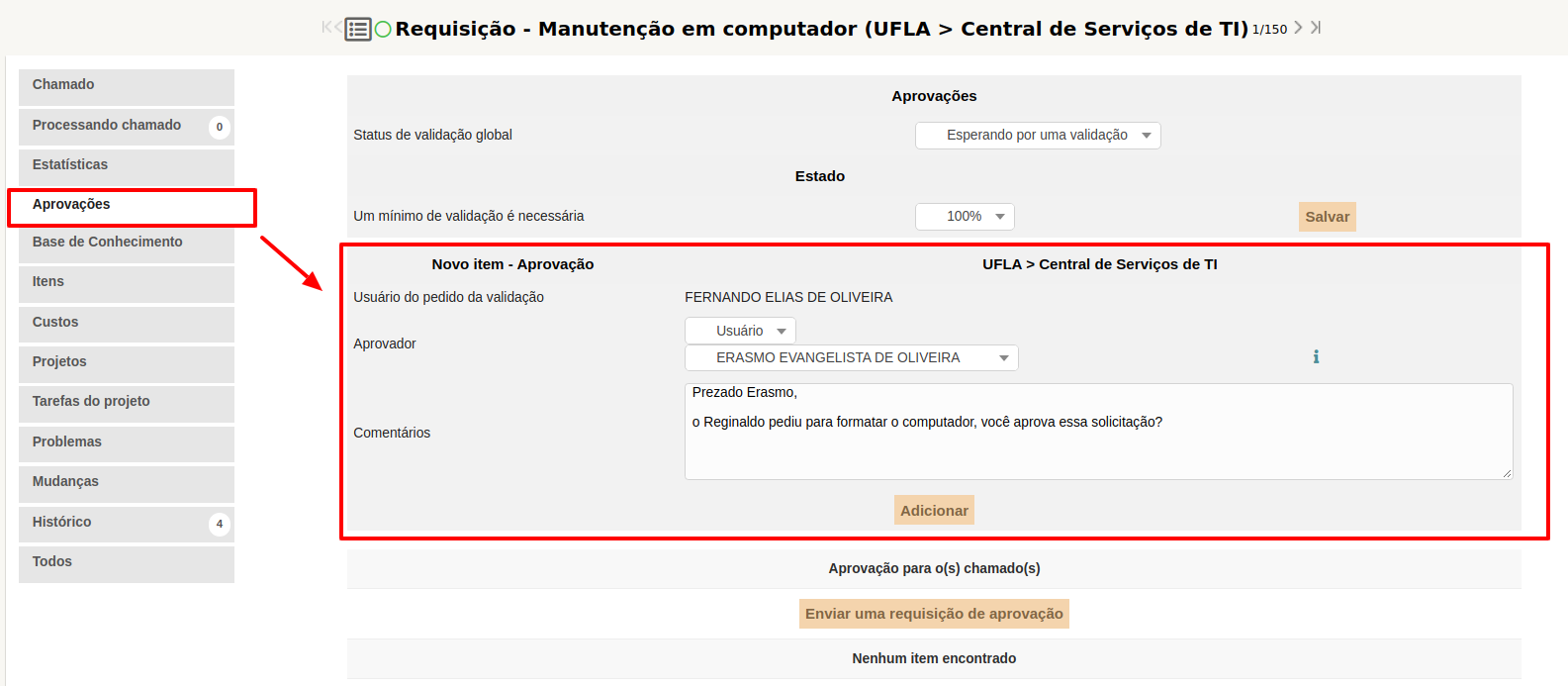
<span style="font-size: 11pt; font-family: Arial; color: #404040; background-color: #fcfcfc; font-weight: 400; font-style: normal; font-variant: normal; text-decoration: none; vertical-align: baseline; white-space: pre-wrap;">Há situações em que é necessário pedir a alguém a validação para atender um chamado, seja chefia, um interessado, ou uma pessoa específica para aprovação. Dessa forma é possível enviar pedidos de aprovação por meio do GLPI, na seção “Aprovações”, conforme ilustra a imagem a seguir. Pode ser informado mais de uma pessoa para aprovação e selecionar qualquer pessoa da UFLA.  
</span>

<span style="font-size: 11pt; font-family: Arial; color: #404040; background-color: #fcfcfc; font-weight: 400; font-style: normal; font-variant: normal; text-decoration: none; vertical-align: baseline; white-space: pre-wrap;"><span style="border: none; display: inline-block; overflow: hidden; width: 625px; height: 273px;">![](https://lh5.googleusercontent.com/3US2OsiXEwsN0YBvlcO1xvZBAdorMxqWQa5uFIZlj_Narzy6mqugkYrCj8Fk3FgLoea2U5zT9vHXgu2PGgH2eaXs3xbEo84MqYqO-1rqBuNfQQwcGbRRMFSt6nZJD-RMKUkw6uykCfhpw_raWYYenQ)</span></span>

#### <span style="font-size: 16pt; font-family: Arial; color: #404040; background-color: #fcfcfc; font-weight: 400; font-style: normal; font-variant: normal; text-decoration: none; vertical-align: baseline; white-space: pre-wrap;">7 - Solucionando um chamado</span>

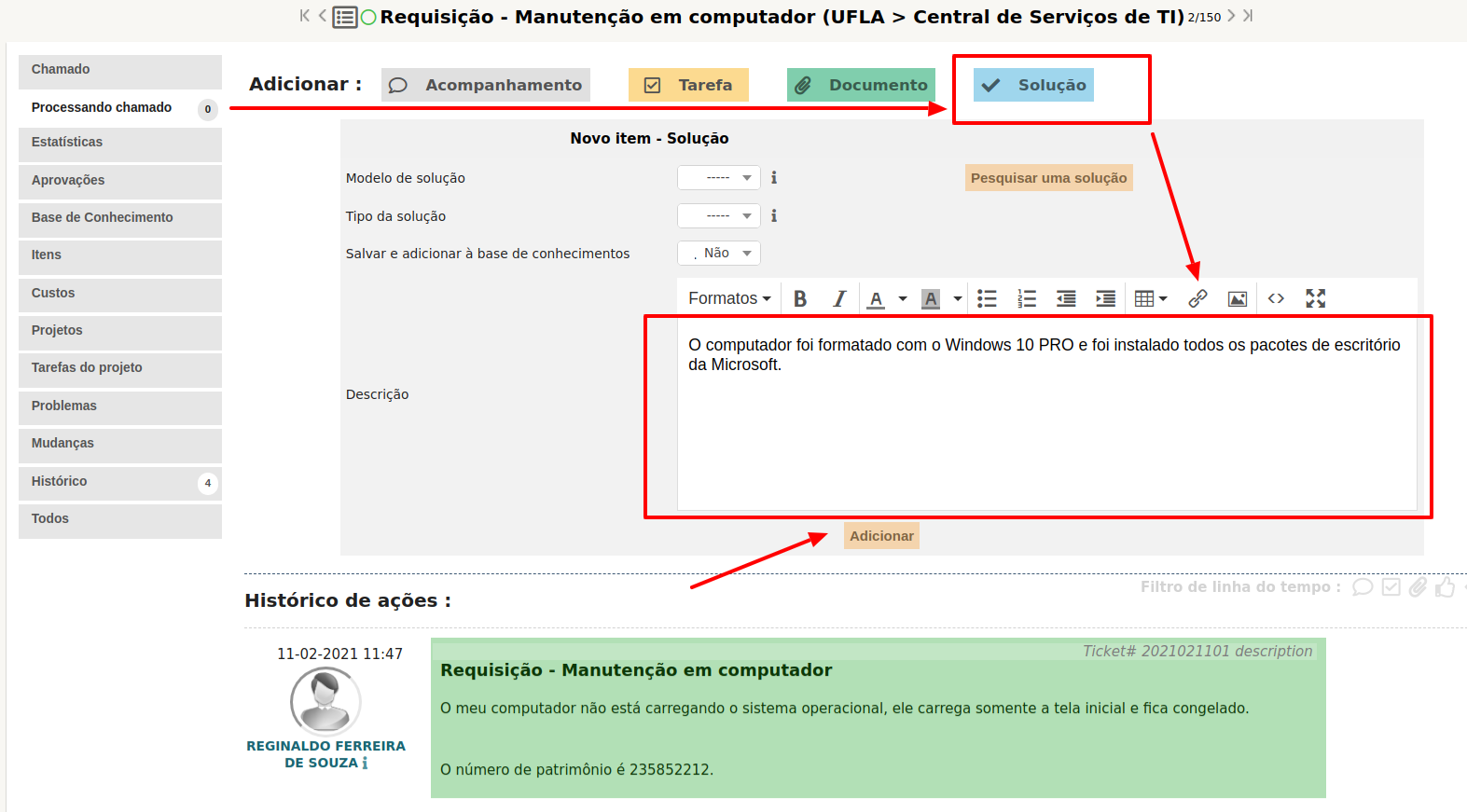
<span style="font-size: 11pt; font-family: Arial; color: #404040; background-color: #fcfcfc; font-weight: 400; font-style: normal; font-variant: normal; text-decoration: none; vertical-align: baseline; white-space: pre-wrap;">Para solucionar um chamado é necessário que o mesmo esteja associado a alguém, veja na imagem a seguir. Além disso é necessário acionar a opção "Solução" da seção “Processando Chamado” e inserir um texto, inteligente, sobre a solução.</span>

<span style="font-size: 11pt; font-family: Arial; color: #404040; background-color: #fcfcfc; font-weight: 400; font-style: normal; font-variant: normal; text-decoration: none; vertical-align: baseline; white-space: pre-wrap;"><span style="border: none; display: inline-block; overflow: hidden; width: 625px; height: 345px;">![](https://lh4.googleusercontent.com/Xu80_KJsz9lRUcU6XgM6VzfqZl03RYHpAeEhyKrGB0mQLc7JrBNikQZm8aIIXRZ2DG7iHrsPjkD_slaFVjXNYssuNoqKryVNYNQg-NQHVoL3mGNIRMMGc9QIaoZlcVxw9n8587aQhJnQV6eYmavypQ)</span></span>

<span style="font-size: 11pt; font-family: Arial; color: #404040; background-color: #fcfcfc; font-weight: 400; font-style: normal; font-variant: normal; text-decoration: none; vertical-align: baseline; white-space: pre-wrap;">Em geral, a solução de um chamado deve ser feita pela equipe da Coordenadoria de Operação e Segurança da Informação (COSI). Em vez de inserir uma nota de solução no chamado do GLPI, insira nota de acompanhamento e retorne o respectivo chamado para a última pessoa da COSI que o encaminhou. Caso seja necessário, insira uma nota de acompanhamento, pública, para o solicitante e uma nota de acompanhamento, privada, para a COSI. Desta forma, o solicitante terá conhecimento da solução por meio da nota de acompanhamento pública. A equipe COSI ficará responsável por inserir a nota de solução do chamado. </span>

<span style="font-size: 11pt; font-family: Arial; color: #404040; background-color: #fcfcfc; font-weight: 400; font-style: normal; font-variant: normal; text-decoration: none; vertical-align: baseline; white-space: pre-wrap;">O chamado pode ser solucionado se julgar que não é necessário retorná-lo para COSI, pois o intuito deste procedimento é manter a equipe de operação, minimamente, informada das mudanças implementadas nos serviços de TI, sem prejudicar a notificação de solução ao solicitante. Mudanças são as alterações em, mas não se limitando a estas: regras de negócios, permissões de acesso, domínios, servidores, estrutura de página, inclusão de grupo de usuários, relatórios e procedimentos de operação.</span>

#### <span style="font-size: 16pt; font-family: Arial; color: #404040; background-color: #fcfcfc; font-weight: 400; font-style: normal; font-variant: normal; text-decoration: none; vertical-align: baseline; white-space: pre-wrap;">8 - Enviando tarefas para um colega, a partir de um chamado</span>

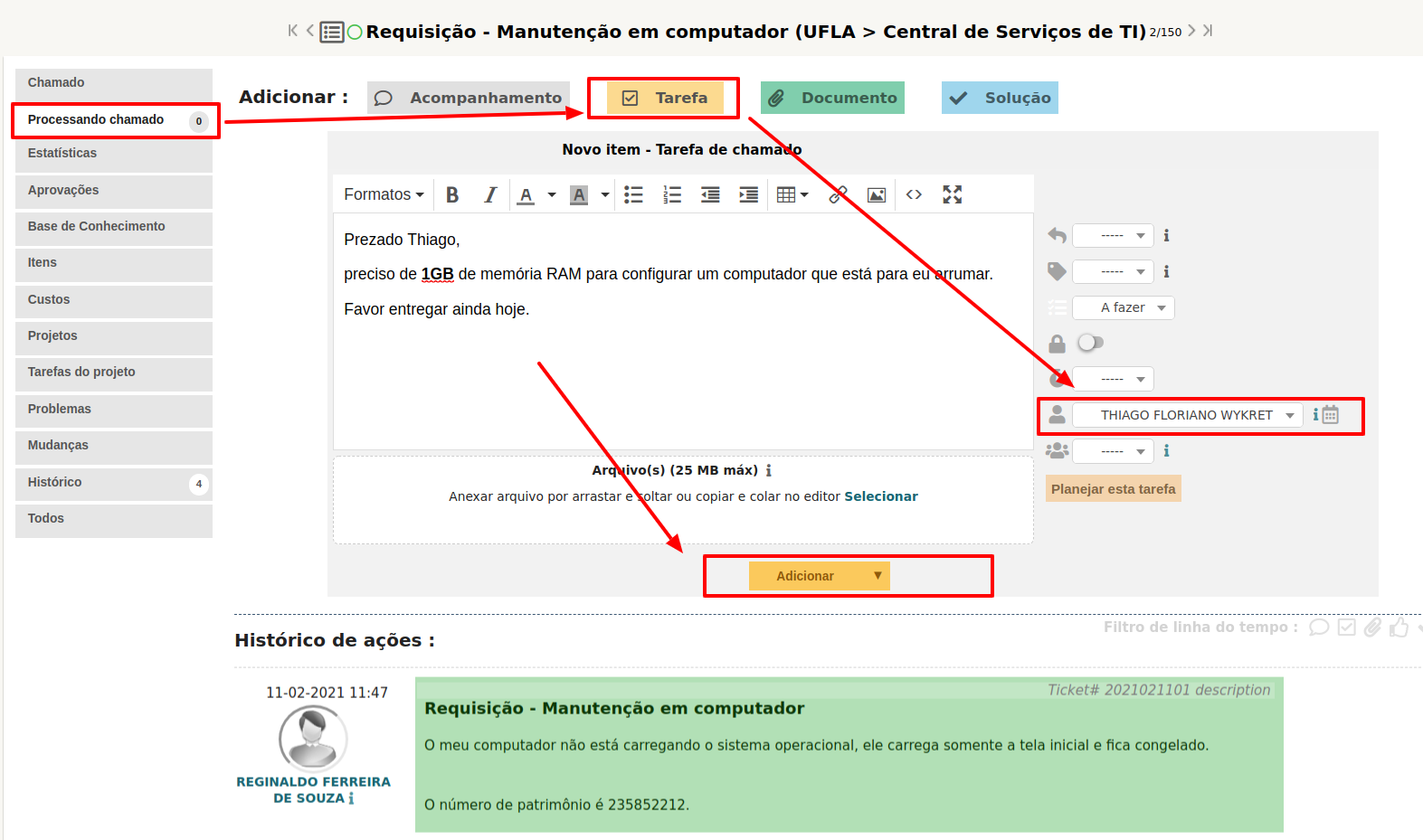
<span style="font-size: 11pt; font-family: Arial; color: #404040; background-color: #fcfcfc; font-weight: 400; font-style: normal; font-variant: normal; text-decoration: none; vertical-align: baseline; white-space: pre-wrap;">Quando lhe for atribuído um chamado cuja solução necessita de uma pequena intervenção de um colega, você pode criar uma tarefa para essa pessoa em vez de lhe atribuir o chamado. A tarefa funciona como um chamado, mas está num chamado específico. A imagem a seguir ilustra a opção para criação de tarefa em um chamado:</span>

<span style="font-size: 11pt; font-family: Arial; color: #404040; background-color: #fcfcfc; font-weight: 400; font-style: normal; font-variant: normal; text-decoration: none; vertical-align: baseline; white-space: pre-wrap;"><span style="border: none; display: inline-block; overflow: hidden; width: 625px; height: 369px;">![](https://lh6.googleusercontent.com/iV2XyMeYBQoW8HbAhshrhQs0UFKOQmDc4vyryiQ_CSb1xSCiYk2cBRDvvTFWnnliLMIZSegI0TbF9OnbzMd6mNr4r_ebq4gl9kW5zBAILcm5LF7zZjuSWrKBheu5pF7DGGoOSC_LIvy9OBV1akfy6A)</span></span>

<span style="font-size: 11pt; font-family: Arial; color: #404040; background-color: #fcfcfc; font-weight: 400; font-style: normal; font-variant: normal; text-decoration: none; vertical-align: baseline; white-space: pre-wrap;">Como mencionado anteriormente, as tarefas são exibidas na seção “Tarefas de chamado para fazer” da página inicial do GLPI.</span>

<span style="font-size: 11pt; font-family: Arial; color: #404040; background-color: #fcfcfc; font-weight: 400; font-style: normal; font-variant: normal; text-decoration: none; vertical-align: baseline; white-space: pre-wrap;">Consideremos que um técnico receba um chamado no GLPI solicitando a manutenção de um computador, em que será necessário trocar peças, entretanto a aquisição de peças é com outro técnico. Nesse contexto, o técnico cria uma tarefa no chamado e atribui ao outro técnico responsável por fazer a aquisição. Vale ressaltar que o solicitante visualiza as tarefas, se essas não forem marcadas como privadas. Recomenda-se que o estado da tarefa seja “A FAZER”. </span>
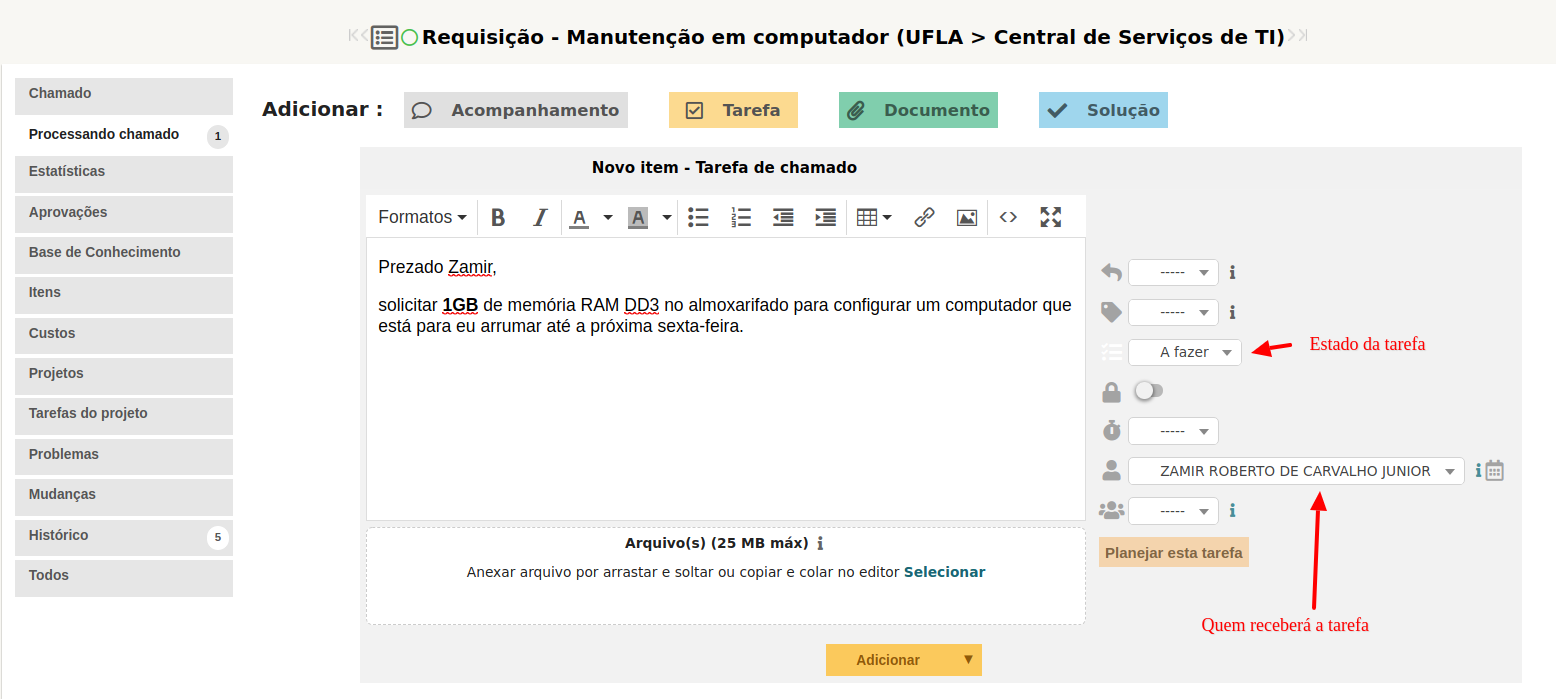
<span style="font-size: 11pt; font-family: Arial; color: #404040; background-color: #fcfcfc; font-weight: 400; font-style: normal; font-variant: normal; text-decoration: none; vertical-align: baseline; white-space: pre-wrap;"><span style="border: none; display: inline-block; overflow: hidden; width: 625px; height: 281px;">![](https://lh3.googleusercontent.com/N0lqDOBPZUV25GbfMpMrLu_SMKMxkZ3Xh-P3PG84s_nlFr0TFDnz-Y8uLaJ0WpJMZp4YCVGy8uEzeyab7vqgXRQZkRYFQna2FhZ9tPNzBGscXdhlrqCBsPYRuhuhdUfCMWV4bvOgf4TIkDXlX13MNQ)</span></span>

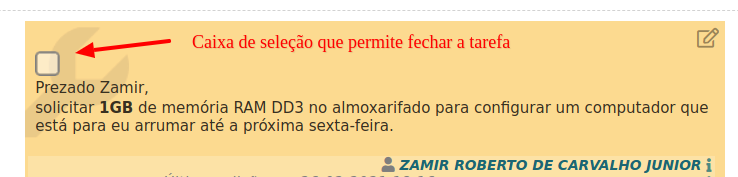
<span style="font-size: 11pt; font-family: Arial; color: #404040; background-color: #fcfcfc; font-weight: 400; font-style: normal; font-variant: normal; text-decoration: none; vertical-align: baseline; white-space: pre-wrap;">O técnico conclui a tarefa clicando na “caixa de seleção” referente à tarefa ou selecionando a opção “FEITO” no estado da tarefa, no modo de edição da respectiva tarefa.</span>

<span style="font-size: 11pt; font-family: Arial; color: #404040; background-color: #fcfcfc; font-weight: 400; font-style: normal; font-variant: normal; text-decoration: none; vertical-align: baseline; white-space: pre-wrap;"><span style="border: none; display: inline-block; overflow: hidden; width: 625px; height: 149px;">![](https://lh4.googleusercontent.com/Hp_LXmRhYnnn3MqkR016qSF2dKQOhE8gBEbQhcbLUbuxJP6zQYJ4SEcT8YFPHvsuRq_P8L4nJywwlb0cZhik3BYVWY4JrrwC4II2q-yVH02tFK02dZhlTlEWf6IQzXs0k1TDKnCOwdNwHgsDdqTidQ)</span></span>

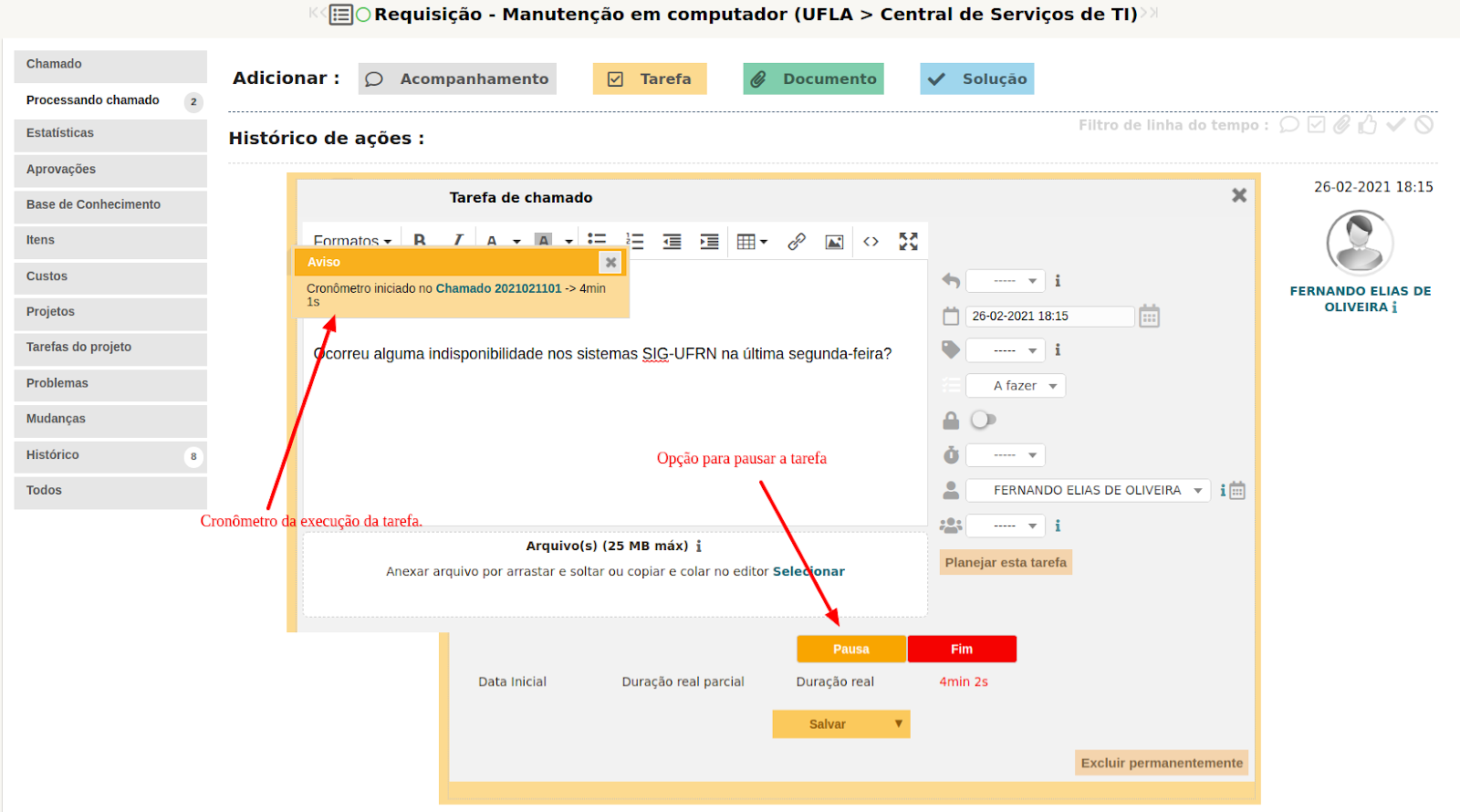
<span style="font-size: 11pt; font-family: Arial; color: #404040; background-color: #fcfcfc; font-weight: 400; font-style: normal; font-variant: normal; text-decoration: none; vertical-align: baseline; white-space: pre-wrap;">Quando o técnico acessa a tarefa no modo edição, que está atribuída para ele, é possível acionar um contador de tempo que vai registrar o tempo gasto para atender aquela tarefa. A contagem do tempo de empenho na tarefa inicia quando o botão "INÍCIO" é acionado. O sistema aciona um cronômetro após iniciar a tarefa. </span>

<span style="font-size: 11pt; font-family: Arial; color: #404040; background-color: #fcfcfc; font-weight: 400; font-style: normal; font-variant: normal; text-decoration: none; vertical-align: baseline; white-space: pre-wrap;">  
</span><span style="font-size: 11pt; font-family: Arial; color: #404040; background-color: #fcfcfc; font-weight: 400; font-style: normal; font-variant: normal; text-decoration: none; vertical-align: baseline; white-space: pre-wrap;"><span style="border: none; display: inline-block; overflow: hidden; width: 625px; height: 293px;">![](https://lh3.googleusercontent.com/rfUWzHdsv5yH0V0Wq6kB7f_VtZBE6GIXtKQM5vnkTPzfLEGzGNRGMevevZog98is0tC7HzA-ZdXLcusG-YjUVsbVHhPsHEoMPER4qUPmdsf699xwcBFey3a_DKFvrq5WDlfNh-qXxvKbgxnSllYUdw)</span></span>

<span style="font-size: 11pt; font-family: Arial; color: #404040; background-color: #fcfcfc; font-weight: 400; font-style: normal; font-variant: normal; text-decoration: none; vertical-align: baseline; white-space: pre-wrap;">Vale ressaltar que o GLPI permite acionar somente uma tarefa por vez. Com isso, para trabalhar em uma segunda tarefa é necessário “PAUSAR” a primeira e em seguida “INICIAR” a segunda tarefa. A tarefa é concluída ao clicar na opção “FEITO”.</span>

<span style="font-size: 11pt; font-family: Arial; color: #404040; background-color: #fcfcfc; font-weight: 400; font-style: normal; font-variant: normal; text-decoration: none; vertical-align: baseline; white-space: pre-wrap;"><span style="border: none; display: inline-block; overflow: hidden; width: 625px; height: 348px;">![](https://lh6.googleusercontent.com/ulT8lKLDoYbfQXnuY8Fa9p__HqZgxAijhUuFRbvUIZm4w8VDeJlKfpZdF1izTdzVH4kqKxyAbVXLIgI3IX_4TKKQ06f1NXOy7mMhT8PGwsi2YMDh266pyBwsAurokhfJyqmKskY20vRcKT5HOgwrYQ)</span></span>

<span style="font-size: 11pt; font-family: Arial; color: #404040; background-color: #fcfcfc; font-weight: 400; font-style: normal; font-variant: normal; text-decoration: none; vertical-align: baseline; white-space: pre-wrap;">Caso deseje fornecer uma resposta relativa a uma tarefa é possível fazer isso no conteúdo da própria tarefa, ou inserir uma nota de acompanhamento no chamado.</span>

<span style="font-size: 11pt; font-family: Arial; color: #404040; background-color: #fcfcfc; font-weight: 400; font-style: normal; font-variant: normal; text-decoration: none; vertical-align: baseline; white-space: pre-wrap;">É possível criar um modelo com texto padrão para a categoria de uma tarefa, a necessidade de criação de templates deve ser comunicada à COSI. O uso de modelo se torna útil quando os conteúdos de um tipo de tarefa é passível de ser padronizado, conforme imagem a seguir:</span>

<span style="font-size: 11pt; font-family: Arial; color: #404040; background-color: #fcfcfc; font-weight: 400; font-style: normal; font-variant: normal; text-decoration: none; vertical-align: baseline; white-space: pre-wrap;"><span style="border: none; display: inline-block; overflow: hidden; width: 625px; height: 247px;">![](https://lh3.googleusercontent.com/dv-SuU71w9btM5tEnPMWQyiW2iE3crinOGSS9Y3uppq8yvnrBHQKAN4DvQIczq-jRu9QgN12mUhODJISB4M4Ntx8hESbIiV9UYYkdtXzoIh3STokWVEV6ru1IquFQuhGxhDn3AIOBhBPHKiXu5Vh1A)</span></span>

<span style="font-size: 11pt; font-family: Arial; color: #404040; background-color: #fcfcfc; font-weight: 400; font-style: normal; font-variant: normal; text-decoration: none; vertical-align: baseline; white-space: pre-wrap;">As tarefas atribuídas a você são exibidas no painel inicial do GLPI, na mesma tela onde são exibidos os chamados atribuídos a você. Dessa forma é necessário consultar periodicamente se há tarefas atribuídas na seção “Tarefas de chamado para fazer”, conforme ilustra a imagem a seguir:</span>

<span style="font-size: 11pt; font-family: Arial; color: #404040; background-color: #fcfcfc; font-weight: 400; font-style: normal; font-variant: normal; text-decoration: none; vertical-align: baseline; white-space: pre-wrap;"><span style="border: none; display: inline-block; overflow: hidden; width: 625px; height: 140px;">![](https://lh3.googleusercontent.com/K3yE60EYle3EY10qTVaTLhgivsEUZzNMR7s3gbTvHQ531bUvbyxJD6XwO8GpYJkUSMf1BZK6_VK6nTRq6yi76xpLiN348z0SIBeiX0MfUOiVzwF2g9PH8VHYQWidMKNCAtJGebaB17pWvD5W9CXL7g)</span></span>

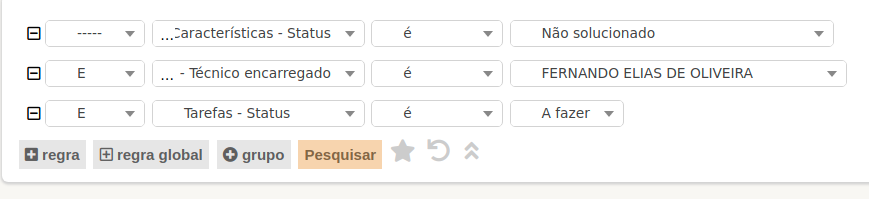
<span style="font-size: 11pt; font-family: Arial; color: #404040; background-color: #fcfcfc; font-weight: 400; font-style: normal; font-variant: normal; text-decoration: none; vertical-align: baseline; white-space: pre-wrap;">As tarefas também podem ser consultadas utilizando o formulário de busca de chamados no caminho “GLPI &gt;&gt; Assistência &gt;&gt; Chamados &gt;&gt; Processando Chamado”, por meio das opções de filtro:</span>

<span style="font-size: 11pt; font-family: Arial; color: #404040; background-color: #fcfcfc; font-weight: 400; font-style: normal; font-variant: normal; text-decoration: none; vertical-align: baseline; white-space: pre-wrap;"><span style="border: none; display: inline-block; overflow: hidden; width: 589px; height: 66px;">![](https://lh3.googleusercontent.com/upa3Q7NIA1DEY41LKgImXRXr5-PESe3hJjjDSHxB9cQJBJ2dmC0hQGb-MB6igVUpPBRdGYAIy2_uBMknHvrqzsGZ5L46b3q61n5LMs2eI68-6PtsW7RfU1dhFd0ZYYxK-Dn2wsAo8_ftBTZJvwJM9Q)</span></span>

<span style="font-size: 11pt; font-family: Arial; color: #404040; background-color: #fcfcfc; font-weight: 400; font-style: normal; font-variant: normal; text-decoration: none; vertical-align: baseline; white-space: pre-wrap;"><span style="border: none; display: inline-block; overflow: hidden; width: 625px; height: 143px;">![](https://lh5.googleusercontent.com/43rTeM67wpf33rbDR8kbqu7cDNvkhOg3Ul6VzdMxZdefgFTZtIJt6x4t3e1Z0acbdxAf9XC01drmHyBGthfM7tL24QIQ4XqJ9nWlqEi1AucYM7ZZO-wGLeRsBTYuPNdvyLBkWDEG-fwEZRnt8nUm-g)</span></span>

#### <span style="font-size: 16pt; font-family: Arial; color: #404040; background-color: #fcfcfc; font-weight: 400; font-style: normal; font-variant: normal; text-decoration: none; vertical-align: baseline; white-space: pre-wrap;">9 - Consultar chamados</span>

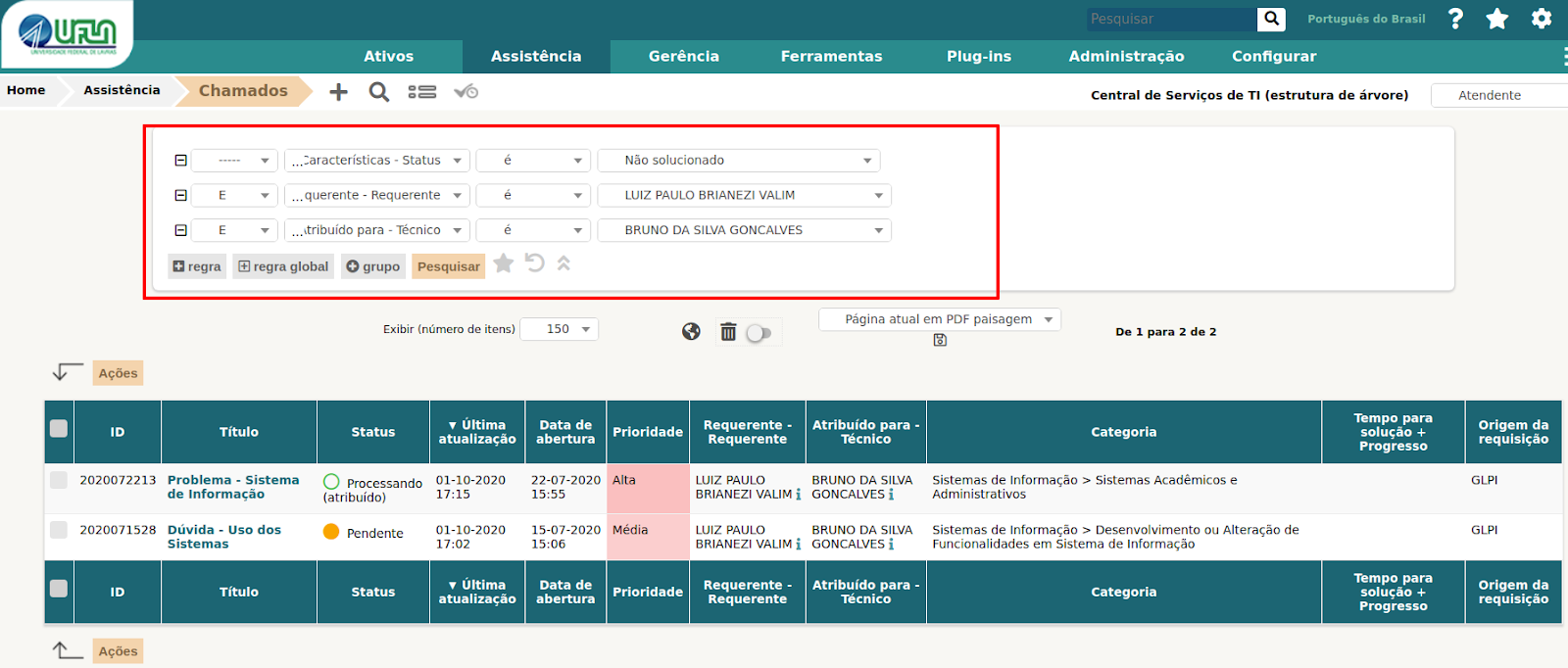
<span style="font-size: 11pt; font-family: Arial; color: #404040; background-color: #fcfcfc; font-weight: 400; font-style: normal; font-variant: normal; text-decoration: none; vertical-align: baseline; white-space: pre-wrap;">Para consultar chamados basta acessar o caminho “Assistência &gt;&gt; Chamados”, na tela exibida é possível fazer diversas combinações de filtros. Vale ressaltar para uso dos filtros que o solicitante é descrito como requerente e o atendente é descrito nos filtros como técnico.</span>

<span style="font-size: 11pt; font-family: Arial; color: #404040; background-color: #fcfcfc; font-weight: 400; font-style: normal; font-variant: normal; text-decoration: none; vertical-align: baseline; white-space: pre-wrap;"><span style="border: none; display: inline-block; overflow: hidden; width: 625px; height: 267px;">![](https://lh6.googleusercontent.com/WEhl9u7K4Njlpu9JFQGsXV_cDNrpFH-Lc_3n8gIzxhyzx6VmIyAOUfuDcwTv88H0HDx8pgddvX6RaMZqorcwOkmLqxrAulHx-O_qdzFZGBN7_iObmdyRsFpsB_6LthA784djQHiA6vnRqphdCQVKnw)</span></span>

#### <span style="font-size: 16pt; font-family: Arial; color: #404040; background-color: #fcfcfc; font-weight: 400; font-style: normal; font-variant: normal; text-decoration: none; vertical-align: baseline; white-space: pre-wrap;">10 - Criar um chamado para terceiros</span>

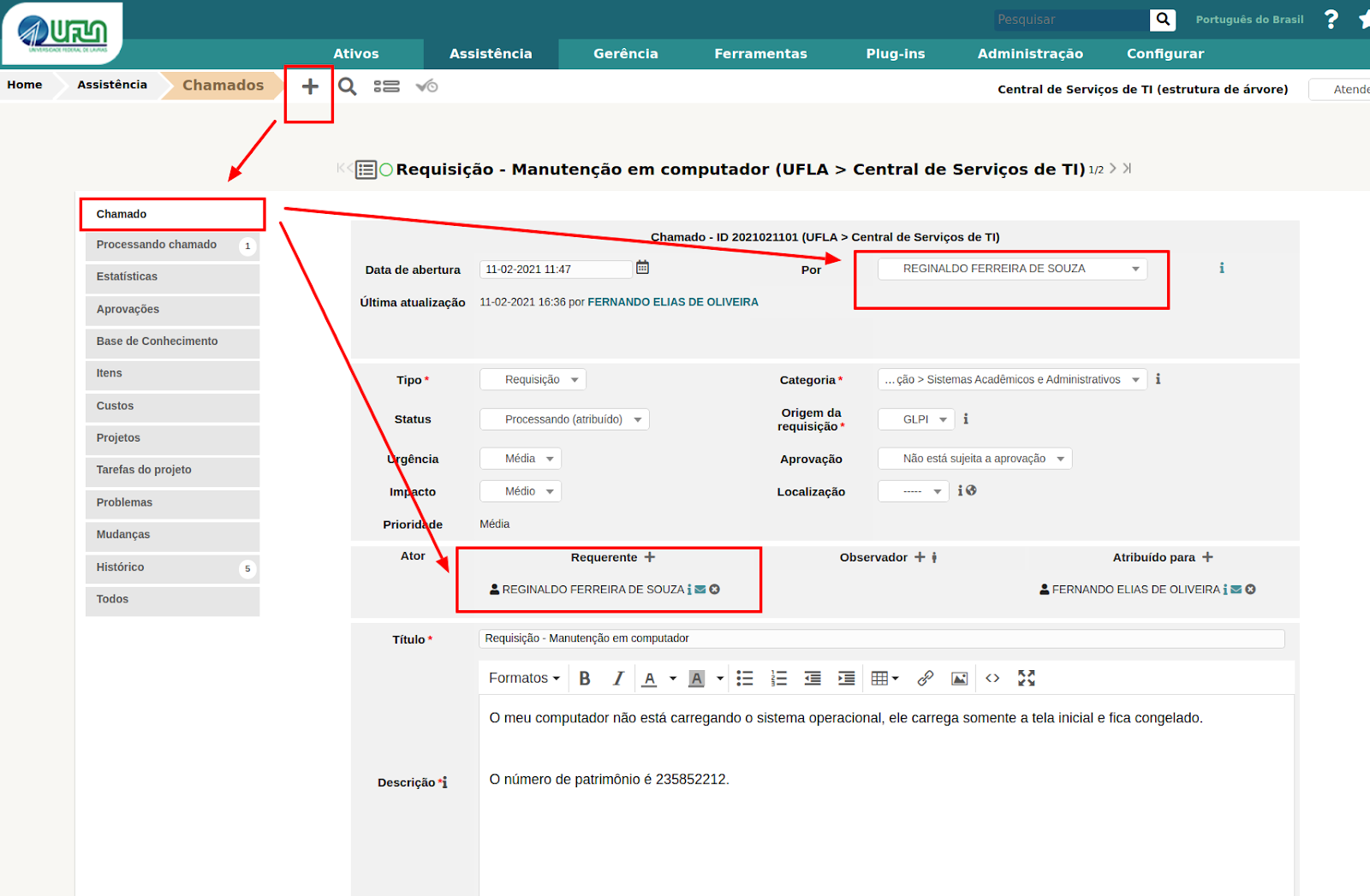
<span style="font-size: 11pt; font-family: Arial; color: #404040; background-color: #fcfcfc; font-weight: 400; font-style: normal; font-variant: normal; text-decoration: none; vertical-align: baseline; white-space: pre-wrap;">O GLPI permite criar chamadas para terceiros, inclusive para você, portanto é necessário acessar o caminho “Assistência &gt;&gt; Criar Chamado” , ou “Assistência &gt;&gt; Chamados &gt;&gt; e clicar na opção mais (+)” .</span>

<span style="font-size: 11pt; font-family: Arial; color: #404040; background-color: #fcfcfc; font-weight: 400; font-style: normal; font-variant: normal; text-decoration: none; vertical-align: baseline; white-space: pre-wrap;"><span style="border: none; display: inline-block; overflow: hidden; width: 625px; height: 409px;">![](https://lh6.googleusercontent.com/gzERxSJFHVwncyEOP3xMzChUcKMssookmv48GLMMQwhybfSZn1-uSnFgA4XHdighHtFSR8yagPaOX4E8AbZHj4kdOp7PugcykXn5DvaTZ06gVE_6JAScaXS0hAz_qHMv5n8CwYjxBhGaOtGMAcrX7A)</span></span>

<span style="font-size: 11pt; font-family: Arial; color: #404040; background-color: #fcfcfc; font-weight: 400; font-style: normal; font-variant: normal; text-decoration: none; vertical-align: baseline; white-space: pre-wrap;">Na criação do chamado é necessário se atentar nos campos: “</span><span style="font-size: 11pt; font-family: Arial; color: #ff00ff; background-color: #fcfcfc; font-weight: bold; font-style: normal; font-variant: normal; text-decoration: none; vertical-align: baseline; white-space: pre-wrap;">Por</span><span style="font-size: 11pt; font-family: Arial; color: #404040; background-color: #fcfcfc; font-weight: 400; font-style: normal; font-variant: normal; text-decoration: none; vertical-align: baseline; white-space: pre-wrap;">” (</span><span style="font-size: 11pt; font-family: Arial; color: #ff0000; background-color: #fcfcfc; font-weight: bold; font-style: normal; font-variant: normal; text-decoration: none; vertical-align: baseline; white-space: pre-wrap;">é quem vai avaliar o atendimento do chamado</span><span style="font-size: 11pt; font-family: Arial; color: #404040; background-color: #fcfcfc; font-weight: 400; font-style: normal; font-variant: normal; text-decoration: none; vertical-align: baseline; white-space: pre-wrap;">”, “Requerente” (em nome de quem ficará o chamado), “Tipo” (requisição ou incidente), “Categoria” (categoria de serviço do GLPI) e para quem será “Atribuído”.</span>

#### <span style="font-size: 16pt; font-family: Arial; color: #404040; background-color: #fcfcfc; font-weight: 400; font-style: normal; font-variant: normal; text-decoration: none; vertical-align: baseline; white-space: pre-wrap;">11 - Informações gerais  
  
</span>

- <span style="font-size: 11pt; font-family: Arial; color: #404040; background-color: #fcfcfc; font-weight: 400; font-style: normal; font-variant: normal; text-decoration: none; vertical-align: baseline; white-space: pre-wrap;">O GLPI informa por e-mail sobre todas as ocorrências nos chamados, por e-mail. </span>
- <span style="font-size: 11pt; font-family: Arial; color: #404040; background-color: #fcfcfc; font-weight: 400; font-style: normal; font-variant: normal; text-decoration: none; vertical-align: baseline; white-space: pre-wrap;">Esta é a ferramenta oficial para atendimento de serviços da DGTI e todo atendimento deve estar registrado nela.</span>
- <span style="font-size: 11pt; font-family: Arial; color: #404040; background-color: #fcfcfc; font-weight: 400; font-style: normal; font-variant: normal; text-decoration: none; vertical-align: baseline; white-space: pre-wrap;">Quinzenalmente é feita a vistoria dos chamados atrasados para análise do motivo de atraso, os técnicos e coordenadores são notificados sobre os atrasos.</span>
- <span style="font-size: 11pt; font-family: Arial; color: #404040; background-color: #fcfcfc; font-weight: 400; font-style: normal; font-variant: normal; text-decoration: none; vertical-align: baseline; white-space: pre-wrap;">Os serviços adicionados no GLPI devem estar no catálogo de serviços de TI da UFLA, aprovado pelo CIGOV.</span>

#### <span style="font-size: 16pt; font-family: Arial; color: #404040; background-color: #fcfcfc; font-weight: 400; font-style: normal; font-variant: normal; text-decoration: none; vertical-align: baseline; white-space: pre-wrap;">12 - Modelo para controle das câmeras e switchs no GLPI &amp; Zabbix</span>

<span style="font-weight: normal;"> </span>

<span style="font-size: 11pt; font-family: Arial; color: #404040; background-color: #fcfcfc; font-weight: 400; font-style: normal; font-variant: normal; text-decoration: none; vertical-align: baseline; white-space: pre-wrap;"><span style="border: none; display: inline-block; overflow: hidden; width: 625px; height: 296px;">![](https://lh5.googleusercontent.com/SbI4ctLarCcPi3sCRlN3CYhR_7g_jQ6ASR4jQjcbCGimIz1L6LQtxb5prQMgoowO5IbiHDRU54UUx-V-nacg2Bn3IXTig-kK-krKutu_1gZAiC8ZhJAT7fmltmYc9nhfHO0xUOBfx89vJPAF_ESMxw)</span></span>

#### <span style="font-size: 16pt; font-family: Arial; color: #404040; background-color: #fcfcfc; font-weight: 400; font-style: normal; font-variant: normal; text-decoration: none; vertical-align: baseline; white-space: pre-wrap;">12 - Documento antigo com as instruções</span>

<span style="font-size: 11pt; font-family: Arial; color: #404040; background-color: #fcfcfc; font-weight: 400; font-style: normal; font-variant: normal; text-decoration: none; vertical-align: baseline; white-space: pre-wrap;"><span style="border: none; display: inline-block; overflow: hidden; width: 625px; height: 296px;">  
[https://docs.google.com/document/d/1\_s4HFHrldtjQknytRQqyUVjH-ybKUdz7A2sNocyDpJA/edit?usp=sharing](https://docs.google.com/document/d/1_s4HFHrldtjQknytRQqyUVjH-ybKUdz7A2sNocyDpJA/edit?usp=sharing)  
</span></span>

# Como gerenciar chamados no GLPI - "Tutorial para atendentes de chamados"

####  

<span style="font-size: 16pt; font-family: Arial,sans-serif; color: #404040; background-color: #fcfcfc; font-weight: 400; font-style: normal; font-variant: normal; text-decoration: none; vertical-align: baseline; white-space: pre-wrap;">1 - Diferença entre “requisição” e “incidente”</span>

<span style="font-size: 11pt; font-family: Arial,sans-serif; color: #404040; background-color: #fcfcfc; font-weight: 400; font-style: normal; font-variant: normal; text-decoration: none; vertical-align: baseline; white-space: pre-wrap;">No GLPI há dois tipos de chamados (</span><span style="font-size: 11pt; font-family: Arial,sans-serif; color: #404040; background-color: #fcfcfc; font-weight: bold; font-style: normal; font-variant: normal; text-decoration: none; vertical-align: baseline; white-space: pre-wrap;">incidente</span><span style="font-size: 11pt; font-family: Arial,sans-serif; color: #404040; background-color: #fcfcfc; font-weight: 400; font-style: normal; font-variant: normal; text-decoration: none; vertical-align: baseline; white-space: pre-wrap;"> e </span><span style="font-size: 11pt; font-family: Arial,sans-serif; color: #404040; background-color: #fcfcfc; font-weight: bold; font-style: normal; font-variant: normal; text-decoration: none; vertical-align: baseline; white-space: pre-wrap;">requisição)</span><span style="font-size: 11pt; font-family: Arial,sans-serif; color: #404040; background-color: #fcfcfc; font-weight: 400; font-style: normal; font-variant: normal; text-decoration: none; vertical-align: baseline; white-space: pre-wrap;">: </span>

<span style="font-size: 10.5pt; font-family: 'Quattrocento Sans',sans-serif; color: #444444; background-color: transparent; font-weight: 400; font-style: normal; font-variant: normal; text-decoration: none; vertical-align: baseline; white-space: pre-wrap;"> </span>

- <span style="font-size: 11pt; font-family: Arial,sans-serif; color: #404040; background-color: #fcfcfc; font-weight: 400; font-style: normal; font-variant: normal; text-decoration: none; vertical-align: baseline; white-space: pre-wrap;">**Incidente** refere-se a um evento que não faz parte da operação padrão de um serviço, causando ou podendo causar uma interrupção ou redução na qualidade desse serviço.  
      
    </span>
- <span style="font-size: 11pt; font-family: Arial,sans-serif; color: #404040; background-color: #fcfcfc; font-weight: 400; font-style: normal; font-variant: normal; text-decoration: none; vertical-align: baseline; white-space: pre-wrap;">**Requisição** é uma solicitação para modificar alguma configuração relacionada a um serviço de TI, como, por exemplo, troca de senha, concessão de direitos de acesso lógico, criação de um site ou manutenção de um computador.</span>

<span style="font-size: 16pt; font-family: Arial,sans-serif; color: #404040; background-color: #fcfcfc; font-weight: 400; font-style: normal; font-variant: normal; text-decoration: none; vertical-align: baseline; white-space: pre-wrap;">2 - Tela Inicial do GLPI </span>

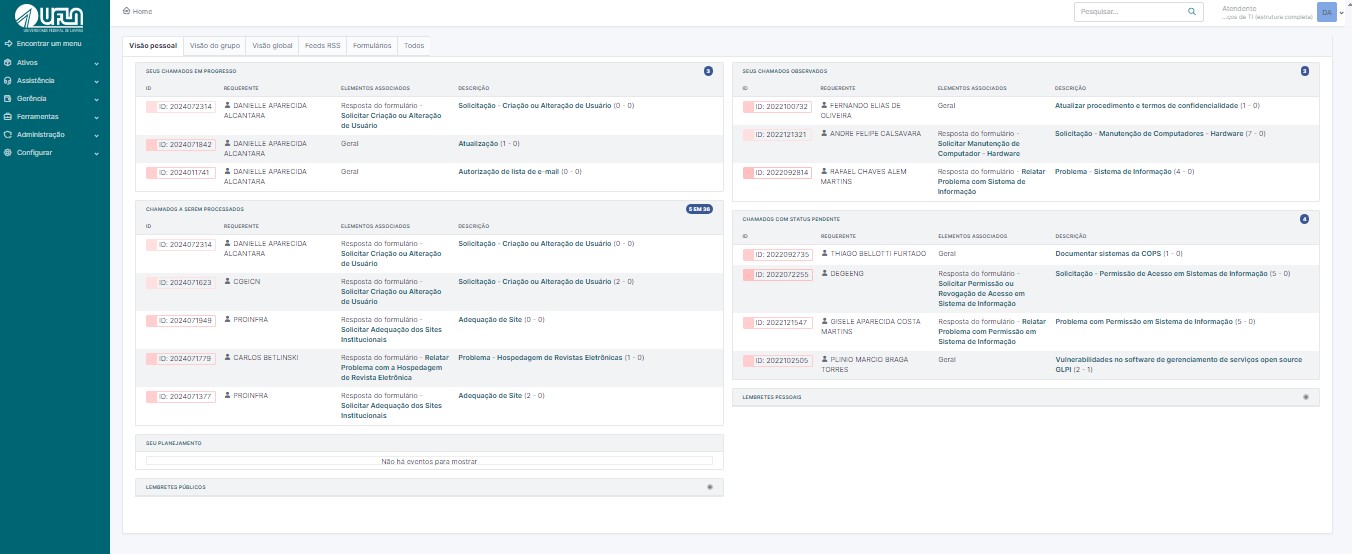
<span style="font-size: 11pt; font-family: Arial,sans-serif; color: #404040; background-color: #fcfcfc; font-weight: 400; font-style: normal; font-variant: normal; text-decoration: none; vertical-align: baseline; white-space: pre-wrap;">Na Figura 1, observa-se a tela inicial com o perfil de atendente, onde, na aba 'Visão Pessoal', é possível identificar os chamados atribuídos. No item destacado em vermelho, </span><span style="font-size: 11pt; font-family: Arial,sans-serif; color: #404040; background-color: #fcfcfc; font-weight: bold; font-style: normal; font-variant: normal; text-decoration: none; vertical-align: baseline; white-space: pre-wrap;">número 1 – Seus Chamados em Progresso</span><span style="font-size: 11pt; font-family: Arial,sans-serif; color: #404040; background-color: #fcfcfc; font-weight: 400; font-style: normal; font-variant: normal; text-decoration: none; vertical-align: baseline; white-space: pre-wrap;">, encontram-se os chamados nos quais você é o solicitante do serviço. No </span><span style="font-size: 11pt; font-family: Arial,sans-serif; color: #404040; background-color: #fcfcfc; font-weight: bold; font-style: normal; font-variant: normal; text-decoration: none; vertical-align: baseline; white-space: pre-wrap;">número 2 – Chamados a Serem Processados</span><span style="font-size: 11pt; font-family: Arial,sans-serif; color: #404040; background-color: #fcfcfc; font-weight: 400; font-style: normal; font-variant: normal; text-decoration: none; vertical-align: baseline; white-space: pre-wrap;">, estão os chamados que foram atribuídos a você para atendimento. No </span><span style="font-size: 11pt; font-family: Arial,sans-serif; color: #404040; background-color: #fcfcfc; font-weight: bold; font-style: normal; font-variant: normal; text-decoration: none; vertical-align: baseline; white-space: pre-wrap;">número 3 – Seu Planejamento</span><span style="font-size: 11pt; font-family: Arial,sans-serif; color: #404040; background-color: #fcfcfc; font-weight: 400; font-style: normal; font-variant: normal; text-decoration: none; vertical-align: baseline; white-space: pre-wrap;">, são listadas as tarefas agendadas para serem realizadas. No </span><span style="font-size: 11pt; font-family: Arial,sans-serif; color: #404040; background-color: #fcfcfc; font-weight: bold; font-style: normal; font-variant: normal; text-decoration: none; vertical-align: baseline; white-space: pre-wrap;">número 4 – Seus Chamados Observados</span><span style="font-size: 11pt; font-family: Arial,sans-serif; color: #404040; background-color: #fcfcfc; font-weight: 400; font-style: normal; font-variant: normal; text-decoration: none; vertical-align: baseline; white-space: pre-wrap;">, estão os chamados em que você foi designado para acompanhar o processo de atendimento. No </span><span style="font-size: 11pt; font-family: Arial,sans-serif; color: #404040; background-color: #fcfcfc; font-weight: bold; font-style: normal; font-variant: normal; text-decoration: none; vertical-align: baseline; white-space: pre-wrap;">número 5 – Chamados com Status Pendente</span><span style="font-size: 11pt; font-family: Arial,sans-serif; color: #404040; background-color: #fcfcfc; font-weight: 400; font-style: normal; font-variant: normal; text-decoration: none; vertical-align: baseline; white-space: pre-wrap;">, estão os chamados que aguardam retorno do solicitante ou a disponibilidade de recursos/materiais para execução..</span>

[![tela inicial.jpg](https://kb.ufla.br/uploads/images/gallery/2024-09/scaled-1680-/Br8YXWttfyrUQ3cI-tela-inicial.jpg)](https://kb.ufla.br/uploads/images/gallery/2024-09/Br8YXWttfyrUQ3cI-tela-inicial.jpg)

<span style="font-size: 10.5pt; font-family: 'Quattrocento Sans',sans-serif; color: #444444; background-color: transparent; font-weight: 400; font-style: normal; font-variant: normal; text-decoration: none; vertical-align: baseline; white-space: pre-wrap;">Figura 1: Tela inicial e identificação</span>

<span style="font-size: 16pt; font-family: Arial,sans-serif; color: #404040; background-color: #fcfcfc; font-weight: 400; font-style: normal; font-variant: normal; text-decoration: none; vertical-align: baseline; white-space: pre-wrap;">4 - Informações de um chamado </span>

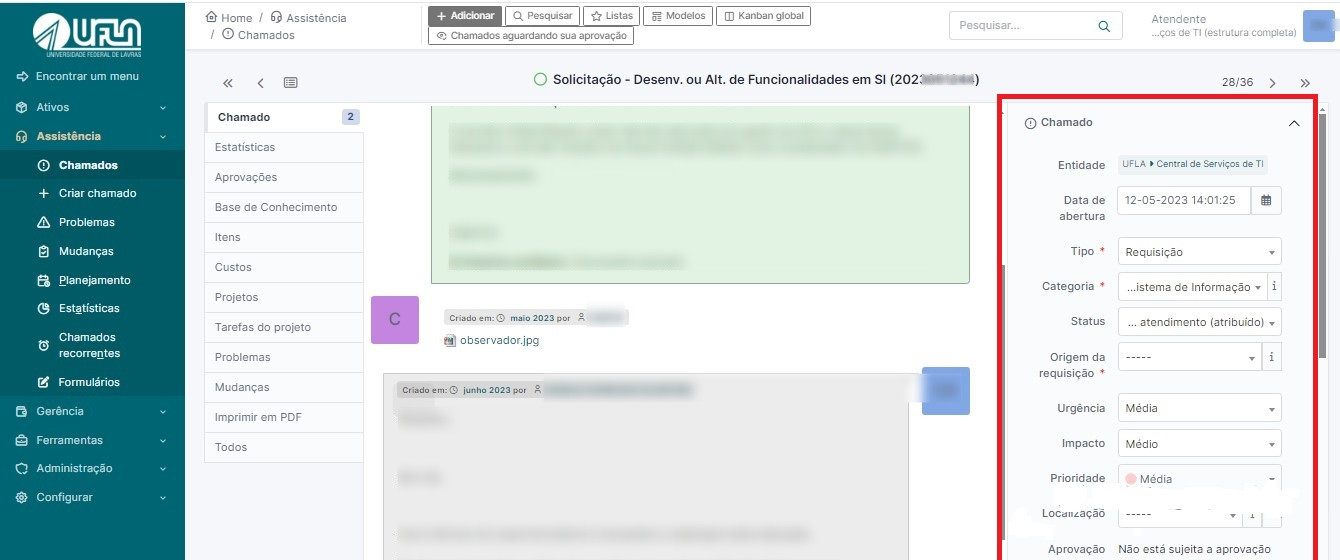
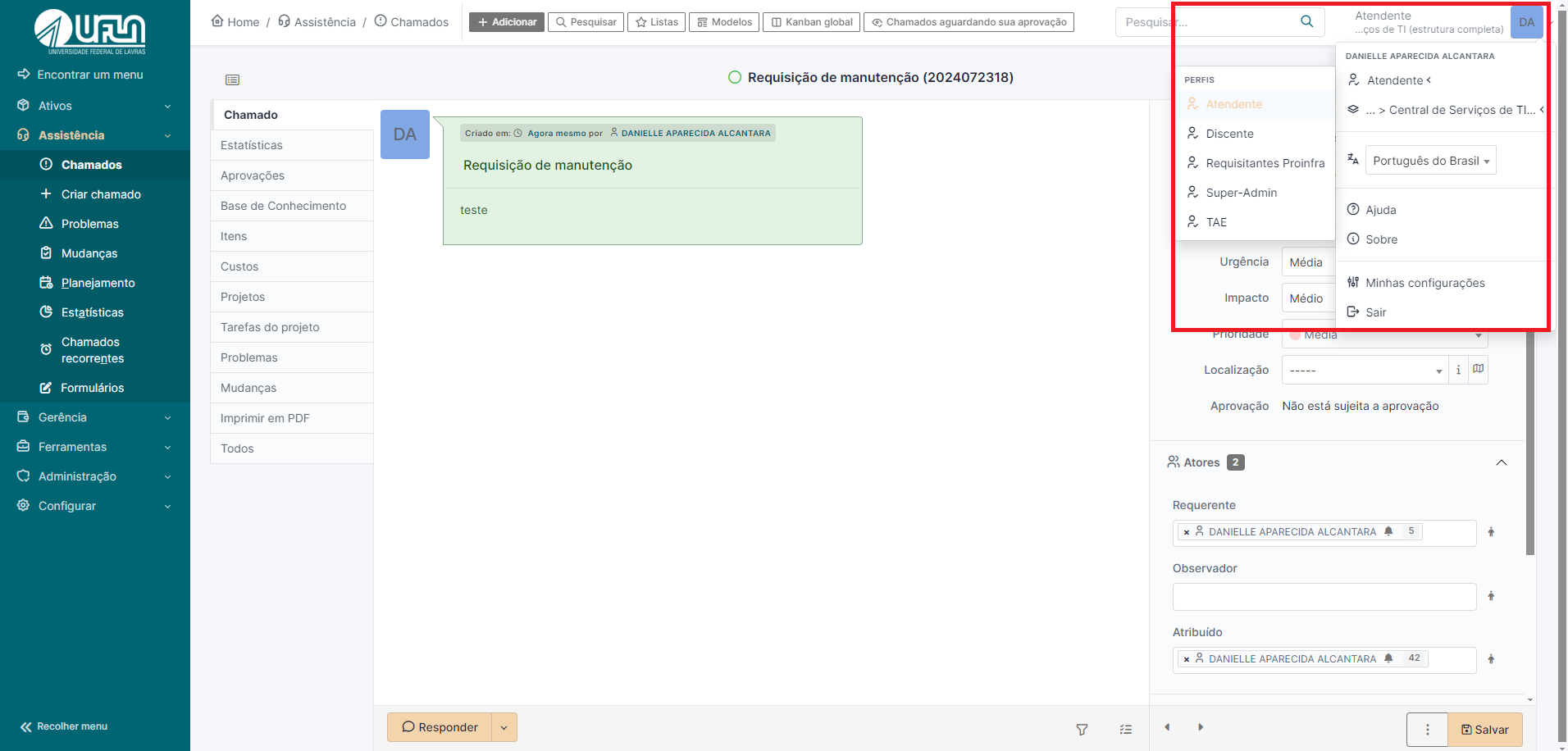
<span style="font-size: 11pt; font-family: Arial,sans-serif; color: #404040; background-color: #fcfcfc; font-weight: 400; font-style: normal; font-variant: normal; text-decoration: none; vertical-align: baseline; white-space: pre-wrap;">Na aba 'Chamado', os atendentes podem editar as informações de um chamado específico enquanto o mesmo não for solucionado, como mostrado em vermelho na figura 2 a seguir. Dois pontos importantes devem ser verificados durante o atendimento dos chamados: </span><span style="font-size: 11pt; font-family: Arial,sans-serif; color: #404040; background-color: #fcfcfc; font-weight: bold; font-style: normal; font-variant: normal; text-decoration: none; vertical-align: baseline; white-space: pre-wrap;">Tipo</span><span style="font-size: 11pt; font-family: Arial,sans-serif; color: #404040; background-color: #fcfcfc; font-weight: 400; font-style: normal; font-variant: normal; text-decoration: none; vertical-align: baseline; white-space: pre-wrap;"> e </span><span style="font-size: 11pt; font-family: Arial,sans-serif; color: #404040; background-color: #fcfcfc; font-weight: bold; font-style: normal; font-variant: normal; text-decoration: none; vertical-align: baseline; white-space: pre-wrap;">Categoria</span><span style="font-size: 11pt; font-family: Arial,sans-serif; color: #404040; background-color: #fcfcfc; font-weight: 400; font-style: normal; font-variant: normal; text-decoration: none; vertical-align: baseline; white-space: pre-wrap;">. Em relação ao Tipo, é necessário confirmar se o tipo do chamado está correto (requisição ou incidente). Vale lembrar que, em chamados do tipo incidente, não é possível solicitar aprovação (validação) do solicitante, pois ele não tem acesso a essa opção. Já em relação à Categoria, é fundamental verificar se a categoria atribuída corresponde ao conteúdo do chamado. Essa verificação é importante para garantir uma catalogação precisa dos chamados, uma vez que eles serão utilizados para a geração de indicadores e métricas de atendimento.</span><span style="font-size: 11pt; font-family: Arial,sans-serif; color: #404040; background-color: #fcfcfc; font-weight: 400; font-style: normal; font-variant: normal; text-decoration: none; vertical-align: baseline; white-space: pre-wrap;">  
</span>

<span style="font-size: 11pt; font-family: Arial,sans-serif; color: #404040; background-color: #fcfcfc; font-weight: 400; font-style: normal; font-variant: normal; text-decoration: none; vertical-align: baseline; white-space: pre-wrap;">[![image-1 (1).jpg](https://kb.ufla.br/uploads/images/gallery/2024-09/scaled-1680-/3QDPjVp8VgI1HC5y-image-1-1.jpg)](https://kb.ufla.br/uploads/images/gallery/2024-09/3QDPjVp8VgI1HC5y-image-1-1.jpg)</span>

<span style="font-size: 10.5pt; font-family: 'Quattrocento Sans',sans-serif; color: #444444; background-color: transparent; font-weight: 400; font-style: normal; font-variant: normal; text-decoration: none; vertical-align: baseline; white-space: pre-wrap;"> </span>

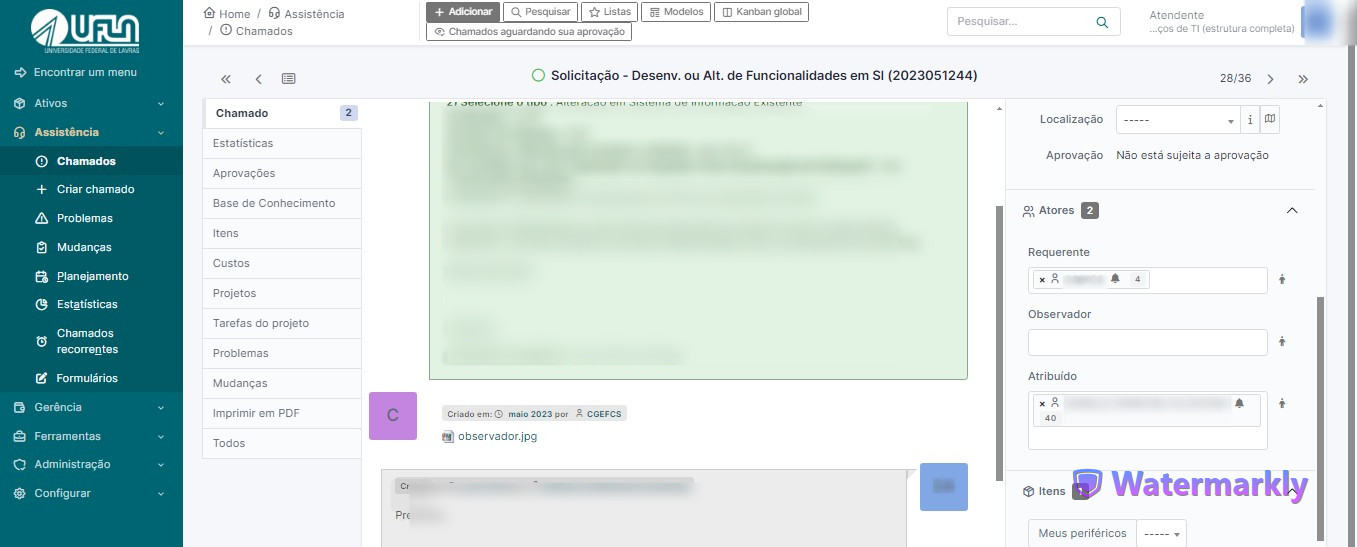
<span style="font-size: 11pt; font-family: Arial,sans-serif; color: #404040; background-color: #fcfcfc; font-weight: 400; font-style: normal; font-variant: normal; text-decoration: none; vertical-align: baseline; white-space: pre-wrap;">É possível atribuir um chamado a um </span><span style="font-size: 11pt; font-family: Arial,sans-serif; color: #404040; background-color: #fcfcfc; font-weight: bold; font-style: normal; font-variant: normal; text-decoration: none; vertical-align: baseline; white-space: pre-wrap;">atendente</span><span style="font-size: 11pt; font-family: Arial,sans-serif; color: #404040; background-color: #fcfcfc; font-weight: 400; font-style: normal; font-variant: normal; text-decoration: none; vertical-align: baseline; white-space: pre-wrap;"> da DGTI utilizando o campo 'Atribuído'. Basta digitar o nome desejado e selecioná-lo assim que aparecer na lista. Para incluir um </span><span style="font-size: 11pt; font-family: Arial,sans-serif; color: #404040; background-color: #fcfcfc; font-weight: bold; font-style: normal; font-variant: normal; text-decoration: none; vertical-align: baseline; white-space: pre-wrap;">observador</span><span style="font-size: 11pt; font-family: Arial,sans-serif; color: #404040; background-color: #fcfcfc; font-weight: 400; font-style: normal; font-variant: normal; text-decoration: none; vertical-align: baseline; white-space: pre-wrap;">, digite o nome no campo correspondente e selecione-o assim que aparecer na lista.</span>

<span style="font-size: 10.5pt; font-family: inherit; color: #444444; background-color: transparent; font-weight: 400; font-style: normal; font-variant: normal; text-decoration: none; vertical-align: baseline; white-space: pre-wrap;"> </span>

[![image-1 (2).jpg](https://kb.ufla.br/uploads/images/gallery/2024-09/scaled-1680-/VgM228bIuNoorr6A-image-1-2.jpg)](https://kb.ufla.br/uploads/images/gallery/2024-09/VgM228bIuNoorr6A-image-1-2.jpg)

<span style="font-size: 11pt; font-family: Arial,sans-serif; color: #ff0000; background-color: #fcfcfc; font-weight: bold; font-style: normal; font-variant: normal; text-decoration: none; vertical-align: baseline; white-space: pre-wrap;">  
</span><span style="font-size: 11pt; font-family: Arial,sans-serif; color: #ff0000; background-color: #fcfcfc; font-weight: bold; font-style: normal; font-variant: normal; text-decoration: none; vertical-align: baseline; white-space: pre-wrap;">IMPORTANTE</span><span style="font-size: 11pt; font-family: Arial,sans-serif; color: #404040; background-color: #fcfcfc; font-weight: 400; font-style: normal; font-variant: normal; text-decoration: none; vertical-align: baseline; white-space: pre-wrap;">: No GLPI, o solicitante é tratado como “Requerente” e o atendente é um “Técnico”.</span>

<span style="font-size: 16pt; font-family: Arial,sans-serif; color: #404040; background-color: #fcfcfc; font-weight: 400; font-style: normal; font-variant: normal; text-decoration: none; vertical-align: baseline; white-space: pre-wrap;">5 - Inserindo notas no chamado </span>

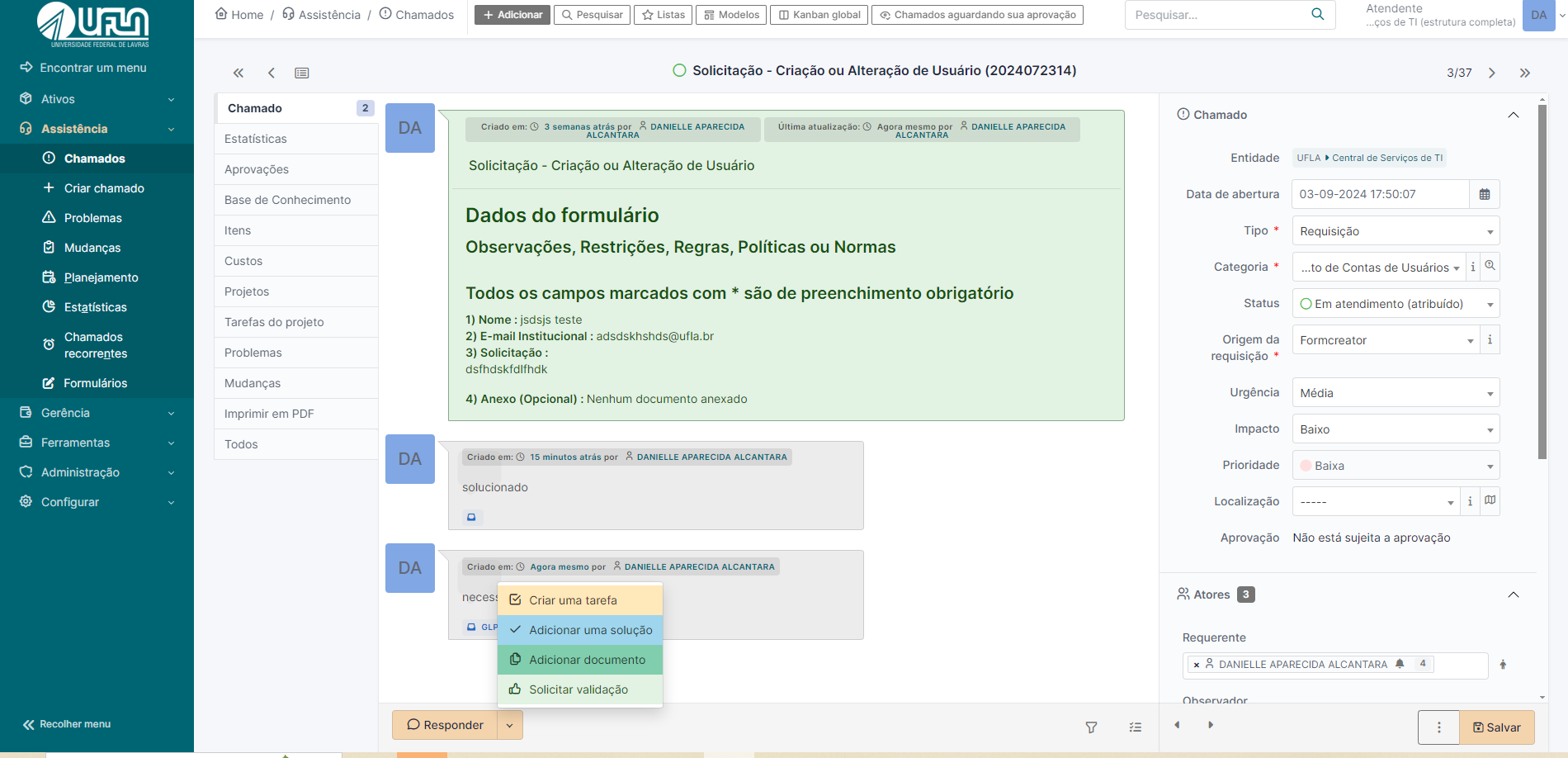
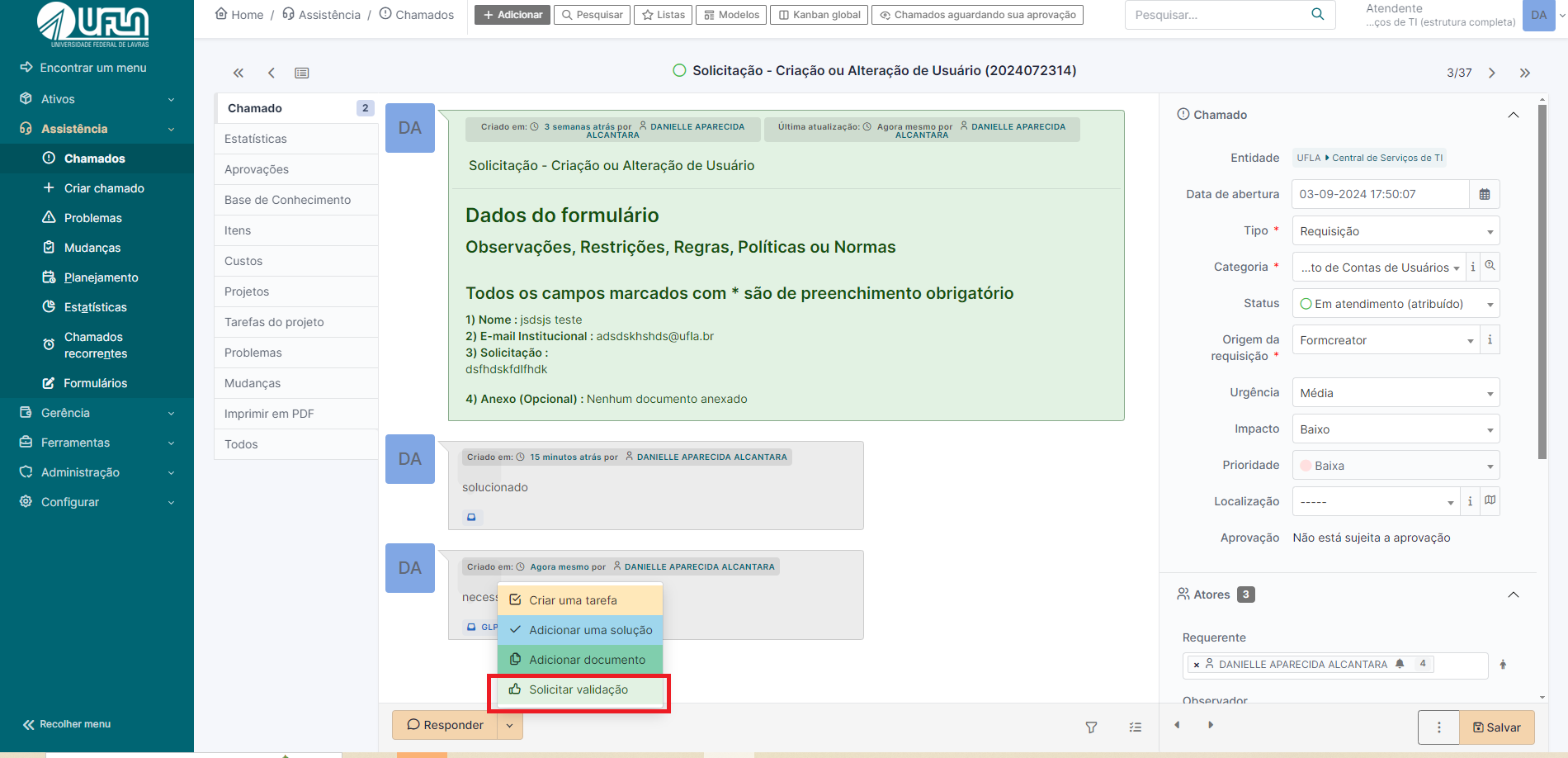
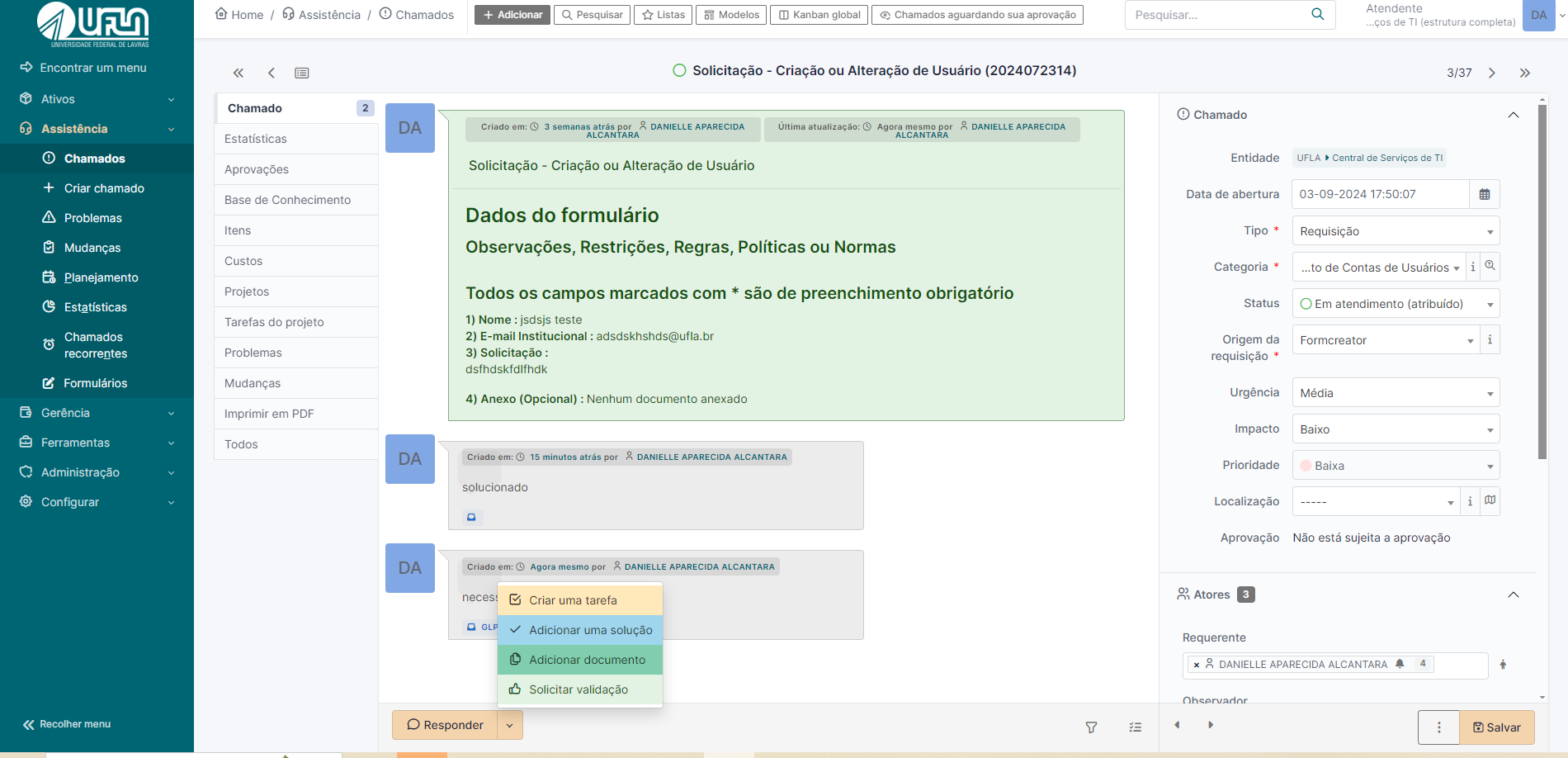
<span style="font-size: 11pt; font-family: Arial,sans-serif; color: #404040; background-color: #fcfcfc; font-weight: 400; font-style: normal; font-variant: normal; text-decoration: none; vertical-align: baseline; white-space: pre-wrap;">Na aba “Chamado” é onde são registradas as ações de gerenciamento e movimentação realizadas. Nesta seção podem ser inseridos os acompanhamentos que podem ser 'criar uma tarefa', 'adicionar uma solução', 'adicionar um documento' ou 'solicitar validação'.</span>

<span style="font-size: 11pt; font-family: Arial,sans-serif; color: #404040; background-color: #fcfcfc; font-weight: 400; font-style: normal; font-variant: normal; text-decoration: none; vertical-align: baseline; white-space: pre-wrap;">A inclusão desses acompanhamentos é altamente recomendada, pois promove maior transparência no processo e mantém o solicitante informado sobre o andamento da demanda."</span>

<span style="font-size: 10.5pt; font-family: inherit; color: #444444; background-color: transparent; font-weight: 400; font-style: normal; font-variant: normal; text-decoration: none; vertical-align: baseline; white-space: pre-wrap;"> </span>

[![opções da acompanhamento.png](https://kb.ufla.br/uploads/images/gallery/2024-09/scaled-1680-/FpzUNzocdw6CHM0d-opcoes-da-acompanhamento.png)](https://kb.ufla.br/uploads/images/gallery/2024-09/FpzUNzocdw6CHM0d-opcoes-da-acompanhamento.png)

<span style="font-size: 11pt; font-family: Arial,sans-serif; color: #404040; background-color: #fcfcfc; font-weight: 400; font-style: normal; font-variant: normal; text-decoration: none; vertical-align: baseline; white-space: pre-wrap;">Para exibir nota de acompanhamento somente para os atendentes é necessário marcar o </span><span style="font-size: 11pt; font-family: Arial,sans-serif; color: #404040; background-color: #fcfcfc; font-weight: bold; font-style: normal; font-variant: normal; text-decoration: none; vertical-align: baseline; white-space: pre-wrap;">ícone de cadeado</span><span style="font-size: 11pt; font-family: Arial,sans-serif; color: #404040; background-color: #fcfcfc; font-weight: 400; font-style: normal; font-variant: normal; text-decoration: none; vertical-align: baseline; white-space: pre-wrap;"> no formulário de cadastro de notas de acompanhamento, conforme na imagem a seguir:</span>

<span style="font-size: 10.5pt; font-family: inherit; color: #444444; background-color: transparent; font-weight: 400; font-style: normal; font-variant: normal; text-decoration: none; vertical-align: baseline; white-space: pre-wrap;"> </span>

[![mensagem privada.png](https://kb.ufla.br/uploads/images/gallery/2024-09/scaled-1680-/KRzXllBtIleRyZwC-mensagem-privada.png)](https://kb.ufla.br/uploads/images/gallery/2024-09/KRzXllBtIleRyZwC-mensagem-privada.png)

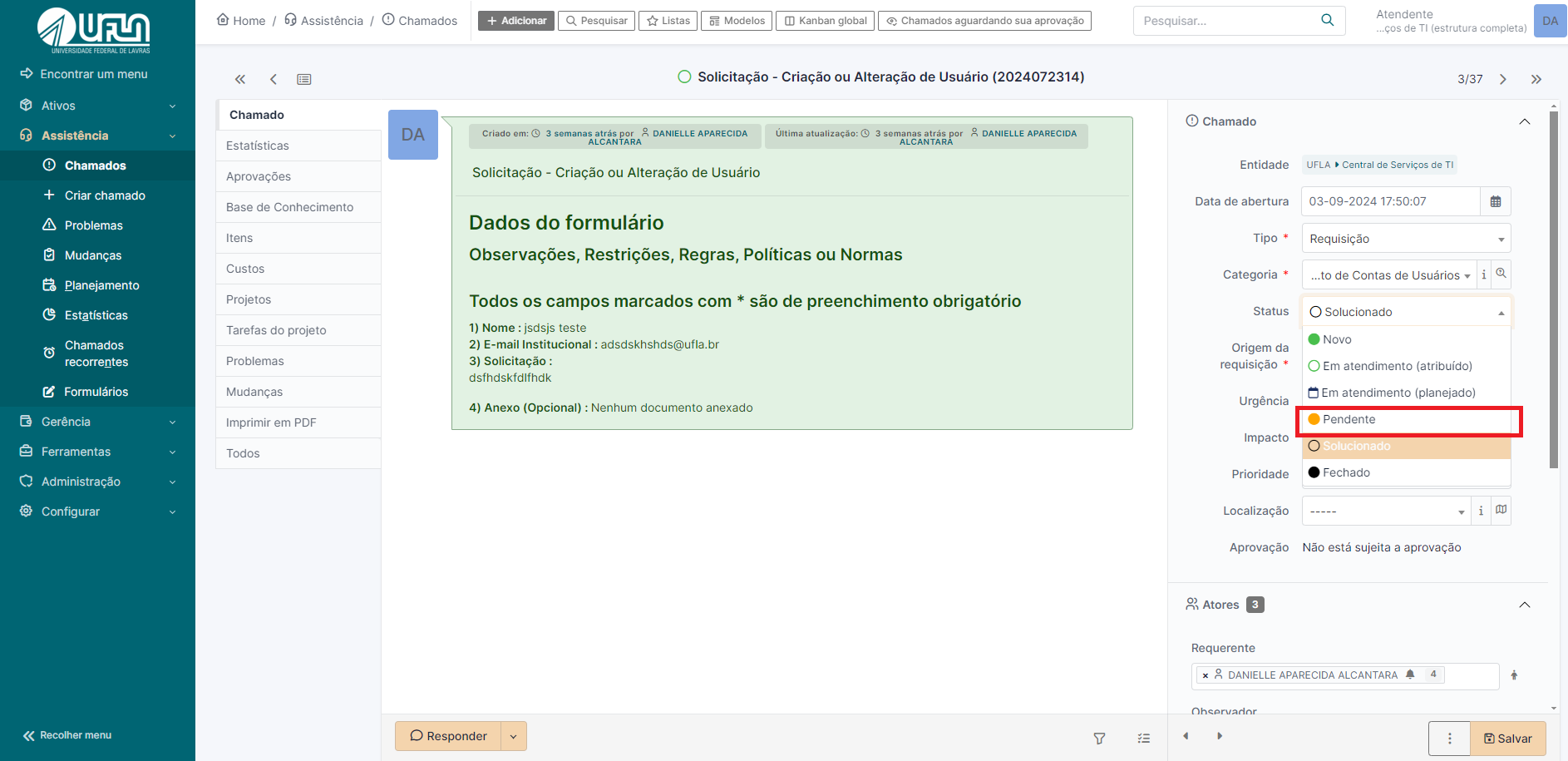
<span style="font-size: 11pt; font-family: Arial,sans-serif; color: #404040; background-color: #fcfcfc; font-weight: 400; font-style: normal; font-variant: normal; text-decoration: none; vertical-align: baseline; white-space: pre-wrap;">Se for necessário marcar o chamado como 'Pendente' a partir de um acompanhamento, basta selecionar a opção 'Pendente' ao salvar o formulário. O chamado retornará automaticamente para o status de atribuído ao técnico assim que o solicitante registrar uma nova nota \*ou iteração”, desde que o status esteja como 'Pendente'. Recomenda-se atribuir esse status quando houver falta de material ou quando for necessário aguardar um retorno ou informação adicional do solicitante. Veja a imagem a seguir para mais detalhes.</span>

<span style="font-size: 10.5pt; font-family: inherit; color: #444444; background-color: transparent; font-weight: 400; font-style: normal; font-variant: normal; text-decoration: none; vertical-align: baseline; white-space: pre-wrap;"> </span>

[![status pendente.png](https://kb.ufla.br/uploads/images/gallery/2024-09/scaled-1680-/Lcn31RMZEFu0ejhj-status-pendente.png)](https://kb.ufla.br/uploads/images/gallery/2024-09/Lcn31RMZEFu0ejhj-status-pendente.png)

<span style="font-size: 10.5pt; font-family: inherit; color: #444444; background-color: transparent; font-weight: 400; font-style: normal; font-variant: normal; text-decoration: none; vertical-align: baseline; white-space: pre-wrap;"> </span>

<span style="font-size: 16pt; font-family: Arial,sans-serif; color: #404040; background-color: #fcfcfc; font-weight: 400; font-style: normal; font-variant: normal; text-decoration: none; vertical-align: baseline; white-space: pre-wrap;">6 - Pedindo aprovação para atender chamado  
  
</span>

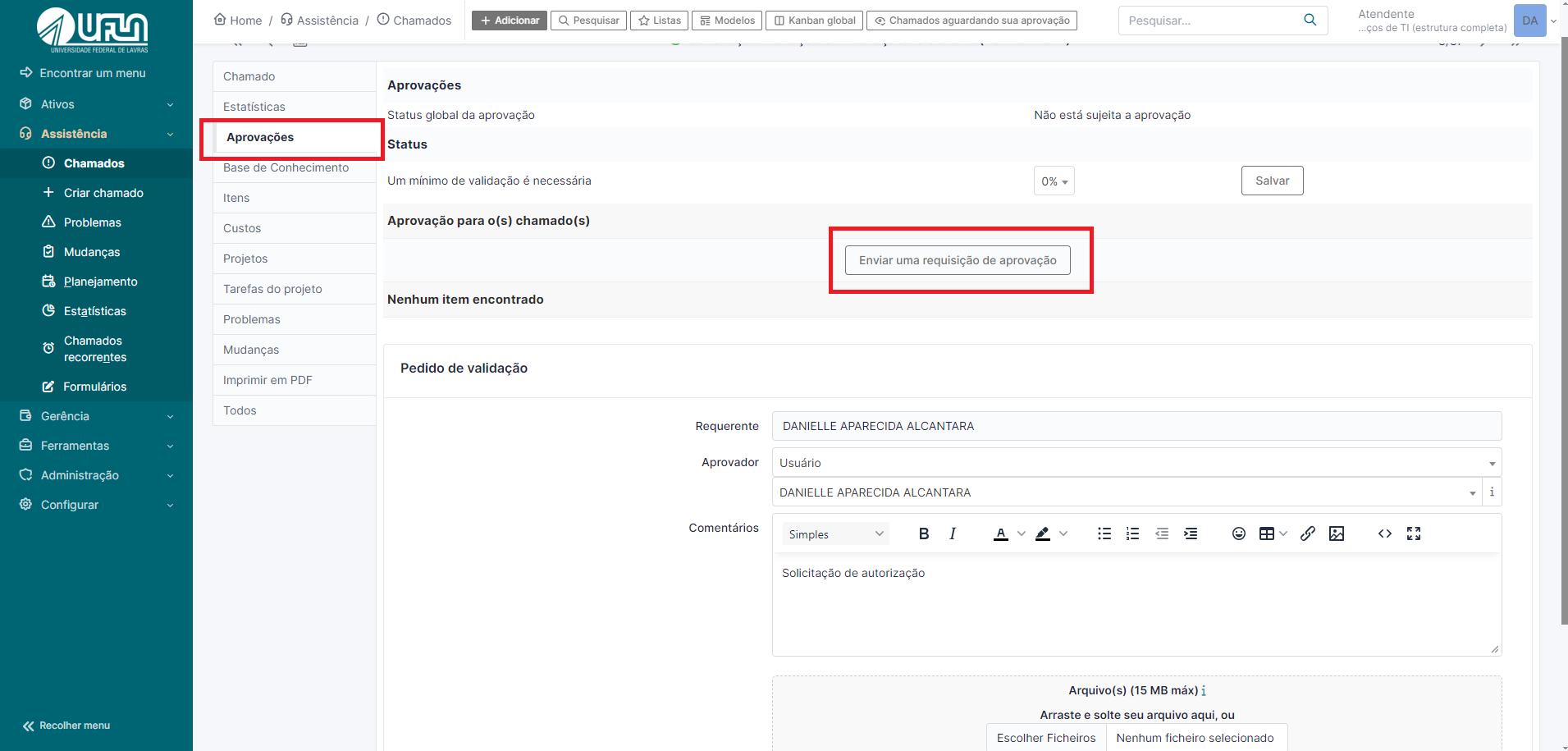
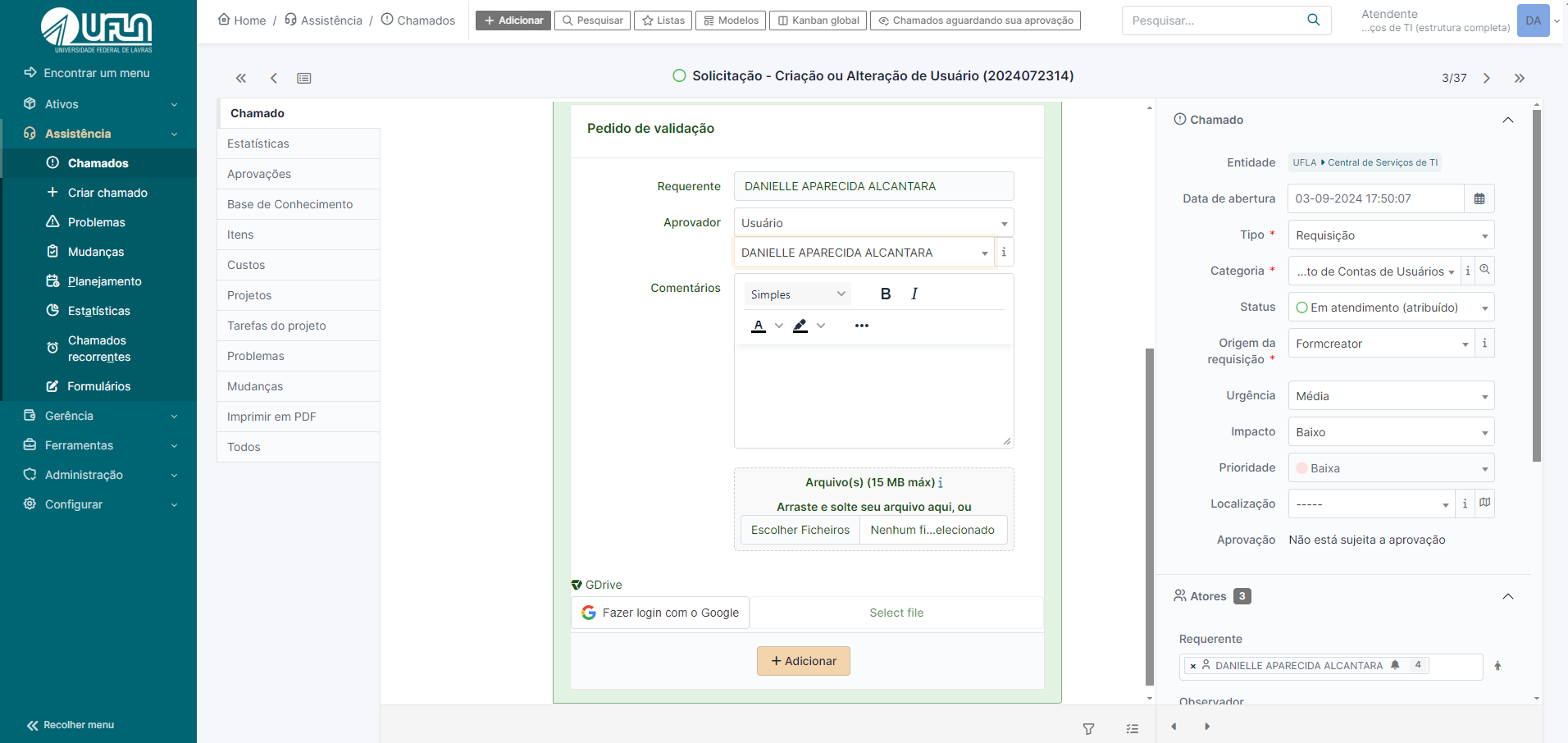
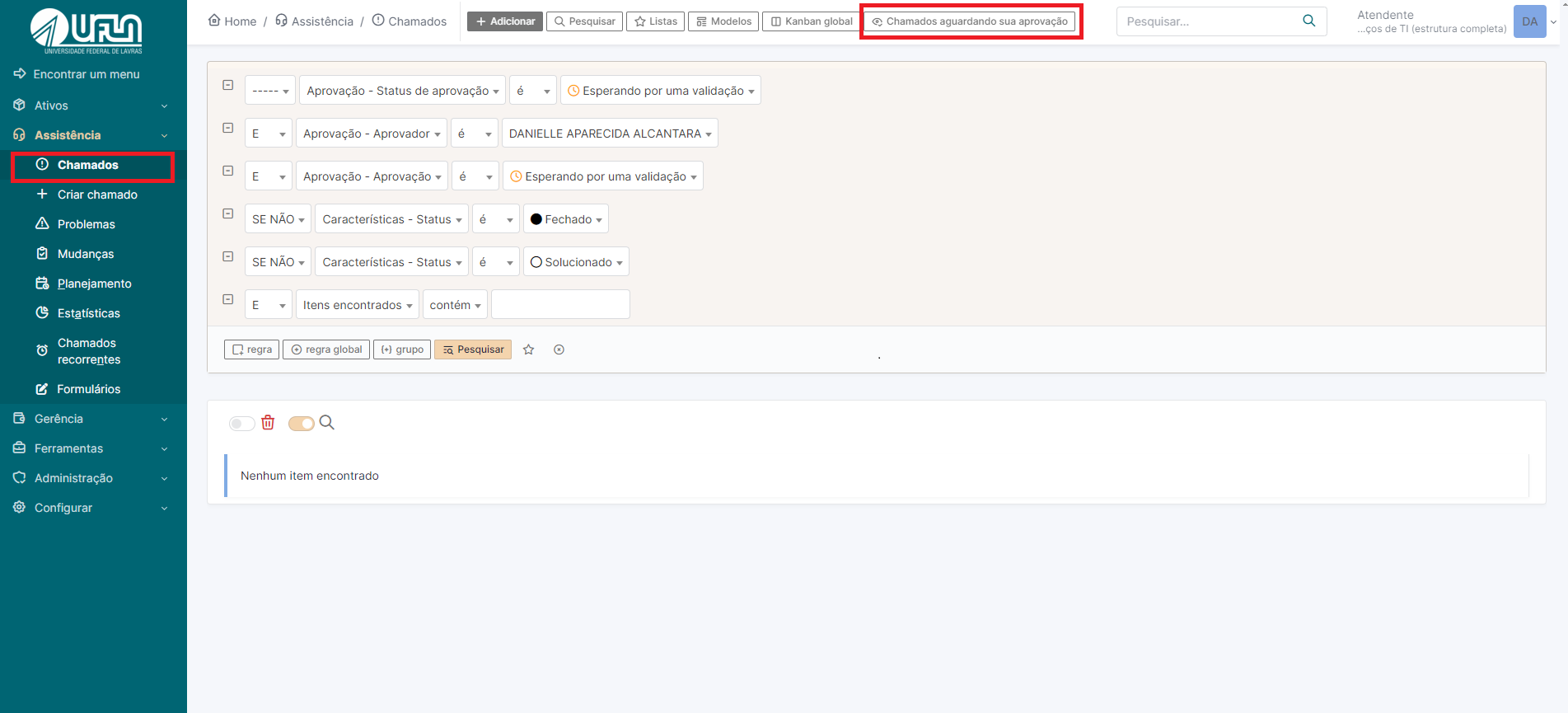
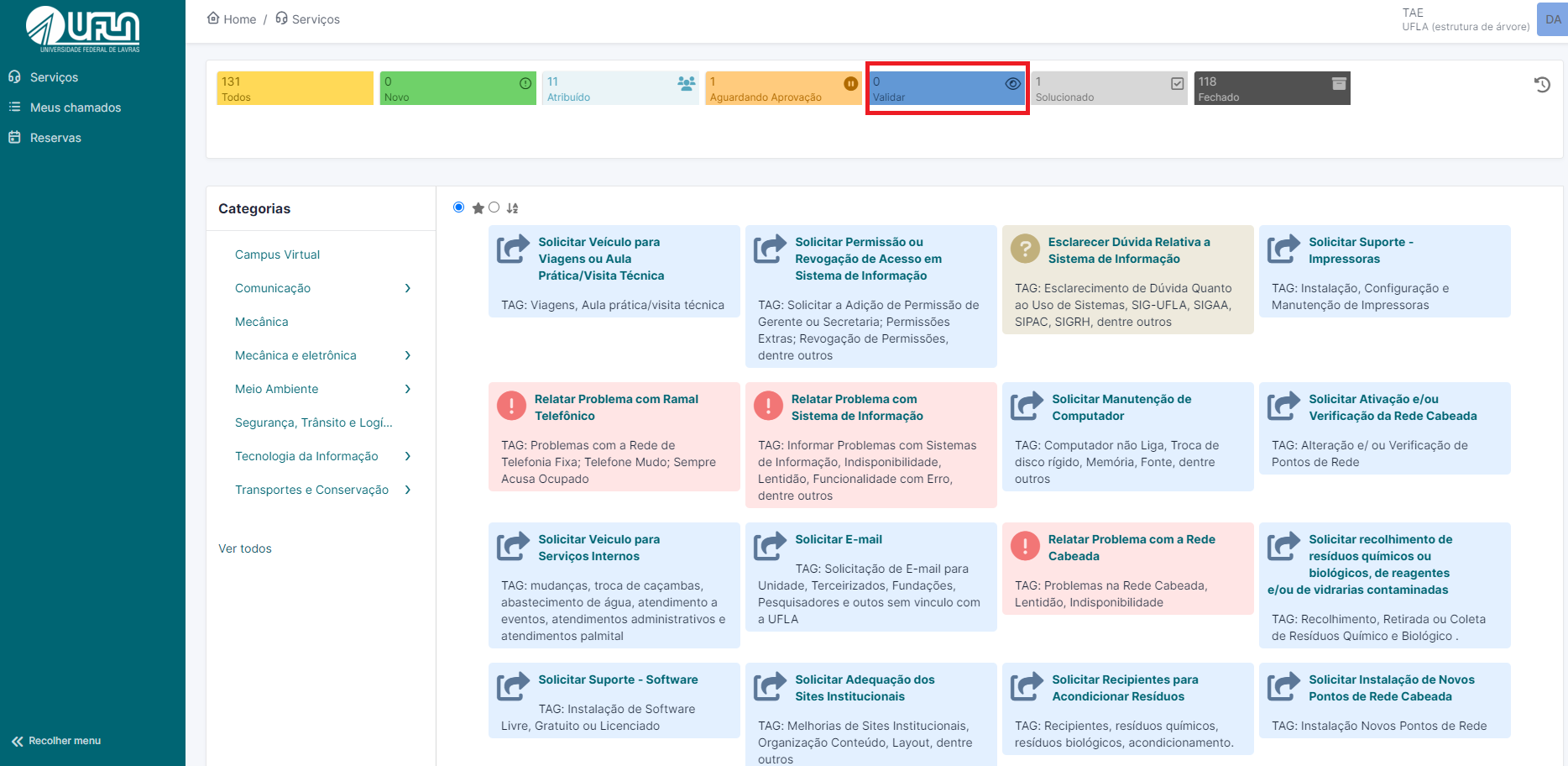
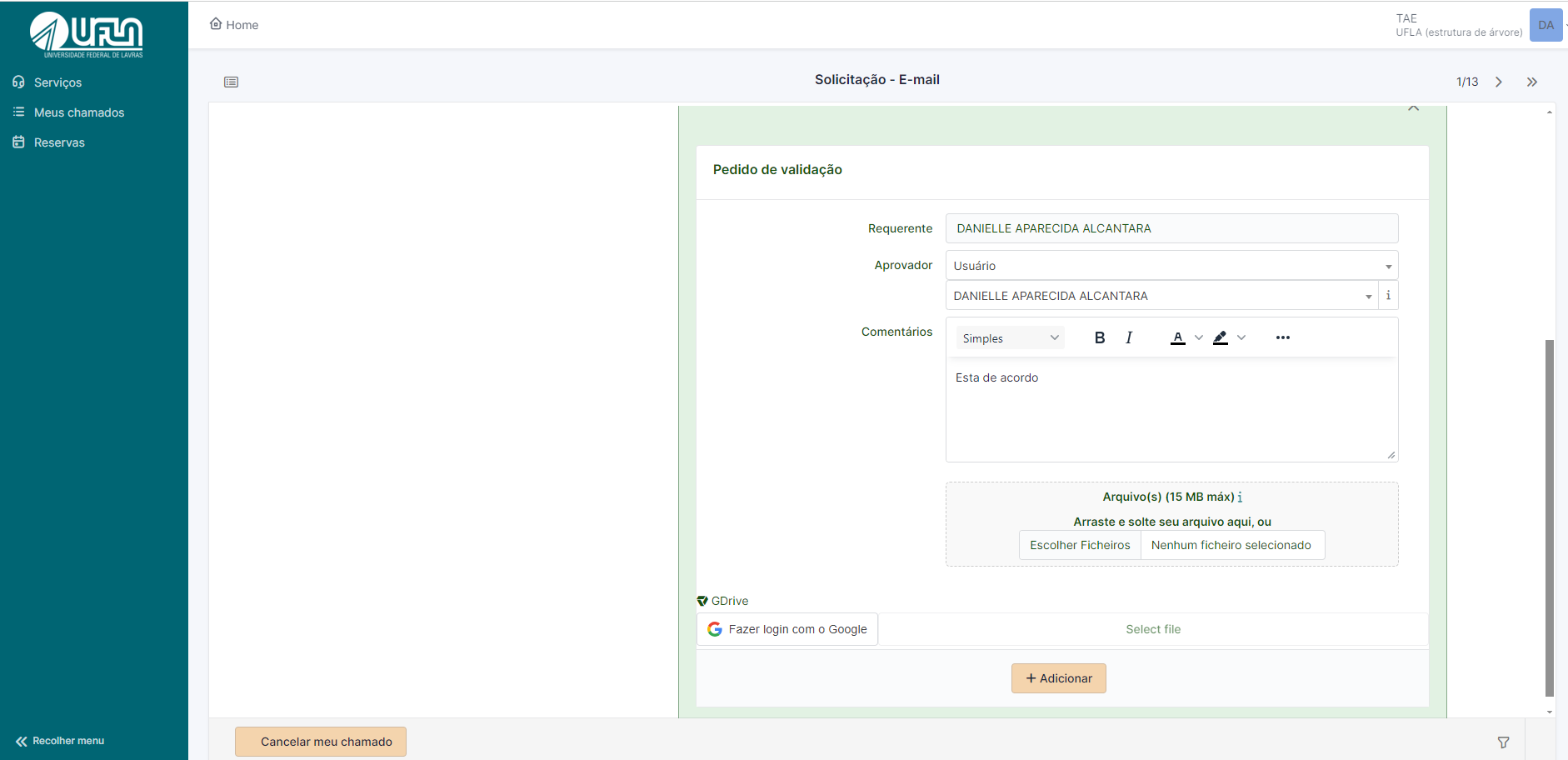
<span style="font-size: 11pt; font-family: Arial,sans-serif; color: #404040; background-color: #fcfcfc; font-weight: 400; font-style: normal; font-variant: normal; text-decoration: none; vertical-align: baseline; white-space: pre-wrap;">Há situações em que é necessário pedir a alguém a validação para atender um chamado, seja chefia, um interessado, ou uma pessoa específica para aprovação. Dessa forma é possível enviar pedidos de aprovação por meio do GLPI, na seção “Aprovações”, conforme ilustra a imagem a seguir. Pode ser informado mais de uma pessoa para aprovação e selecionar qualquer pessoa da UFLA.</span>

<span style="font-size: 11pt; font-family: Arial,sans-serif; color: #404040; background-color: #fcfcfc; font-weight: 400; font-style: normal; font-variant: normal; text-decoration: none; vertical-align: baseline; white-space: pre-wrap;">Primeira opção</span>

1. <span style="font-size: 11pt; font-family: Arial,sans-serif; color: #404040; background-color: #fcfcfc; font-weight: 400; font-style: normal; font-variant: normal; text-decoration: none; vertical-align: baseline; white-space: pre-wrap;">Clicar na aba aprovação</span>
2. <span style="font-size: 11pt; font-family: Arial,sans-serif; color: #404040; background-color: #fcfcfc; font-weight: 400; font-style: normal; font-variant: normal; text-decoration: none; vertical-align: baseline; white-space: pre-wrap;">Clicar em enviar uma requisição de aprovação</span>
3. <span style="font-size: 11pt; font-family: Arial,sans-serif; color: #404040; background-color: #fcfcfc; font-weight: 400; font-style: normal; font-variant: normal; text-decoration: none; vertical-align: baseline; white-space: pre-wrap;">Em aprovador, selecionar o tipo</span>
4. <span style="font-size: 11pt; font-family: Arial,sans-serif; color: #404040; background-color: #fcfcfc; font-weight: 400; font-style: normal; font-variant: normal; text-decoration: none; vertical-align: baseline; white-space: pre-wrap;">Selecionar usuário do qual necessita-se da autorização;</span>
5. <span style="font-size: 11pt; font-family: Arial,sans-serif; color: #404040; background-color: #fcfcfc; font-weight: 400; font-style: normal; font-variant: normal; text-decoration: none; vertical-align: baseline; white-space: pre-wrap;">Clicar em adicionar</span>

[![aprovação 1 forma.png](https://kb.ufla.br/uploads/images/gallery/2024-09/scaled-1680-/L43EypaI3ESjt8S0-aprovacao-1-forma.png)](https://kb.ufla.br/uploads/images/gallery/2024-09/L43EypaI3ESjt8S0-aprovacao-1-forma.png)

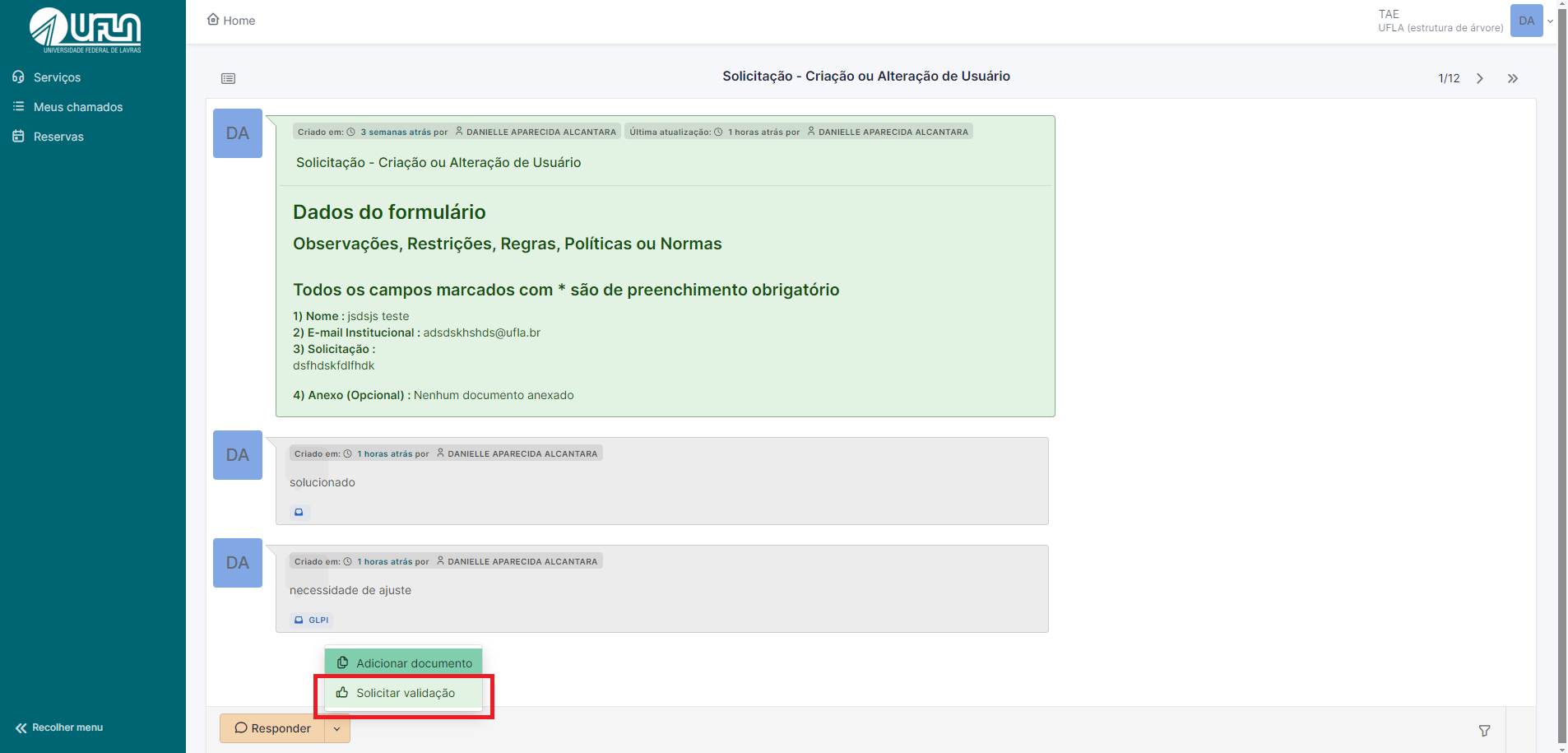
<span style="font-size: 11pt; font-family: Arial,sans-serif; color: #404040; background-color: #fcfcfc; font-weight: 400; font-style: normal; font-variant: normal; text-decoration: none; vertical-align: baseline; white-space: pre-wrap;">Segunda opção</span>

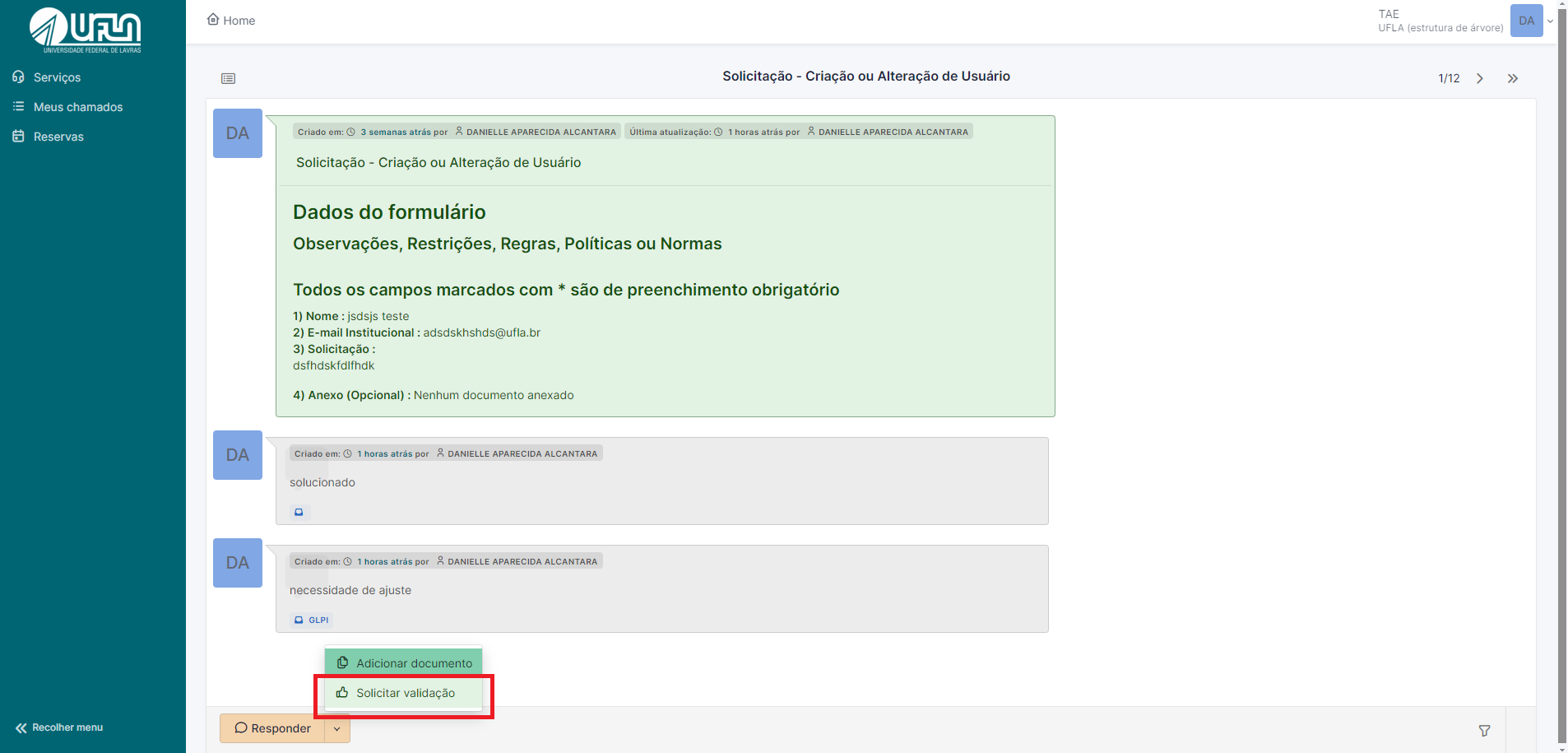
1. <span style="font-size: 11pt; font-family: Arial,sans-serif; color: #404040; background-color: #fcfcfc; font-weight: 400; font-style: normal; font-variant: normal; text-decoration: none; vertical-align: baseline; white-space: pre-wrap;">Na aba chamado, em responder clicar na seta.</span>
2. <span style="font-size: 11pt; font-family: Arial,sans-serif; color: #404040; background-color: #fcfcfc; font-weight: 400; font-style: normal; font-variant: normal; text-decoration: none; vertical-align: baseline; white-space: pre-wrap;">Clicar em solicitar validação</span>

[![opções da acompanhamento valida.png](https://kb.ufla.br/uploads/images/gallery/2024-09/scaled-1680-/3GKjOEbvKvPwWJ8J-opcoes-da-acompanhamento-valida.png)](https://kb.ufla.br/uploads/images/gallery/2024-09/3GKjOEbvKvPwWJ8J-opcoes-da-acompanhamento-valida.png)

<span style="font-size: 11pt; font-family: Arial,sans-serif; color: #404040; background-color: #fcfcfc; font-weight: 400; font-style: normal; font-variant: normal; text-decoration: none; vertical-align: baseline; white-space: pre-wrap;"> 6 .Em aprovador, selecionar o tipo</span>

<span style="font-size: 11pt; font-family: Arial,sans-serif; color: #404040; background-color: #fcfcfc; font-weight: 400; font-style: normal; font-variant: normal; text-decoration: none; vertical-align: baseline; white-space: pre-wrap;"> 7.Selecionar usuário do qual necessita-se da autorização;</span>

<span style="font-size: 11pt; font-family: Arial,sans-serif; color: #404040; background-color: #fcfcfc; font-weight: 400; font-style: normal; font-variant: normal; text-decoration: none; vertical-align: baseline; white-space: pre-wrap;"> 8.Clicar em adicionar</span>

[![validação com perfil de atendente.png](https://kb.ufla.br/uploads/images/gallery/2024-09/scaled-1680-/WKM7oPdu0FvPf5LD-validacao-com-perfil-de-atendente.png)](https://kb.ufla.br/uploads/images/gallery/2024-09/WKM7oPdu0FvPf5LD-validacao-com-perfil-de-atendente.png)

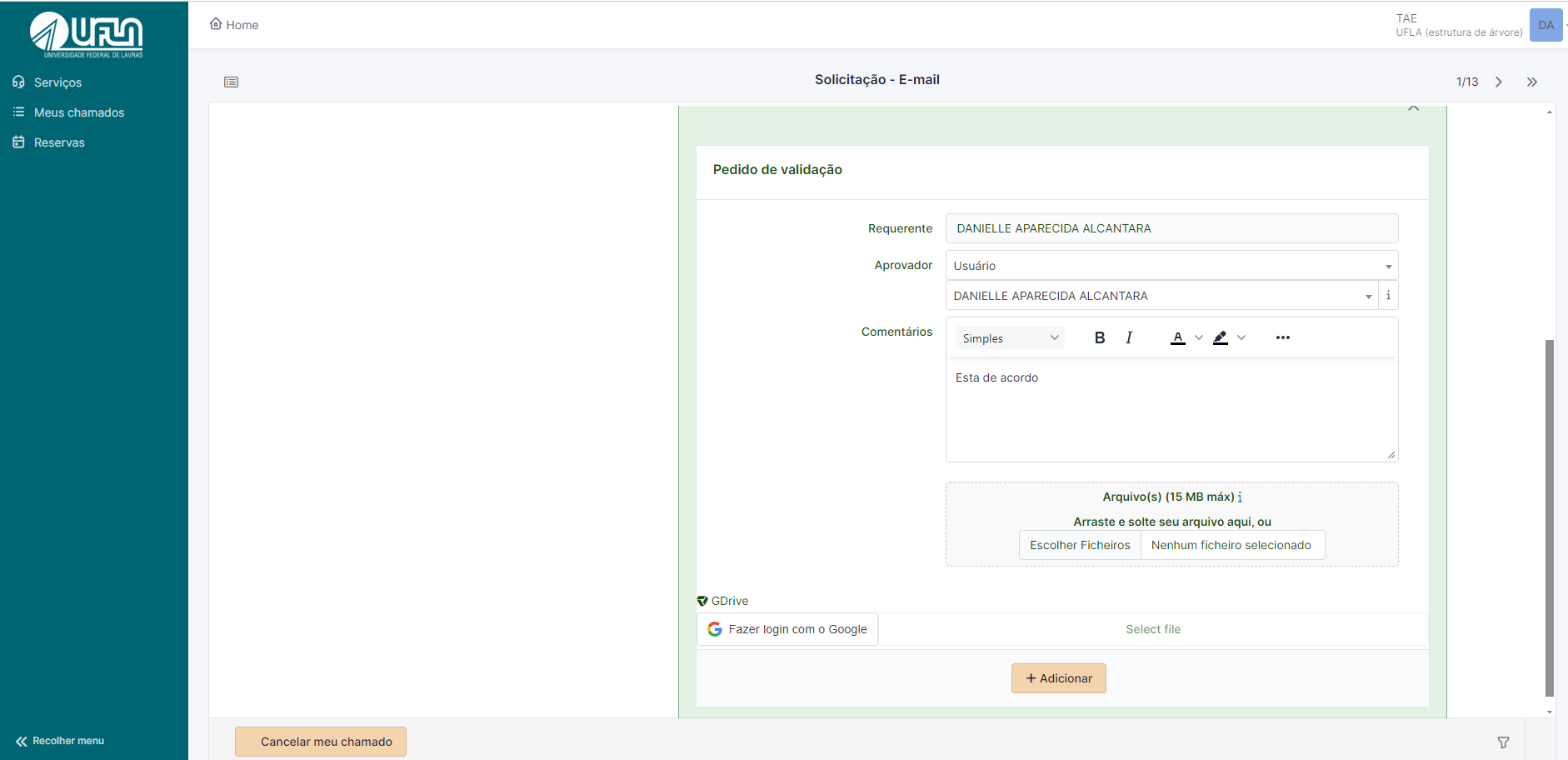
<span style="font-size: 11pt; font-family: Arial,sans-serif; color: #404040; background-color: #fcfcfc; font-weight: 400; font-style: normal; font-variant: normal; text-decoration: none; vertical-align: baseline; white-space: pre-wrap;">Solicitar aprovação com o perfil de solicitante (requisitante)</span>

1. <span style="font-size: 11pt; font-family: Arial,sans-serif; color: #404040; background-color: #fcfcfc; font-weight: 400; font-style: normal; font-variant: normal; text-decoration: none; vertical-align: baseline; white-space: pre-wrap;"> Ao acessar o chamado, em responder clicar na seta.</span>

[![tela 1.png](https://kb.ufla.br/uploads/images/gallery/2024-09/scaled-1680-/Ti9FTSDZszvl0BkW-tela-1.png)](https://kb.ufla.br/uploads/images/gallery/2024-09/Ti9FTSDZszvl0BkW-tela-1.png)

<span style="font-size: 11pt; font-family: Arial,sans-serif; color: #404040; background-color: #fcfcfc; font-weight: 400; font-style: normal; font-variant: normal; text-decoration: none; vertical-align: baseline; white-space: pre-wrap;"> 2.Em aprovador, selecionar o tipo</span>

<span style="font-size: 11pt; font-family: Arial,sans-serif; color: #404040; background-color: #fcfcfc; font-weight: 400; font-style: normal; font-variant: normal; text-decoration: none; vertical-align: baseline; white-space: pre-wrap;"> 3. Selecionar usuário do qual necessita-se da autorização; </span>

<span style="font-size: 11pt; font-family: Arial,sans-serif; color: #404040; background-color: #fcfcfc; font-weight: 400; font-style: normal; font-variant: normal; text-decoration: none; vertical-align: baseline; white-space: pre-wrap;"> 4.Clicar em adicionar</span>

<span style="font-size: 11pt; font-family: Arial,sans-serif; color: #404040; background-color: #fcfcfc; font-weight: 400; font-style: normal; font-variant: normal; text-decoration: none; vertical-align: baseline; white-space: pre-wrap;">[![requisitação solicita aprovação.png](https://kb.ufla.br/uploads/images/gallery/2024-09/scaled-1680-/TeYv0b7hYQMnw5HY-requisitacao-solicita-aprovacao.png)](https://kb.ufla.br/uploads/images/gallery/2024-09/TeYv0b7hYQMnw5HY-requisitacao-solicita-aprovacao.png)  
  
</span>

<span style="font-size: 16pt; font-family: Arial,sans-serif; color: #404040; background-color: #fcfcfc; font-weight: 400; font-style: normal; font-variant: normal; text-decoration: none; vertical-align: baseline; white-space: pre-wrap;">7 - Solucionando um chamado</span>

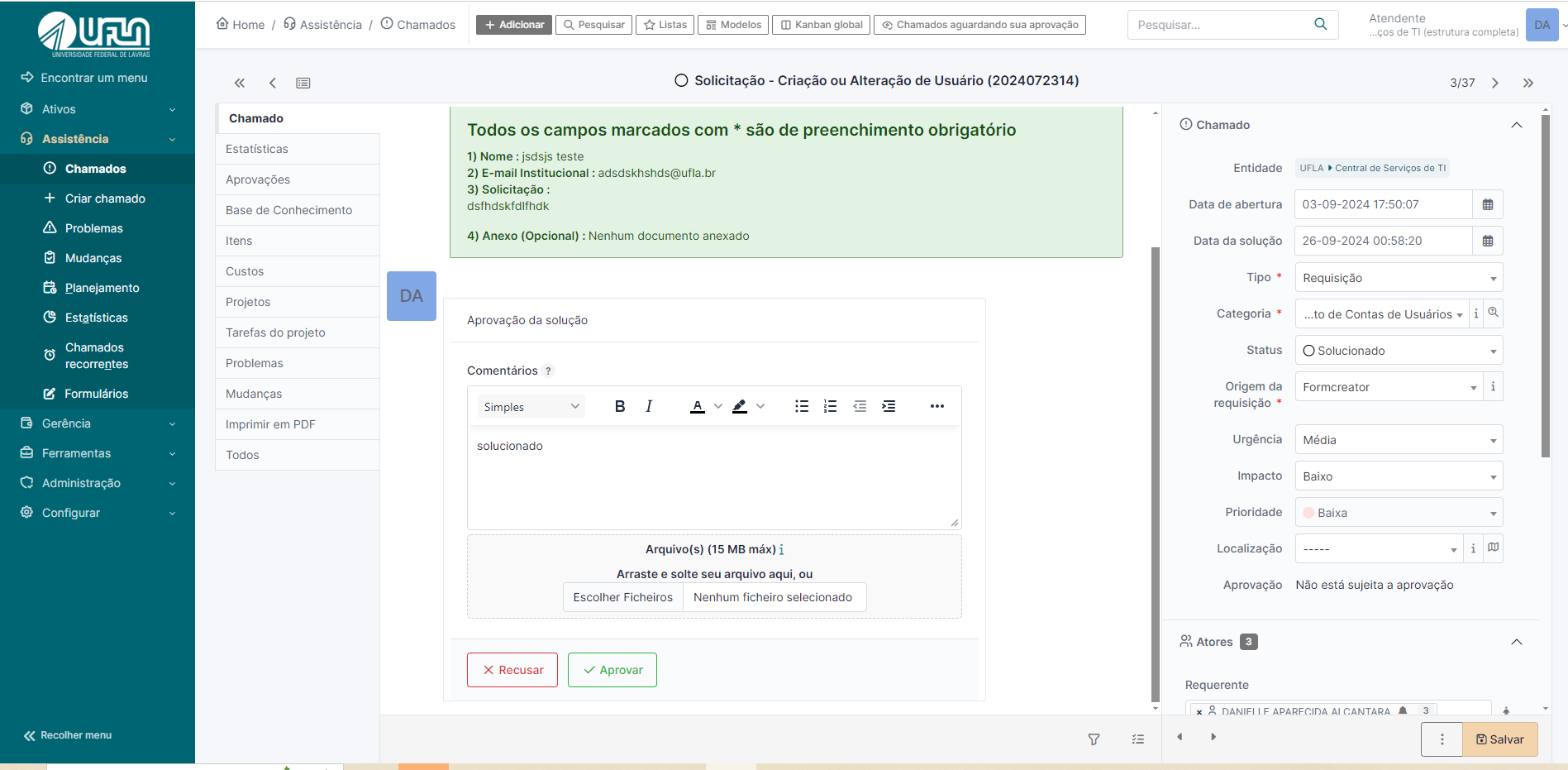
<span style="font-size: 11pt; font-family: Arial,sans-serif; color: #404040; background-color: #fcfcfc; font-weight: 400; font-style: normal; font-variant: normal; text-decoration: none; vertical-align: baseline; white-space: pre-wrap;">Para solucionar um chamado é necessário que o mesmo esteja atribuido a um técnico, veja na imagem a seguir. Além disso é necessário acionar a opção "Solucionado" e clicar em salvar</span>

[![solução do chamado.png](https://kb.ufla.br/uploads/images/gallery/2024-09/scaled-1680-/0FHDbD6XTbUi5Mge-solucao-do-chamado.png)](https://kb.ufla.br/uploads/images/gallery/2024-09/0FHDbD6XTbUi5Mge-solucao-do-chamado.png)

<span style="font-size: 10.5pt; font-family: inherit; color: #444444; background-color: transparent; font-weight: 400; font-style: normal; font-variant: normal; text-decoration: none; vertical-align: baseline; white-space: pre-wrap;"> </span>

<span style="font-size: 11pt; font-family: Arial,sans-serif; color: #404040; background-color: #fcfcfc; font-weight: 400; font-style: normal; font-variant: normal; text-decoration: none; vertical-align: baseline; white-space: pre-wrap;">Em geral, a solução de um chamado deve ser feita pela equipe da Coordenadoria de Operação e Segurança da Informação (COSI). Em vez de inserir uma nota de solução no chamado do GLPI, insira nota de acompanhamento e retorne o respectivo chamado para a última pessoa da COSI que o encaminhou. Caso seja necessário, insira uma nota de acompanhamento, pública, para o solicitante e uma nota de acompanhamento, privada, para a COSI. Desta forma, o solicitante terá conhecimento da solução por meio da nota de acompanhamento pública. A equipe COSI ficará responsável por inserir a nota de solução do chamado. </span>

<span style="font-size: 11pt; font-family: Arial,sans-serif; color: #404040; background-color: #fcfcfc; font-weight: 400; font-style: normal; font-variant: normal; text-decoration: none; vertical-align: baseline; white-space: pre-wrap;">O chamado pode ser solucionado se julgar que não é necessário retorná-lo para COSI, pois o intuito deste procedimento é manter a equipe de operação, minimamente, informada das mudanças implementadas nos serviços de TI, sem prejudicar a notificação de solução ao solicitante. Mudanças são as alterações em, mas não se limitando a estas: regras de negócios, permissões de acesso, domínios, servidores, estrutura de página, inclusão de grupo de usuários, relatórios e procedimentos de operação.</span>

<span style="font-size: 16pt; font-family: Arial,sans-serif; color: #404040; background-color: #fcfcfc; font-weight: 400; font-style: normal; font-variant: normal; text-decoration: none; vertical-align: baseline; white-space: pre-wrap;">8 - Enviando tarefas para um colega, a partir de um chamado</span>

<span style="font-size: 11pt; font-family: Arial,sans-serif; color: #404040; background-color: #fcfcfc; font-weight: 400; font-style: normal; font-variant: normal; text-decoration: none; vertical-align: baseline; white-space: pre-wrap;">Quando lhe for atribuído um chamado cuja solução necessita de uma pequena intervenção de um colega, você pode criar uma tarefa para essa pessoa em vez de lhe atribuir o chamado. A tarefa funciona como um chamado, mas está num chamado específico. A imagem a seguir ilustra a opção para criação de tarefa em um chamado:</span>

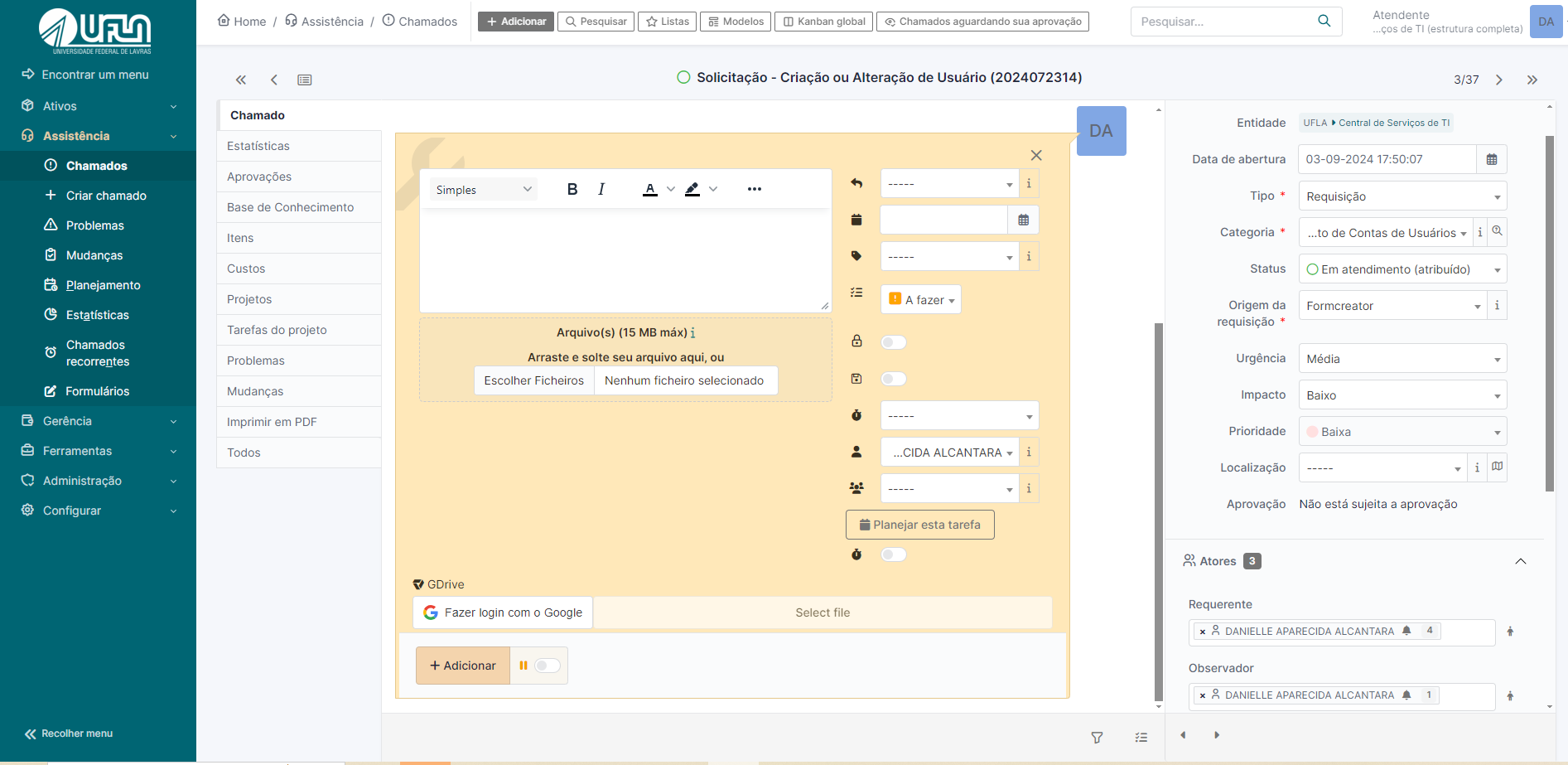
<span style="font-size: 11pt; font-family: Arial,sans-serif; color: #404040; background-color: #fcfcfc; font-weight: 400; font-style: normal; font-variant: normal; text-decoration: none; vertical-align: baseline; white-space: pre-wrap;"> 1. Em responder, na seta clicar em ‘criar tarefa’</span>

[![opções da acompanhamento.png](https://kb.ufla.br/uploads/images/gallery/2024-09/scaled-1680-/zZXu3TWI2rMg2LJm-opcoes-da-acompanhamento.png)](https://kb.ufla.br/uploads/images/gallery/2024-09/zZXu3TWI2rMg2LJm-opcoes-da-acompanhamento.png)

<span style="font-size: 11pt; font-family: Arial,sans-serif; color: #404040; background-color: #fcfcfc; font-weight: 400; font-style: normal; font-variant: normal; text-decoration: none; vertical-align: baseline; white-space: pre-wrap;"> 2. Selecionar descrever a tarefa e selecionar o técnico ao será designada. </span>

<span style="font-size: 11pt; font-family: Arial,sans-serif; color: #404040; background-color: #fcfcfc; font-weight: 400; font-style: normal; font-variant: normal; text-decoration: none; vertical-align: baseline; white-space: pre-wrap;"> 3.</span><span style="font-size: 11pt; font-family: Arial,sans-serif; color: #404040; background-color: #fcfcfc; font-weight: 400; font-style: normal; font-variant: normal; text-decoration: none; vertical-align: baseline; white-space: pre-wrap;">Caso, seja uma tarefa na qual o requisitante não deve ter acesso, marque a opção do cadeado</span>

<span style="font-size: 10.5pt; font-family: inherit; color: #444444; background-color: transparent; font-weight: 400; font-style: normal; font-variant: normal; text-decoration: none; vertical-align: baseline; white-space: pre-wrap;"> </span>

[![criação de tarefa.png](https://kb.ufla.br/uploads/images/gallery/2024-09/scaled-1680-/gX3u02HQYMAAxZHH-criacao-de-tarefa.png)](https://kb.ufla.br/uploads/images/gallery/2024-09/gX3u02HQYMAAxZHH-criacao-de-tarefa.png)

<span style="font-size: 10.5pt; font-family: inherit; color: #444444; background-color: transparent; font-weight: 400; font-style: normal; font-variant: normal; text-decoration: none; vertical-align: baseline; white-space: pre-wrap;"> </span>

<span style="font-size: 11pt; font-family: Arial,sans-serif; color: #404040; background-color: #fcfcfc; font-weight: 400; font-style: normal; font-variant: normal; text-decoration: none; vertical-align: baseline; white-space: pre-wrap;">Como mencionado anteriormente, as tarefas são exibidas na seção “Tarefas de chamado para fazer” da página inicial do GLPI.</span>

<span style="font-size: 11pt; font-family: Arial,sans-serif; color: #404040; background-color: #fcfcfc; font-weight: 400; font-style: normal; font-variant: normal; text-decoration: none; vertical-align: baseline; white-space: pre-wrap;">Consideremos que um técnico receba um chamado no GLPI solicitando a manutenção de um computador, em que será necessário trocar peças, entretanto a aquisição de peças é com outro técnico. Nesse contexto, o técnico cria uma tarefa no chamado e atribui ao outro técnico responsável por fazer a aquisição. Recomenda-se que o estado da tarefa seja “A FAZER”. </span>

<span style="font-size: 11pt; font-family: Arial,sans-serif; color: #404040; background-color: #fcfcfc; font-weight: 400; font-style: normal; font-variant: normal; text-decoration: none; vertical-align: baseline; white-space: pre-wrap;">O técnico conclui a tarefa clicando na “caixa de seleção” referente à tarefa ou selecionando a opção “FEITO” no estado da tarefa, no modo de edição da respectiva tarefa.</span>

<span style="font-size: 10.5pt; font-family: inherit; color: #444444; background-color: transparent; font-weight: 400; font-style: normal; font-variant: normal; text-decoration: none; vertical-align: baseline; white-space: pre-wrap;"> </span>

[![tarefa feita.png](https://kb.ufla.br/uploads/images/gallery/2024-09/scaled-1680-/3lM2RDKzvJTPJHP7-tarefa-feita.png)](https://kb.ufla.br/uploads/images/gallery/2024-09/3lM2RDKzvJTPJHP7-tarefa-feita.png)

<span style="font-size: 10.5pt; font-family: 'Quattrocento Sans',sans-serif; color: #444444; background-color: transparent; font-weight: 400; font-style: normal; font-variant: normal; text-decoration: none; vertical-align: baseline; white-space: pre-wrap;"> </span>

<span style="font-size: 11pt; font-family: Arial,sans-serif; color: #404040; background-color: #fcfcfc; font-weight: 400; font-style: normal; font-variant: normal; text-decoration: none; vertical-align: baseline; white-space: pre-wrap;">Quando o técnico acessa a tarefa no modo edição, que está atribuída para ele, é possível acionar um contador de tempo que vai registrar o tempo gasto para atender aquela tarefa. A contagem do tempo de empenho na tarefa inicia quando o botão "verde" é acionado. O sistema aciona um cronômetro após iniciar a tarefa. </span>

<span style="font-size: 11pt; font-family: Arial,sans-serif; color: #404040; background-color: #fcfcfc; font-weight: 400; font-style: normal; font-variant: normal; text-decoration: none; vertical-align: baseline; white-space: pre-wrap;">Vale ressaltar que o GLPI permite acionar somente uma tarefa por vez. Com isso, para trabalhar em uma segunda tarefa é necessário “PAUSAR” a primeira e em seguida “INICIAR” a segunda tarefa. A tarefa é concluída ao clicar na opção “FEITO”.</span>

<span style="font-size: 10.5pt; font-family: inherit; color: #444444; background-color: transparent; font-weight: 400; font-style: normal; font-variant: normal; text-decoration: none; vertical-align: baseline; white-space: pre-wrap;"> </span>

<span style="font-size: 10.5pt; font-family: 'Quattrocento Sans',sans-serif; color: #444444; background-color: transparent; font-weight: 400; font-style: normal; font-variant: normal; text-decoration: none; vertical-align: baseline; white-space: pre-wrap;"> </span>

<span style="font-size: 11pt; font-family: Arial,sans-serif; color: #404040; background-color: #fcfcfc; font-weight: 400; font-style: normal; font-variant: normal; text-decoration: none; vertical-align: baseline; white-space: pre-wrap;">As tarefas atribuídas a você são exibidas no painel inicial do GLPI, na mesma tela onde são exibidos os chamados atribuídos a você. Dessa forma é necessário consultar periodicamente se há tarefas atribuídas na seção “Tarefas de chamado para fazer”, conforme ilustra a imagem a seguir:</span>

<span style="font-size: 10.5pt; font-family: inherit; color: #444444; background-color: transparent; font-weight: 400; font-style: normal; font-variant: normal; text-decoration: none; vertical-align: baseline; white-space: pre-wrap;"> </span>

<span style="font-size: 10.5pt; font-family: inherit; color: #444444; background-color: transparent; font-weight: 400; font-style: normal; font-variant: normal; text-decoration: none; vertical-align: baseline; white-space: pre-wrap;">[![tarefas a fazer.png](https://kb.ufla.br/uploads/images/gallery/2024-09/scaled-1680-/RfedIlPIMFRKSu4O-tarefas-a-fazer.png)](https://kb.ufla.br/uploads/images/gallery/2024-09/RfedIlPIMFRKSu4O-tarefas-a-fazer.png)</span>

<span style="font-size: 10.5pt; font-family: 'Quattrocento Sans',sans-serif; color: #444444; background-color: transparent; font-weight: 400; font-style: normal; font-variant: normal; text-decoration: none; vertical-align: baseline; white-space: pre-wrap;"> </span>

<span style="font-size: 16pt; font-family: Arial,sans-serif; color: #404040; background-color: #fcfcfc; font-weight: 400; font-style: normal; font-variant: normal; text-decoration: none; vertical-align: baseline; white-space: pre-wrap;">9 - Consultar chamados</span>

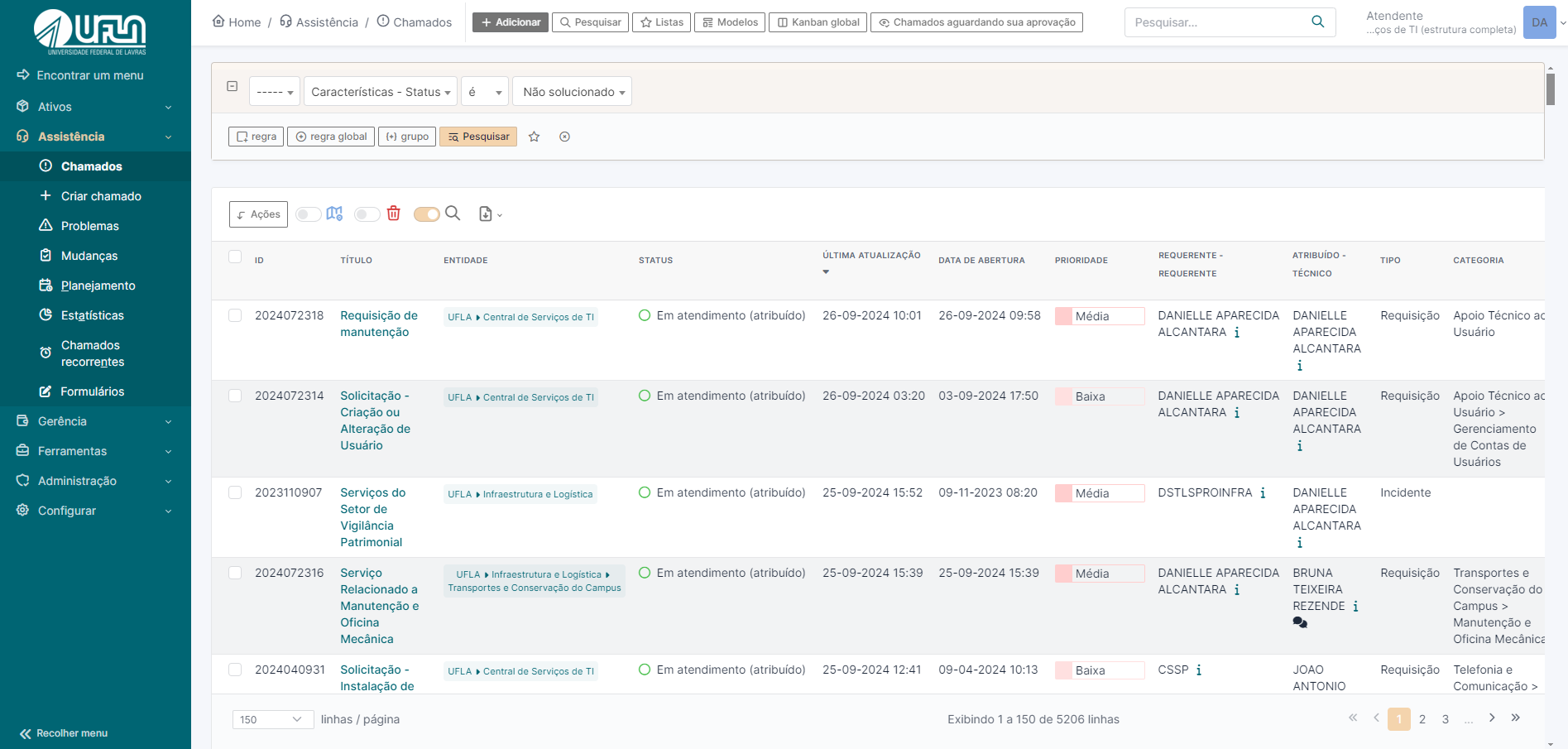
<span style="font-size: 11pt; font-family: Arial,sans-serif; color: #404040; background-color: #fcfcfc; font-weight: 400; font-style: normal; font-variant: normal; text-decoration: none; vertical-align: baseline; white-space: pre-wrap;">Para consultar chamados basta acessar o caminho “Assistência &gt;&gt; Chamados”, na tela exibida é possível fazer diversas combinações de filtros. Vale ressaltar para uso dos filtros que o solicitante é descrito como requerente e o atendente é descrito nos filtros como técnico.</span>

<span style="font-size: 11pt; font-family: Arial,sans-serif; color: #404040; background-color: #fcfcfc; font-weight: 400; font-style: normal; font-variant: normal; text-decoration: none; vertical-align: baseline; white-space: pre-wrap;">[![Captura de tela 2024-09-26 091554.png](https://kb.ufla.br/uploads/images/gallery/2024-09/scaled-1680-/MTiuZtuJs4rLMxaC-captura-de-tela-2024-09-26-091554.png)](https://kb.ufla.br/uploads/images/gallery/2024-09/MTiuZtuJs4rLMxaC-captura-de-tela-2024-09-26-091554.png)</span>

<span style="font-size: 10.5pt; font-family: inherit; color: #444444; background-color: transparent; font-weight: 400; font-style: normal; font-variant: normal; text-decoration: none; vertical-align: baseline; white-space: pre-wrap;"> </span>

<span style="font-size: 16pt; font-family: Arial,sans-serif; color: #404040; background-color: #fcfcfc; font-weight: 400; font-style: normal; font-variant: normal; text-decoration: none; vertical-align: baseline; white-space: pre-wrap;">10 - Criar um chamado para terceiros</span>

<span style="font-size: 11pt; font-family: Arial,sans-serif; color: #404040; background-color: #fcfcfc; font-weight: 400; font-style: normal; font-variant: normal; text-decoration: none; vertical-align: baseline; white-space: pre-wrap;">O GLPI permite criar chamadas para terceiros, inclusive para você, portanto é necessário acessar o caminho “Assistência &gt;&gt; Criar Chamado” </span><span style="font-size: 10.5pt; font-family: inherit; color: #444444; background-color: transparent; font-weight: 400; font-style: normal; font-variant: normal; text-decoration: none; vertical-align: baseline; white-space: pre-wrap;"> </span>

[![criar chamado.png](https://kb.ufla.br/uploads/images/gallery/2024-09/scaled-1680-/Z5xzodcvTR6A0HGI-criar-chamado.png)](https://kb.ufla.br/uploads/images/gallery/2024-09/Z5xzodcvTR6A0HGI-criar-chamado.png)

<span style="font-size: 10.5pt; font-family: inherit; color: #444444; background-color: transparent; font-weight: 400; font-style: normal; font-variant: normal; text-decoration: none; vertical-align: baseline; white-space: pre-wrap;"> </span>

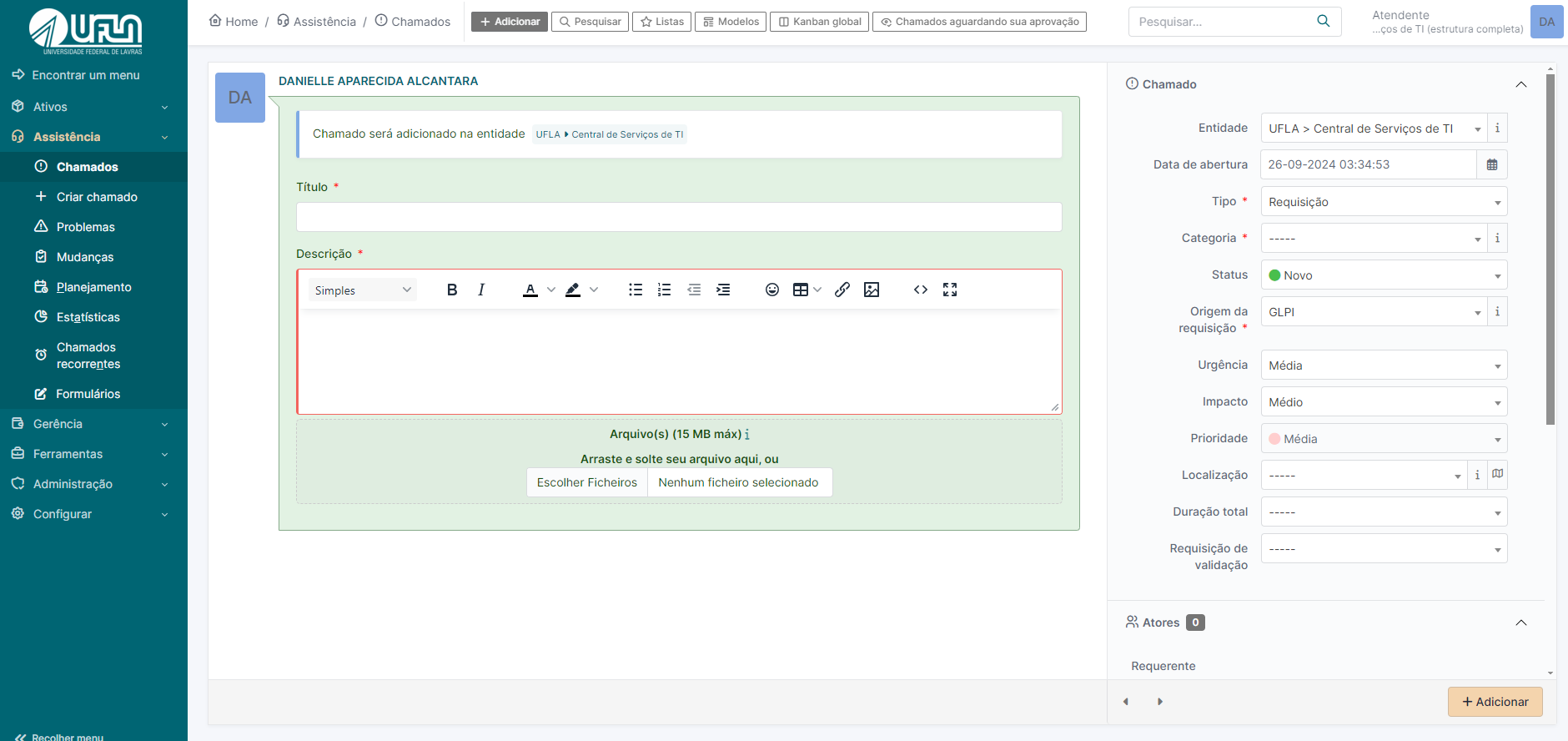
<span style="font-size: 11pt; font-family: Arial,sans-serif; color: #404040; background-color: #fcfcfc; font-weight: 400; font-style: normal; font-variant: normal; text-decoration: none; vertical-align: baseline; white-space: pre-wrap;">Na criação do chamado é necessário se atentar nos campos: “Requerente” (Selecionar o nome do usuário para o qual esta abrindo o chamado ), “Tipo” (requisição ou incidente), “Categoria” (categoria de serviço do GLPI, pre-requisitios para abertura do chamado) e para quem será “Atribuído”( por padrão, autoatribuido ao perfil de atendente que cria o chamado .</span>

<span style="font-size: 11pt; font-family: Arial,sans-serif; color: #404040; background-color: #fcfcfc; font-weight: 400; font-style: normal; font-variant: normal; text-decoration: none; vertical-align: baseline; white-space: pre-wrap;">Na criação do chamado, é importante prestar atenção aos seguintes campos: 'Requerente' (selecionar o nome do usuário para quem o chamado está sendo aberto), 'Tipo' (escolher entre requisição ou incidente), 'Categoria' (categoria de serviço do GLPI, campo obrigatório para a abertura do chamado) e 'Atribuído' (por padrão, o chamado é autoatribuído ao atendente que o cria)</span>

<span style="font-size: 16pt; font-family: Arial,sans-serif; color: #404040; background-color: #fcfcfc; font-weight: 400; font-style: normal; font-variant: normal; text-decoration: none; vertical-align: baseline; white-space: pre-wrap;">11 - Informações gerais</span><span style="font-size: 16pt; font-family: Arial,sans-serif; color: #404040; background-color: #fcfcfc; font-weight: 400; font-style: normal; font-variant: normal; text-decoration: none; vertical-align: baseline; white-space: pre-wrap;">  
</span><span style="font-size: 16pt; font-family: Arial,sans-serif; color: #404040; background-color: #fcfcfc; font-weight: 400; font-style: normal; font-variant: normal; text-decoration: none; vertical-align: baseline; white-space: pre-wrap;">  
  
</span>

- <span style="font-size: 11pt; font-family: Arial,sans-serif; color: #404040; background-color: #fcfcfc; font-weight: 400; font-style: normal; font-variant: normal; text-decoration: none; vertical-align: baseline; white-space: pre-wrap;">O GLPI notifica por e-mail sobre todas as ocorrências nos chamados. </span>

<span style="font-size: 16pt; font-family: Arial,sans-serif; color: #404040; background-color: #fcfcfc; font-weight: 400; font-style: normal; font-variant: normal; text-decoration: none; vertical-align: baseline; white-space: pre-wrap;">12 - Alteração de perfil</span>

<span style="font-size: 16pt; font-family: Arial,sans-serif; color: #404040; background-color: #fcfcfc; font-weight: 400; font-style: normal; font-variant: normal; text-decoration: none; vertical-align: baseline; white-space: pre-wrap;">Usuários com mais de um perfil podem alternar entre eles acessando a opção no canto superior direito da tela.</span>

[![alteração de perfil.png](https://kb.ufla.br/uploads/images/gallery/2024-09/scaled-1680-/BUN1Y5etObncYHkt-alteracao-de-perfil.png)](https://kb.ufla.br/uploads/images/gallery/2024-09/BUN1Y5etObncYHkt-alteracao-de-perfil.png)

<span style="font-size: 16pt; font-family: Arial,sans-serif; color: #404040; background-color: #fcfcfc; font-weight: 400; font-style: normal; font-variant: normal; text-decoration: none; vertical-align: baseline; white-space: pre-wrap;">13 - Identificar chamados aguardando sua aprovação</span>

<span style="font-size: 16pt; font-family: Arial,sans-serif; color: #404040; background-color: #fcfcfc; font-weight: 400; font-style: normal; font-variant: normal; text-decoration: none; vertical-align: baseline; white-space: pre-wrap;">Acesse a aba assistência, clicar em “chamado” e na sequencia em “chamados aguardando sua aprovação”. Assim, serão listados o chamados que estão neste contexto, com o perfil de atendente.</span>

[![aguardando aprovação.png](https://kb.ufla.br/uploads/images/gallery/2024-09/scaled-1680-/sANpJ4gEFUp4oNC1-aguardando-aprovacao.png)](https://kb.ufla.br/uploads/images/gallery/2024-09/sANpJ4gEFUp4oNC1-aguardando-aprovacao.png)

<span style="font-size: 16pt; font-family: Arial,sans-serif; color: #404040; background-color: #fcfcfc; font-weight: 400; font-style: normal; font-variant: normal; text-decoration: none; vertical-align: baseline; white-space: pre-wrap;">14 - Validar um chamado</span>

<span style="font-size: 16pt; font-family: Arial,sans-serif; color: #404040; background-color: #fcfcfc; font-weight: 400; font-style: normal; font-variant: normal; text-decoration: none; vertical-align: baseline; white-space: pre-wrap;">Para validar um chamado acessando com os perfis de TAE ou docente, deve-se clicar em “validar” e em seguida clicar no chamado desejado.</span>

[![perfil tae.png](https://kb.ufla.br/uploads/images/gallery/2024-09/scaled-1680-/QUathN49pBryTzF1-perfil-tae.png)](https://kb.ufla.br/uploads/images/gallery/2024-09/QUathN49pBryTzF1-perfil-tae.png)

# Como interagir com meus chamados - "Tutorial para solicitantes"

**<span style="font-size: 11pt; font-family: Arial, sans-serif; color: #404040; background-color: #fcfcfc; font-style: normal; font-variant: normal; text-decoration: none; vertical-align: baseline; white-space: pre-wrap;">Como você pode solicitar aprovação para seu chamado</span>**

<span style="font-size: 11pt; font-family: Arial,sans-serif; color: #404040; background-color: #fcfcfc; font-weight: 400; font-style: normal; font-variant: normal; text-decoration: none; vertical-align: baseline; white-space: pre-wrap;"> 1. Ao acessar o chamado, em responder clicar na seta.</span>

<span style="font-size: 11pt; font-family: Arial,sans-serif; color: #404040; background-color: #fcfcfc; font-weight: 400; font-style: normal; font-variant: normal; text-decoration: none; vertical-align: baseline; white-space: pre-wrap;">[![tela 1.png](https://kb.ufla.br/uploads/images/gallery/2024-09/scaled-1680-/UHvwYdo53JxjOR5X-tela-1.png)](https://kb.ufla.br/uploads/images/gallery/2024-09/UHvwYdo53JxjOR5X-tela-1.png)</span>

<span style="font-size: 11pt; font-family: Arial,sans-serif; color: #404040; background-color: #fcfcfc; font-weight: 400; font-style: normal; font-variant: normal; text-decoration: none; vertical-align: baseline; white-space: pre-wrap;"> 2. Em aprovador, selecionar o tipo</span>

<span style="font-size: 11pt; font-family: Arial,sans-serif; color: #404040; background-color: #fcfcfc; font-weight: 400; font-style: normal; font-variant: normal; text-decoration: none; vertical-align: baseline; white-space: pre-wrap;"> 3. Selecionar usuário do qual necessita-se da autorização; </span>

<span style="font-size: 11pt; font-family: Arial,sans-serif; color: #404040; background-color: #fcfcfc; font-weight: 400; font-style: normal; font-variant: normal; text-decoration: none; vertical-align: baseline; white-space: pre-wrap;"> 4. Clicar em adicionar</span>

<span style="font-size: 11pt; font-family: Arial,sans-serif; color: #404040; background-color: #fcfcfc; font-weight: 400; font-style: normal; font-variant: normal; text-decoration: none; vertical-align: baseline; white-space: pre-wrap;"> [![requisitação solicita aprovação.png](https://kb.ufla.br/uploads/images/gallery/2024-09/scaled-1680-/ao1ZyjTEoLhshotK-requisitacao-solicita-aprovacao.png)](https://kb.ufla.br/uploads/images/gallery/2024-09/ao1ZyjTEoLhshotK-requisitacao-solicita-aprovacao.png)</span>

#### **Como aprovar o chamado**

Na tela inicial, na parte superior, clicar em "validar"

[![validar e aprovar.png](https://kb.ufla.br/uploads/images/gallery/2024-09/scaled-1680-/sSQ4uSOmIkcQYtdj-validar-e-aprovar.png)](https://kb.ufla.br/uploads/images/gallery/2024-09/sSQ4uSOmIkcQYtdj-validar-e-aprovar.png)
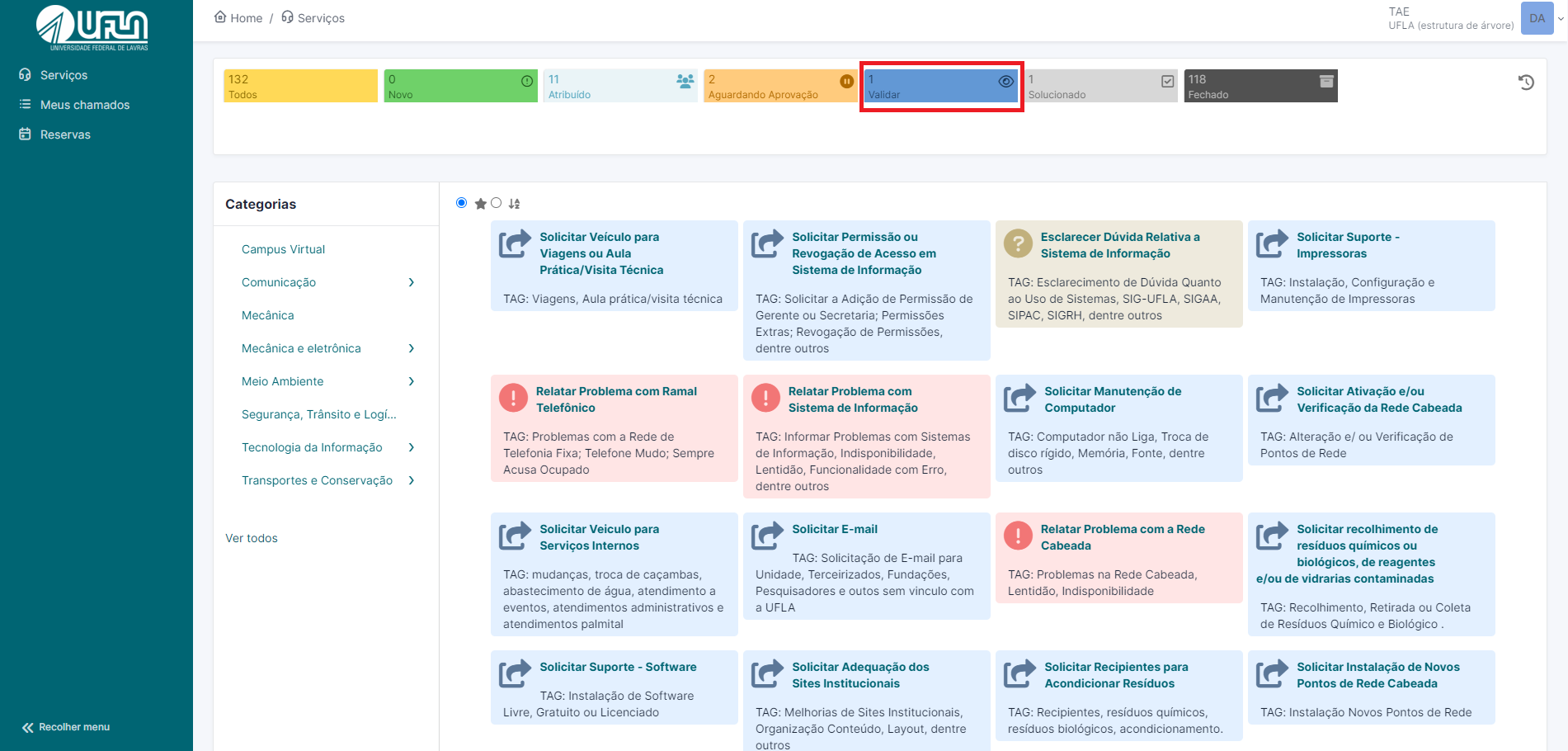
Na lista de aberta, clicar no chamado que deseja avaliar

[![valida escolher chamado.png](https://kb.ufla.br/uploads/images/gallery/2024-09/scaled-1680-/4D64OxnnLjZbaR8H-valida-escolher-chamado.png)](https://kb.ufla.br/uploads/images/gallery/2024-09/4D64OxnnLjZbaR8H-valida-escolher-chamado.png)
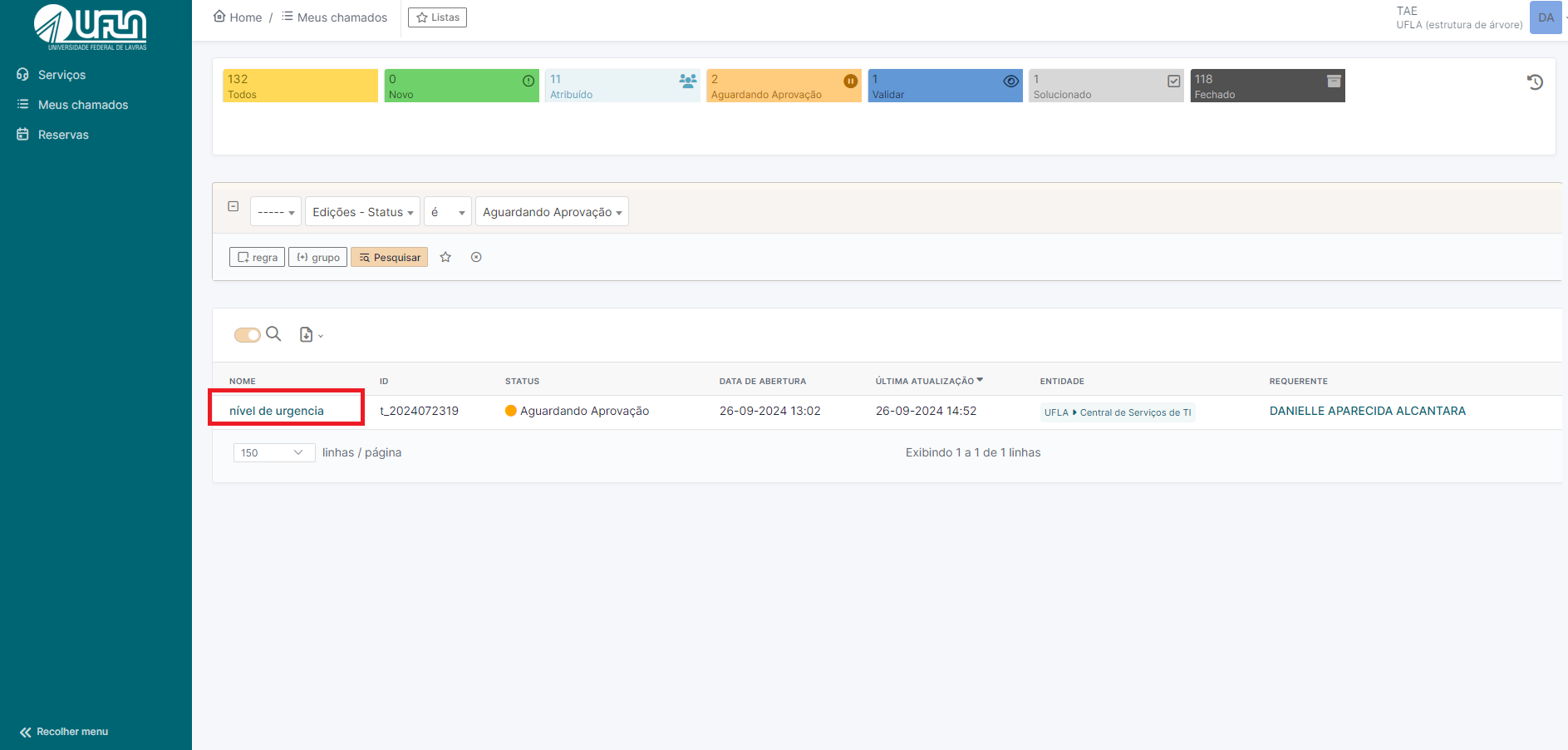
Incluir a justificativa e clicar em aprovar ou recusar.

[![aprovar111.png](https://kb.ufla.br/uploads/images/gallery/2024-09/scaled-1680-/xq5WQ0Hu0h2Qq7yE-aprovar111.png)](https://kb.ufla.br/uploads/images/gallery/2024-09/xq5WQ0Hu0h2Qq7yE-aprovar111.png)
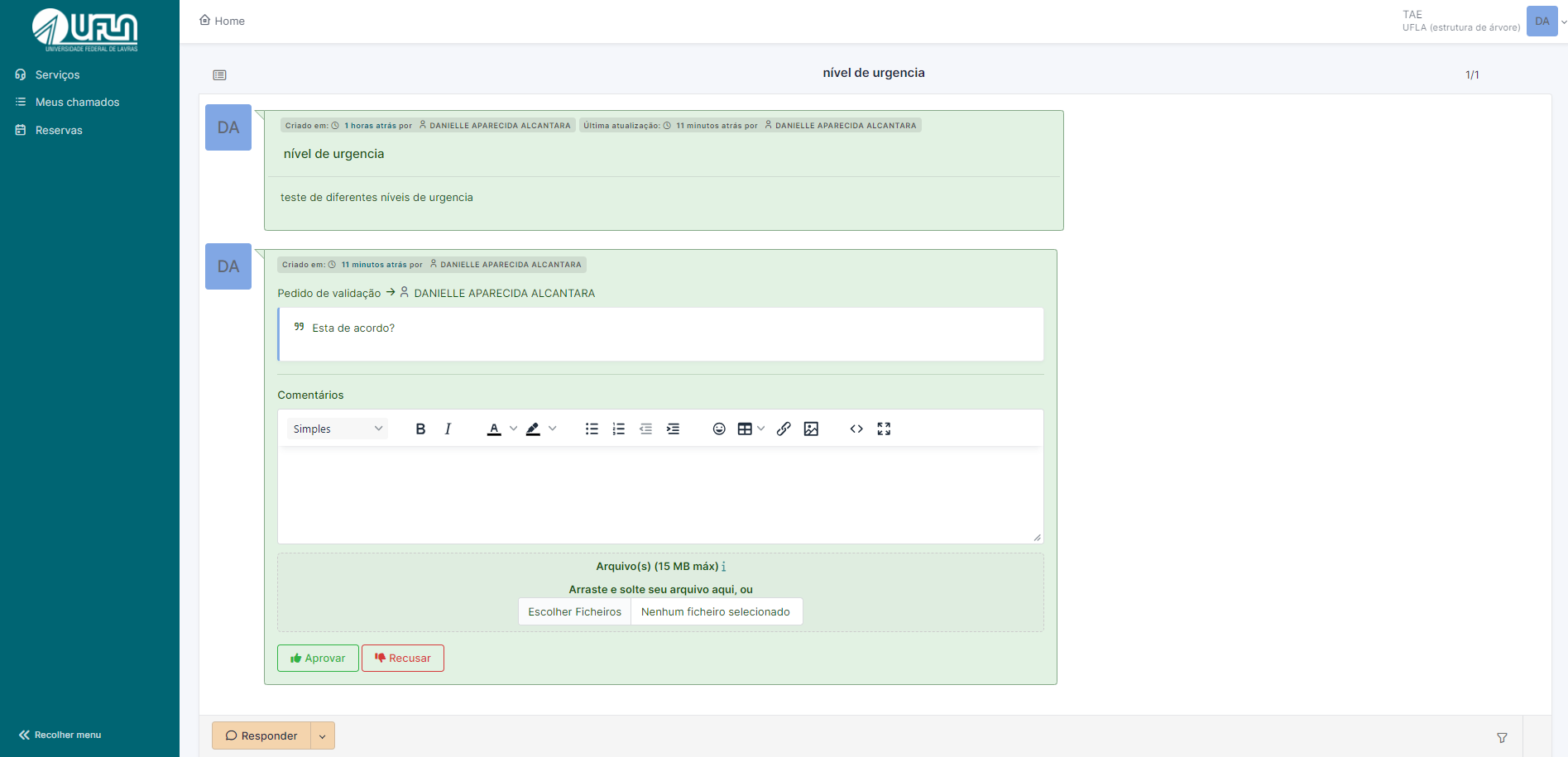
Como consultar um chamado

Há duas opção para acessar seus chamados:

Clicando em "Meus chamados"

[![navegação.png](https://kb.ufla.br/uploads/images/gallery/2024-09/scaled-1680-/ODazN02N9nbkcKCG-navegacao.png)](https://kb.ufla.br/uploads/images/gallery/2024-09/ODazN02N9nbkcKCG-navegacao.png)
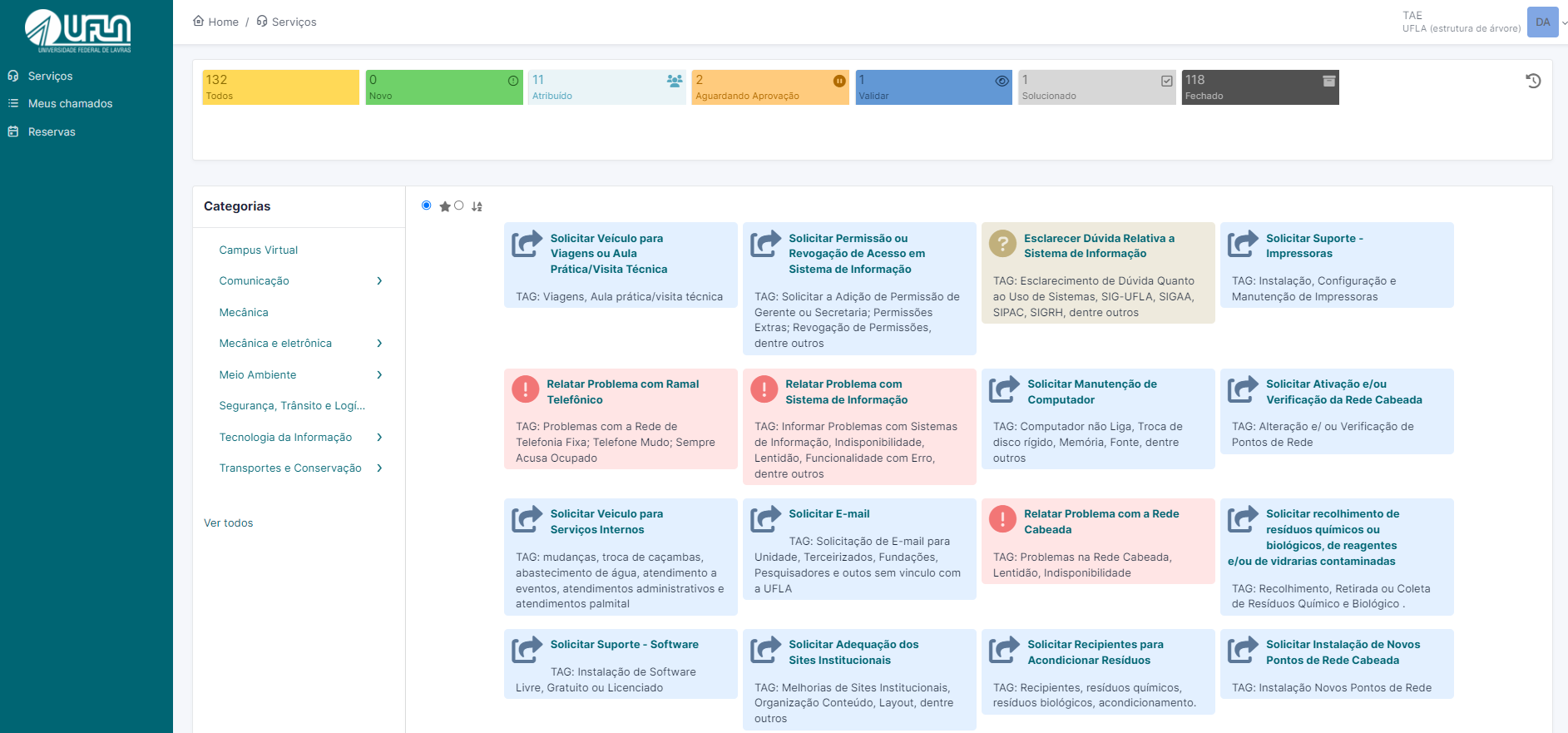
Clicar no chamado desejado

[![navega1.png](https://kb.ufla.br/uploads/images/gallery/2024-09/scaled-1680-/9s9HKO6XGOArP6Tp-navega1.png)](https://kb.ufla.br/uploads/images/gallery/2024-09/9s9HKO6XGOArP6Tp-navega1.png)
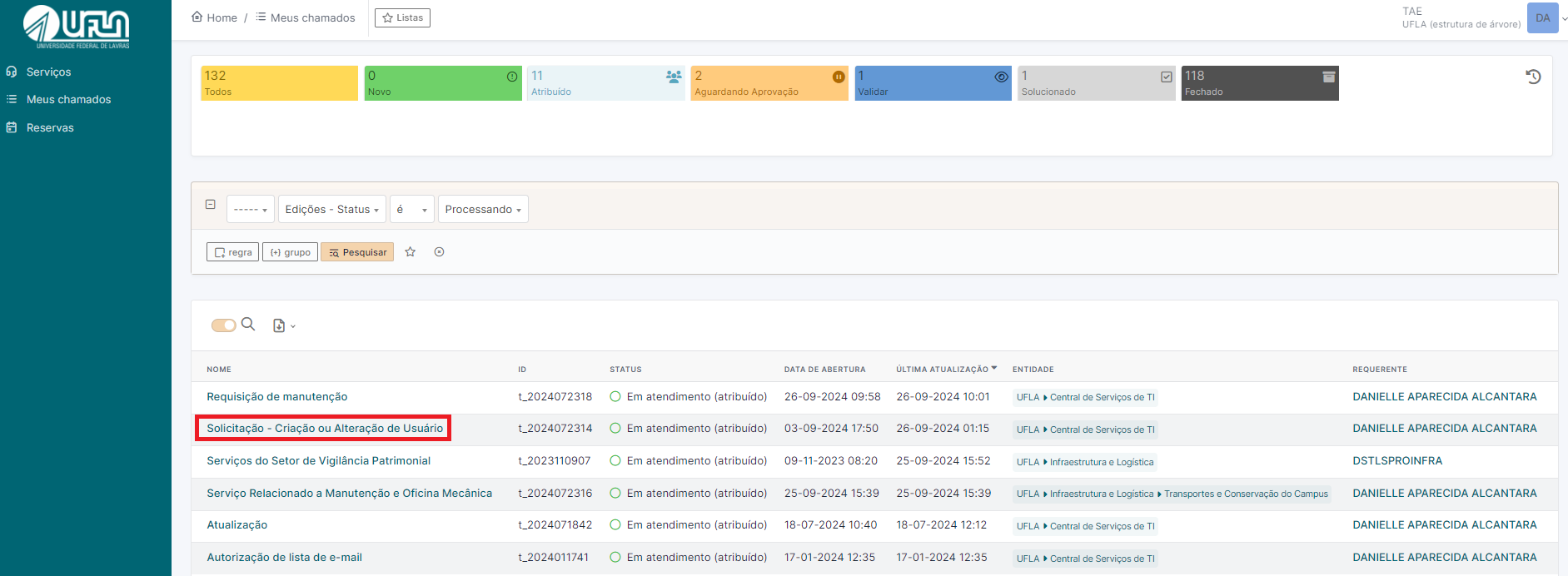
Segunda opção de acesso aos seus chamados

Na tela inicial, no parte superior é possível identificar os status dos chamados.

[![navegação222.png](https://kb.ufla.br/uploads/images/gallery/2024-09/scaled-1680-/ALAGFGyPxMmgZMEb-navegacao222.png)](https://kb.ufla.br/uploads/images/gallery/2024-09/ALAGFGyPxMmgZMEb-navegacao222.png)
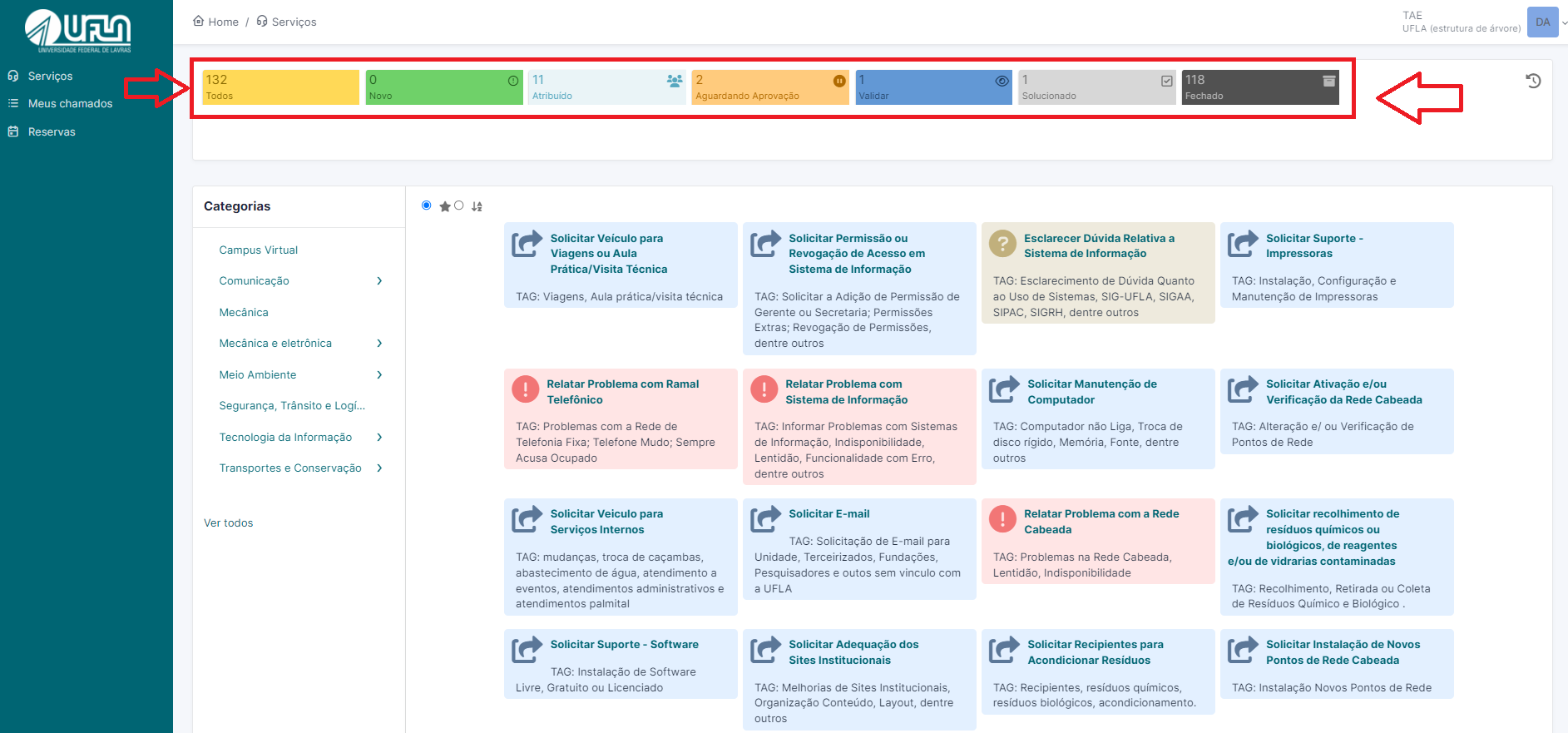
Como encontrar um formulário para abrir um chamado (colocar como o usuário pode navegar na hierarquia de formulários.).

Cancelado de chamado pelo próprio solicitante

# Glossário

**Suporte de Nível 1**: A equipe do Suporte de Nível 1 é formada por profissionais capazes de atender, de forma preliminar, chamados de dúvidas quanto ao uso de sistemas, incidentes, manutenção de computadores e realizar suporte técnico remota ou presencialmente. Caso o Suporte de Nível 1 não consiga atender um chamado, ele poderá ser encaminhado para o Suporte de Nível 2. O Suporte de Nível 1 é prestado pela Coordenadoria de Operações e Segurança da Informação (COPS)

**Suporte de Nível 2**: A equipe do Suporte de Nível 2 tem mais conhecimento sobre os processos de negócio, sobre o funcionamento dos sistemas de informação e sobre os equipamentos e sistemas do datacenter, das redes cabeadas e sem fio e da telefonia. Caso o Suporte de Nível 2 não consiga atender um chamado, ele poderá ser encaminhado para o Suporte de Nível 3. A Coordenadoria de Sistemas de Informação (CSI) é responsável pelo provimento do Suporte de Nível 2 e 3. A Coordenadoria de Infraestrutura Computacional (CIC) é responsável pelo provimento do Suporte de Nível 2 e 3 relativos às questões de infraestrutura de TI que afetam sistemas de informação e sites institucionais.

**Suporte de Nível 3**: O Suporte de Nível 3 é formado por profissionais detentores do conhecimento mais avançado sobre os sistemas de informação e demais sistemas e equipamentos contemplados pela Central de Serviços. Este nível de suporte poderá ser realizado pela equipe interna (por exemplo, equipe de desenvolvimento de software, equipe de banco de dados, equipe de campo da infraestrutura, etc.) ou por empresas terceirizadas. A Coordenadoria de Sistemas de Informação (CSI) é responsável pelo provimento do Suporte de Nível 2 e 3. A Coordenadoria de Infraestrutura Computacional (CIC) é responsável pelo provimento do Suporte de Nível 2 e 3 relativos às questões de infraestrutura de TI que afetam sistemas de informação e sites institucionais.

**Tipo de chamado:** classificação da requisição feita pelo cliente

- **Requisição**: solicitação padrão para demandas que não geram indisponibilidade em sistema
- **Incidente**: quando existe alguma indisponibilidade do sistema que impede a execução das atividades do cliente

**Status do chamado:**

- **Novo**: a solicitação foi aberta pelo cliente e entra na fila para que possa ser atendido pelo suporte nível 1
- **Processando (Atribuído)**: quando a solicitação é atribuída para o responsável analisar a demanda
- **Processando (Planejado)**: quando a solicitação foi analisada pela equipe e está em processo de implementação
- **Pendente**: quando existe alguma necessidade de informação por parte do requisitante que precisa ser esclarecida
- **Solucionado**: a solicitação foi concluída
- **Fechado**: a solicitação foi concluída e direcionada para o cliente que poderá aceitar ou não a solução implementada

# Processo de atendimento

**ETAPAS DE ATENDIMENTO:**

1. Chamado é aberto/reaberto pelo solicitante no Sistema da Central de Serviços Compartilhado (GLPI)
2. **Suporte Nível 1** analisa a solicitação e procede com a correção do problema/orientação.
3. Caso não consiga resolver, **Suporte Nível 1** repassa a demanda ao **Suporte Nível 2**
4. **Suporte Nível 2** atua na resolução do problema
5. Caso não consiga resolver, uma tarefa é especificada no Sistema de Gestão de Projetos para o **Suporte Nível 3**
6. **Suporte Nível 3** atua na resolução do problema.
7. **Suporte Nível 3** corrige e repassa a solução para o **Suporte Nível 2**
8. **Suporte Nível 2** valida a correção e comunica ao **Suporte Nível 1** (Caso solução não seja aprovada, retorna no passo 6)
9. **Suporte Nível 1** comunica ao solicitante sobre a correção do problema
10. Se o problema foi resolvido, o chamado é fechado, caso contrário, retorna no passo 1.

[![image-1727294361800.png](https://kb.ufla.br/uploads/images/gallery/2024-09/scaled-1680-/QQ1v3reQ4gkiOjwn-image-1727294361800.png)](https://kb.ufla.br/uploads/images/gallery/2024-09/QQ1v3reQ4gkiOjwn-image-1727294361800.png)